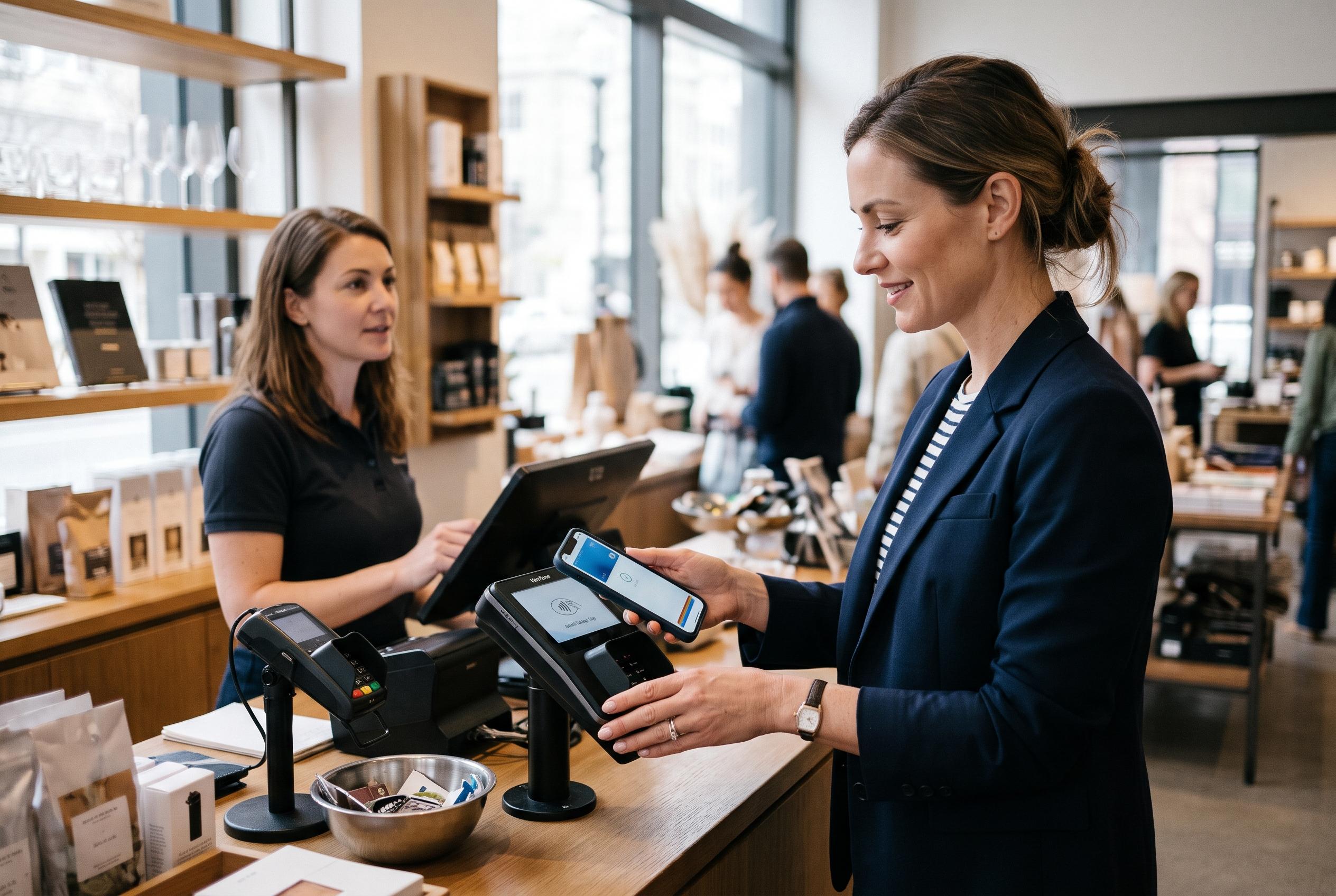

A declined Apple Pay transaction may be caused by the card, iPhone, payment terminal or a wider service issue. Here are the checks to try before contacting Apple or your bank.
Apple Pay is designed to make checkout faster and more secure, but a failed tap can still stop a payment at the till. Apple’s own support material explains that the service depends on several moving parts: a compatible device, a supported card, the Wallet app, the merchant terminal, and Apple’s backend systems. That means a fault may lie with the phone, the card, the retailer’s reader, or temporary service disruption rather than with Apple Pay itself. According to Apple Support, users can also manage cards, balances, preauthorised payments and transaction history from the Apple Pay settings and Wallet interface.
The first check should be the shop’s payment terminal. Apple Pay only works where contactless payments are accepted, and a retailer may still have a misconfigured reader or a weak connection to its payment network. Apple’s guidance for making purchases also makes clear that payment confirmation depends on the card, device and merchant setup working together, so a terminal problem can look like an Apple Pay fault when it is not.
If the reader is contactless and should accept Apple Pay, a simple restart of the iPhone is worth trying before anything more involved. Apple Support regularly recommends basic device and app troubleshooting as a first step for payment issues, because a restart can clear temporary glitches and restore normal behaviour without affecting stored cards.
It is also sensible to check whether Apple’s own services are operating normally. Apple’s System Status page is the company’s official source for service availability, and if Wallet or Apple Pay is affected, the problem may be wider than one handset. The original guide correctly highlights that this check takes little time and can quickly rule out an outage before you spend longer on card or device changes.
If the phone still refuses to pay, remove the affected card from Wallet and add it again. Apple’s setup guidance explains that cards must be added through the Wallet app on a compatible device, and that supported issuers and account details must match the information held by the bank. Re-adding the card can clear an incomplete setup or a corrupted token, which is often more effective than repeatedly trying the same payment.
When a payment does not go through automatically, selecting the card manually may help. Apple’s instructions for paying online and in apps show that users can choose a different card when needed before confirming the transaction with Face ID, Touch ID or a passcode. The same principle applies at the point of sale: if one card fails to trigger correctly, opening Wallet and choosing another may bypass a card-specific issue or a transient recognition problem.
Address mismatches can also block card management or verification steps. Apple Support notes that billing and shipping information must be accurate when adding or using cards, and that users may need to review those details in both Wallet and their Apple Account settings. If the card issuer or Apple sees a mismatch in postcode, billing address or shipping details, the system may reject the update even though the card itself is valid.
For users who add and remove cards frequently, system details such as notifications and device date and time can matter more than they might seem at first glance. Keeping Wallet notifications enabled makes it easier to notice verification requests or errors, while an incorrect clock can interfere with account checks and setup processes. If none of the usual fixes work, Apple’s support route remains the final step: the company can review account status, card provisioning and possible hardware issues such as the NFC component used for contactless payments.
Disclaimer: This content is intended for informational purposes only. Readers are advised to exercise their own judgement, conduct due diligence, or consult a qualified expert before acting on any information provided.