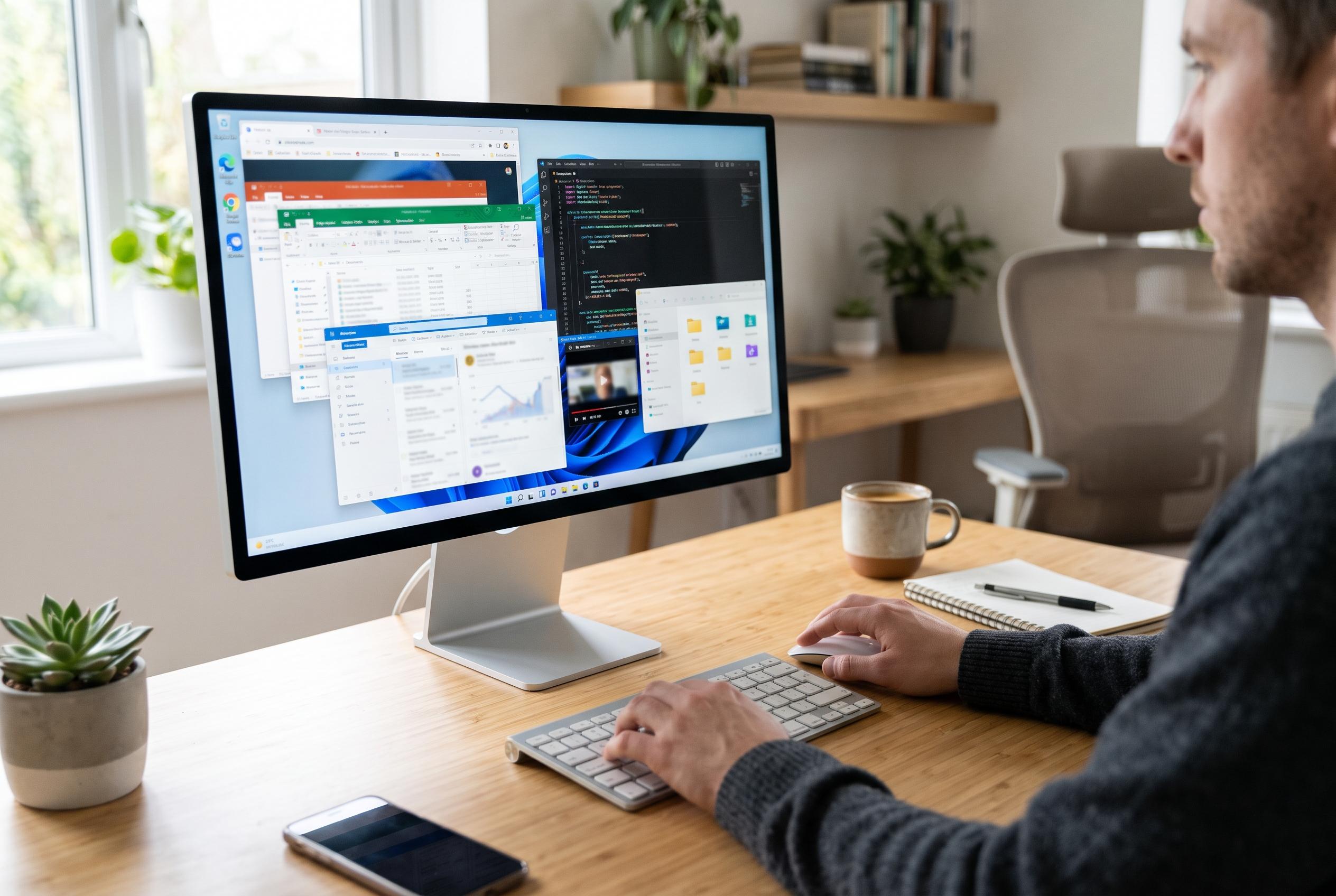

Trim browser tabs from the switcher, navigate it with the keyboard and use Snap layouts, virtual desktops and borderless gaming to make Windows multitasking faster and less cluttered.
Alt+Tab remains one of the fastest ways to move around Windows, but it is not always as simple as it looks. On modern Windows 10 and Windows 11 systems, the switcher can become crowded with browser tabs, multiple app windows and virtual desktops, which makes rapid navigation harder than it should be. Microsoft’s own guidance confirms that multitasking now spans Alt+Tab, Task View, Snap and multiple desktops, so the shortcut is only one part of a broader window-management system.
One of the most useful changes is to reduce the clutter inside the switcher. Windows can include recent browser tabs alongside open windows, which is helpful for some users but distracting for anyone who wants a clean list of applications. In Windows 11, Microsoft’s settings allow the Alt+Tab view to show only windows, or to restrict it to the current desktop, which makes the grid easier to read and cuts down on accidental selection.
The keyboard itself offers several ways to control the switcher more precisely. Alt+Tab opens the familiar window chooser, while Alt+Shift+Tab moves backwards through the list. If the selector appears and you decide not to change windows, Esc closes it without switching focus. Windows also supports keyboard-based window movement through Task View and other multitasking controls, so users are not limited to the mouse.
For users who prefer to keep the selector open, the grid can be left on screen for a more deliberate choice. That is useful on systems with many active applications, where a brief glance is not enough to distinguish between similar windows. In practice, the combination of persistent selection, keyboard arrows and Enter makes Alt+Tab more practical for dense work environments than the default tap-and-release habit most people use.
Windows 11 adds another layer with Snap layouts and grouped windows. When two apps are arranged as a snapped pair, the operating system can treat them as a single working set in the multitasking interface, which helps when moving between a spreadsheet and a browser, for example. Microsoft documents this as part of its multitasking and window-management features, and it is one of the clearest improvements for users who routinely juggle side-by-side work.
Gamers face a different problem: Alt+Tab can trigger a short black screen when a full-screen exclusive game hands control back to the desktop. A common workaround is to use borderless windowed mode, which keeps the game inside the desktop compositor and usually makes switching away and back much faster. That approach is not unique to Windows 11, but it is still the most practical fix for anyone who needs to jump between a game, chat software and the desktop without delay.
For people who want a more radical approach, third-party utilities can replace the default switcher entirely. Tools such as Alt-Tab Terminator are designed to add larger previews, search and process-ending controls, although that is a separate software choice rather than a native Windows feature. For most users, though, the built-in options are enough: trim the switcher, learn the shortcuts, keep virtual desktops tidy and use the current-desktop filter when the list starts to balloon.
Disclaimer: This content is intended for informational purposes only. Readers are advised to exercise their own judgement, conduct due diligence, or consult a qualified expert before acting on any information provided.