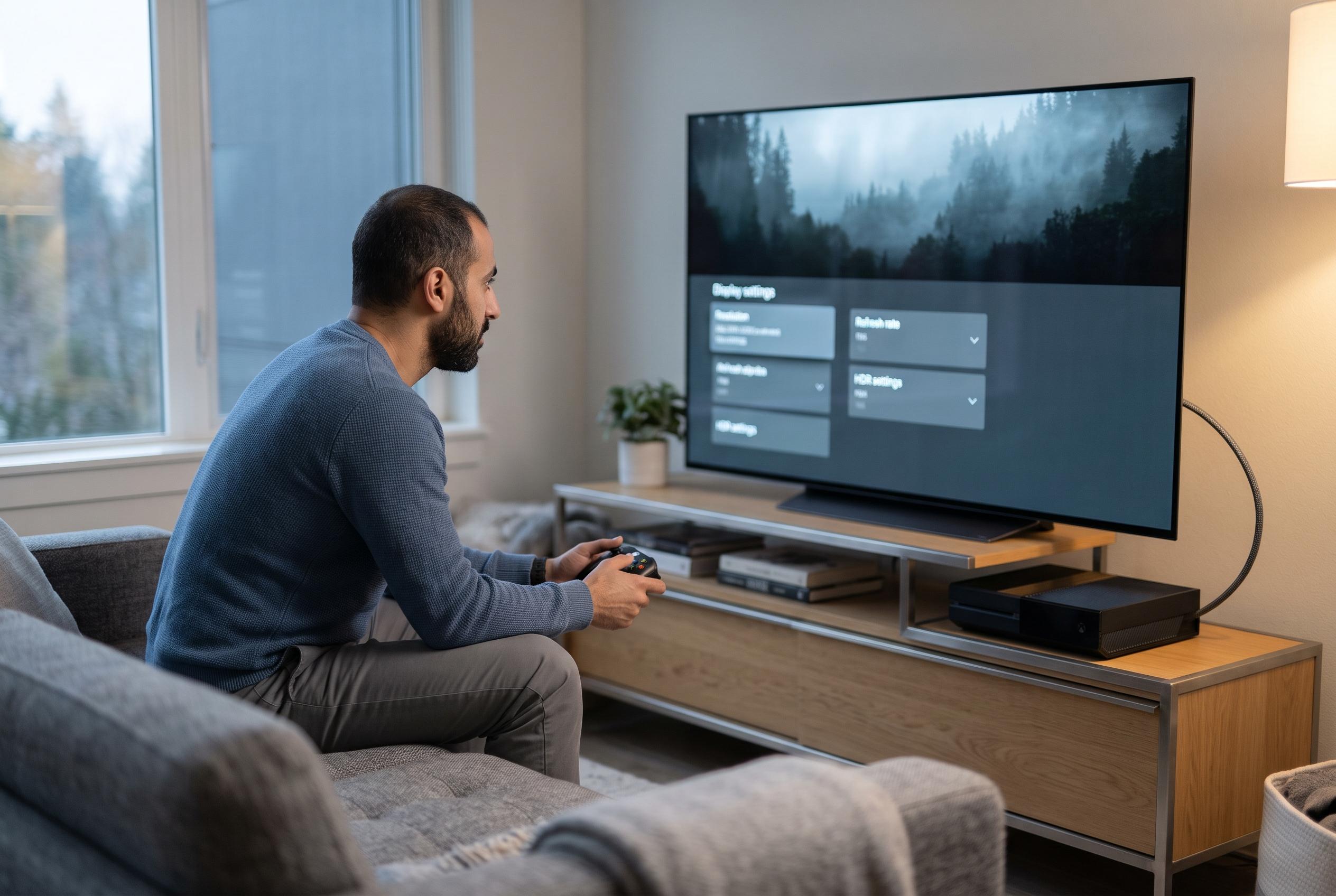

A console’s display settings cannot overcome limits in a TV, HDMI input or connected device. Check the console’s 4K TV details screen, simplify the connection and verify game-specific support for keyboards and mice.
Wired USB keyboards and mice can be useful on Xbox, but they are not a universal input standard. Xbox says these devices work for navigation in select games and apps, yet mouse-and-keyboard gameplay still depends on each title’s own support. That distinction matters: a keyboard may move through the dashboard or enter text even when a game itself will not accept mouse aiming. Microsoft’s guidance also separates local console play from Xbox Cloud Gaming, where browser-based support and dated game lists should not be treated as proof of compatibility on an installed console title.
The same caution applies to display features. A console can output at 120 Hz without a game rendering at 120 frames per second, and a television advertised as 4K may still support 120 Hz only on a particular HDMI socket or at a lower resolution. Xbox advises checking the console’s detection screen first by opening TV & display options and then 4K TV details, because that view shows what the display chain is actually negotiating. If the expected mode is missing, the problem is usually in the HDMI path, not in the menu.
For 120 Hz to appear reliably, the entire route from console to panel has to support it. Xbox recommends using the supplied Ultra High Speed HDMI cable on Series X, connecting directly to the television when troubleshooting, and checking the display’s manual for the exact HDMI input that supports high-bandwidth modes. Some sets hide their full capability behind an enhanced-input setting, while receivers, switches and soundbars can prevent the console from detecting a mode that the television itself supports. In practice, the most useful diagnosis is often to simplify the chain before changing settings.
Variable refresh rate is similarly conditional. Xbox defines VRR as a display feature that synchronises the screen’s refresh timing with the frame delivery from the console, which can reduce tearing and make unstable frame rates appear smoother. It can improve image consistency, but it cannot convert a 60 Hz panel into a 120 Hz display or force a game to run faster. Microsoft also notes that VRR may need to be enabled in the television’s own gaming settings, and that compatibility can depend on the model, firmware and HDMI input in use.
That is why VRR troubleshooting should be done in stages. If flicker, corruption or instability appears after enabling it, the practical response is to disable VRR, fall back to 60 Hz, and test again with a direct HDMI connection. If the picture stabilises, the issue may lie in the television’s VRR implementation or in one device in the signal path rather than in the console itself. Xbox’s own display guidance points to firmware updates, cable checks and direct connection tests before any assumption is made about defective hardware.
The broader pattern is straightforward. Use wired USB peripherals, verify support in each game or app, and do not assume that cloud gaming compatibility carries over to local console play. For video, trust the console’s 4K TV details screen rather than marketing claims on the box, then enable 120 Hz or VRR only when the full display chain supports them. That approach avoids the most common setup errors and makes it easier to separate a genuine compatibility limit from a configuration problem.
Disclaimer: This content is intended for informational purposes only. Readers are advised to exercise their own judgement, conduct due diligence, or consult a qualified expert before acting on any information provided.