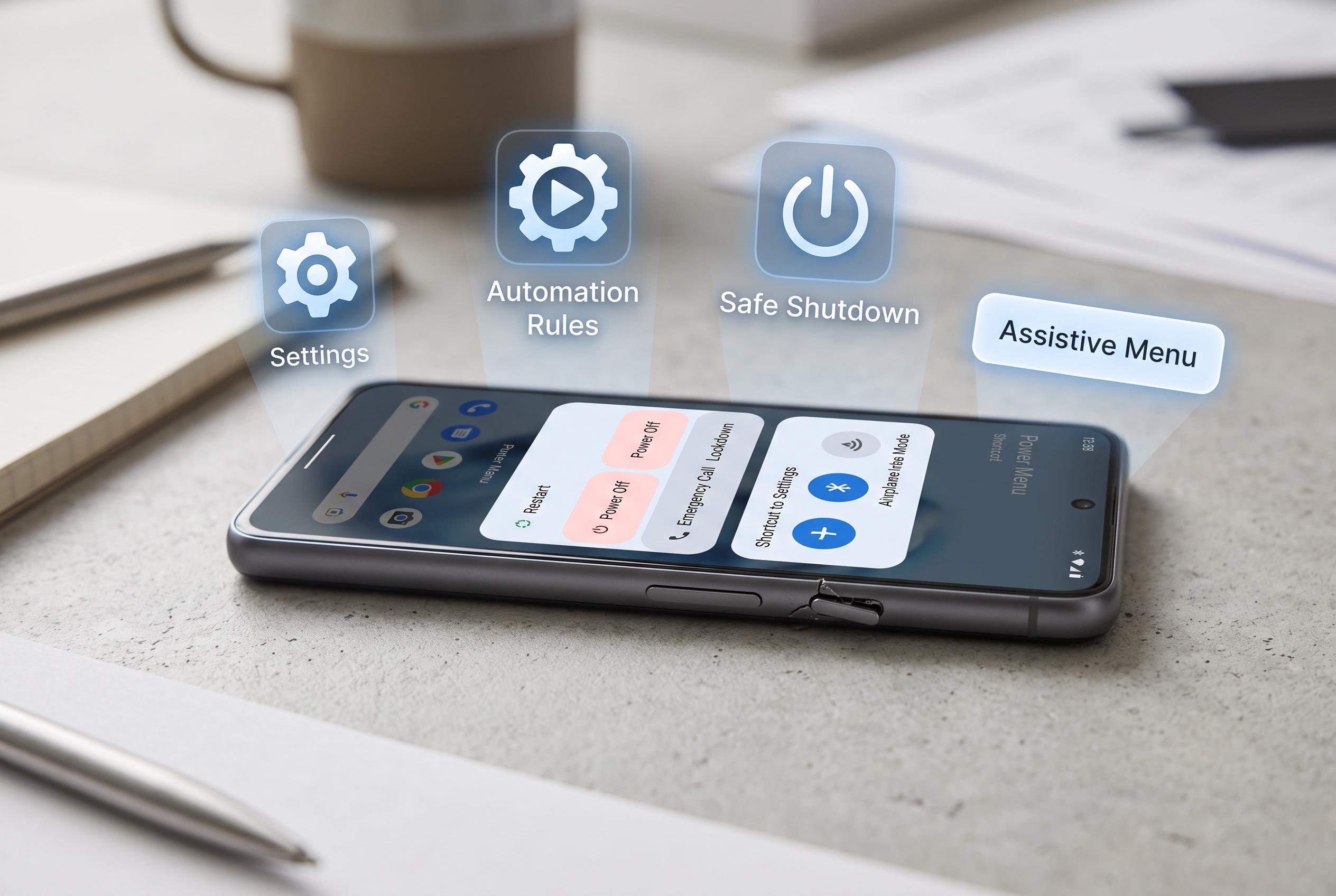

With hardware buttons increasingly prone to failure, latest Android devices and updates offer new methods, shortcuts, and automation options to safely shut down and restart phones without relying on the power button.
A broken power button does not have to leave an Android phone stranded. The quickest way to shut down many recent devices is now through Quick Settings: swipe down twice, tap the power icon and choose Power off. Samsung’s support guidance says Galaxy users can also bring up the power menu with the Side and Volume down buttons, while Google’s newer Android builds and many third-party skins place the shutdown control in the notification shade or control centre.
That simple path is not always visible, however, because Android menus differ by manufacturer. Android Authority notes that the exact route can vary widely between brands, while Tom’s Guide and SlashGear both point to the Accessibility Menu as a reliable back-up when the power tile is missing or awkward to reach. The menu adds a floating shortcut that can be dragged to the edge of the screen and used to access Power options.
Samsung also offers a voice route through Bixby, provided the assistant has been set up in advance. Samsung’s own support page says users can tell Bixby to turn off the phone, then confirm on screen. On Pixel and other Google-based phones, the equivalent path is through Google Assistant, though the shutdown still normally requires a final tap to confirm.
For users who want to avoid the problem recurring, Android skins from Samsung, Xiaomi, Oppo and Vivo often include scheduled power-off or auto-restart features. Those options are less common on stock Android and may not be available on Pixel devices, which is why Android Authority and other guides recommend checking the settings menu for brand-specific automation tools rather than assuming the feature exists everywhere.
If the screen is black or touch no longer responds, software menus may be useless. In that case, ADB, or Android Debug Bridge, can shut the device down from a computer, but only if USB debugging was enabled before the fault developed. AddictiveTips says that without that prior setup, the computer route will not work, which is why it is best treated as a last-resort option rather than a quick fix.
Turning the phone back on can be just as awkward without the button. Guides from AddictiveTips and Tom’s Guide point to charging the handset first, waiting for any scheduled power-on time or using a computer-based reboot if ADB access is already authorised. On some devices, reconnecting power is enough to wake the phone and bring up the battery screen.
The safest approach is to set up at least one back-up path before trouble starts. That means checking whether your phone’s side key is mapped to the assistant instead of the power menu, enabling the Accessibility Menu shortcut and testing any voice command while the screen still works. Samsung’s support materials, along with independent how-to guides, suggest those small steps can save a lot of frustration when the hardware button fails.
Disclaimer: This content is intended for informational purposes only. Readers are advised to exercise their own judgement, conduct due diligence, or consult a qualified expert before acting on any information provided.