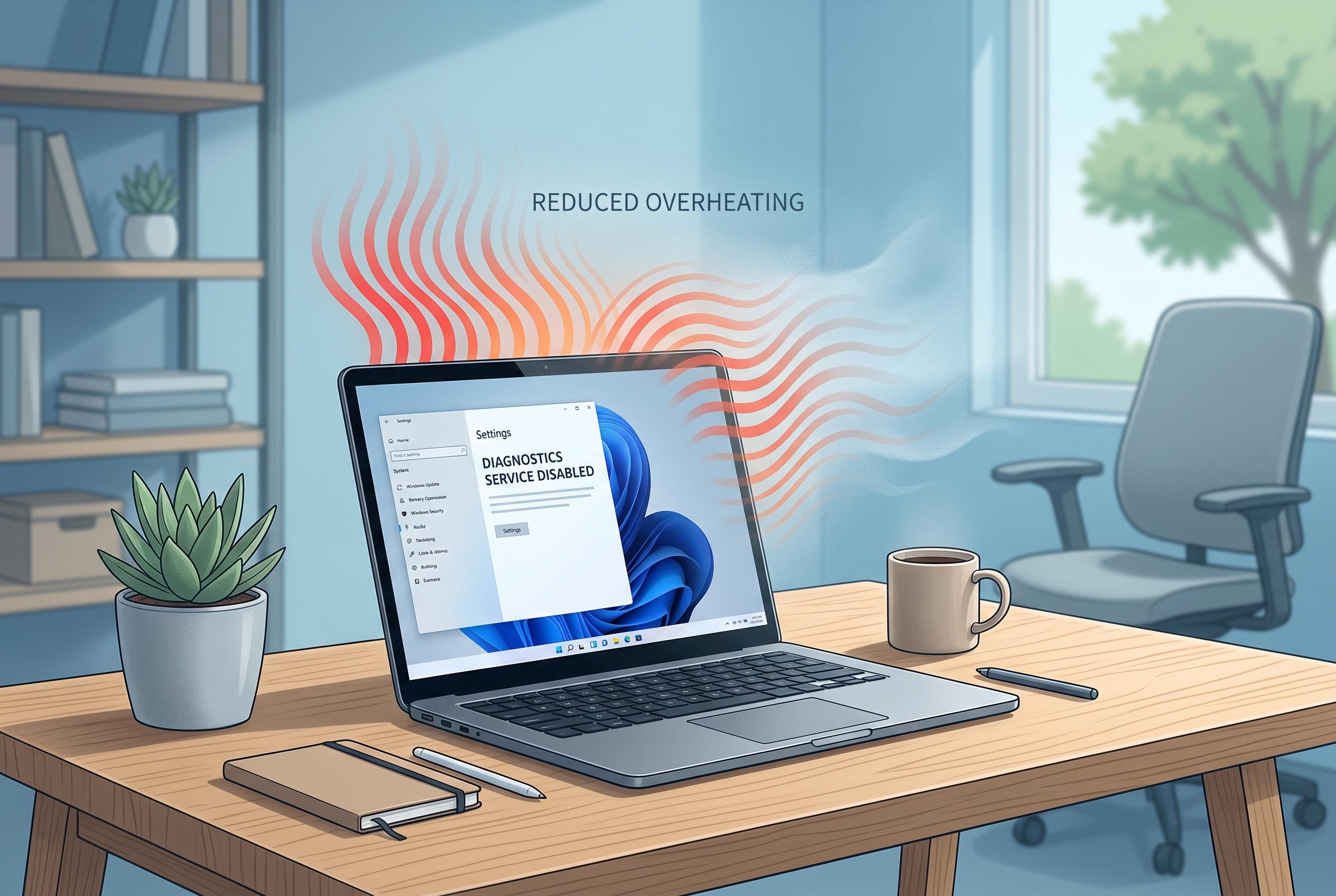

Many Windows users experience excessive heat and fan noise due to the Diagnostics Tracking Service (DiagTrack), a background process that can be disabled to improve performance and reduce device strain.
If your laptop runs hot even when you are not doing much, Windows itself may be part of the reason. The operating system includes a background service called Diagnostics Tracking Service, or DiagTrack, which can wake up after startup, collect diagnostic information and send it to Microsoft, sometimes causing noticeable spikes in CPU and disk activity. That extra workload can make fans spin faster, especially on laptops, which have less headroom for cooling than desktop machines.
Microsoft introduced the service in Windows 7 and later renamed it “Connected User Experiences and Telemetry” in Windows 10, a change that drew criticism from privacy-conscious users, according to reports from the tech site Tweakhound and Microsoft’s own support forum. The service can collect a broad range of data, including system status, app behaviour, hardware drivers, Wi-Fi usage, peripheral details, performance metrics and crash reports. It does not read your messages or track exactly which apps you have open at a given moment, but the process of gathering and transmitting diagnostics can still put strain on the machine.
That strain can be worse when DiagTrack is active alongside other background services such as SysMain, which also works in the background to improve performance. Tech guides from MajorGeeks and TechRadarTo say the service is not essential to Windows and can be disabled without major consequences for most users. Microsoft’s own Q&A forum also outlines ways to stop telemetry-related services, clear diagnostic logs and adjust registry settings for users who want to minimise data collection.
Several guides describe different ways to turn it off, including the Services Manager, PowerShell, Group Policy Editor and Windows privacy settings. The more cautious approach is to disable the service rather than remove it entirely, as some writers warn that deleting it can make it harder to restore default settings later. If you want to reduce heat and background activity, DiagTrack is one of the first Windows services worth checking.
Disclaimer: This content is intended for informational purposes only. Readers are advised to exercise their own judgement, conduct due diligence, or consult a qualified expert before acting on any information provided.