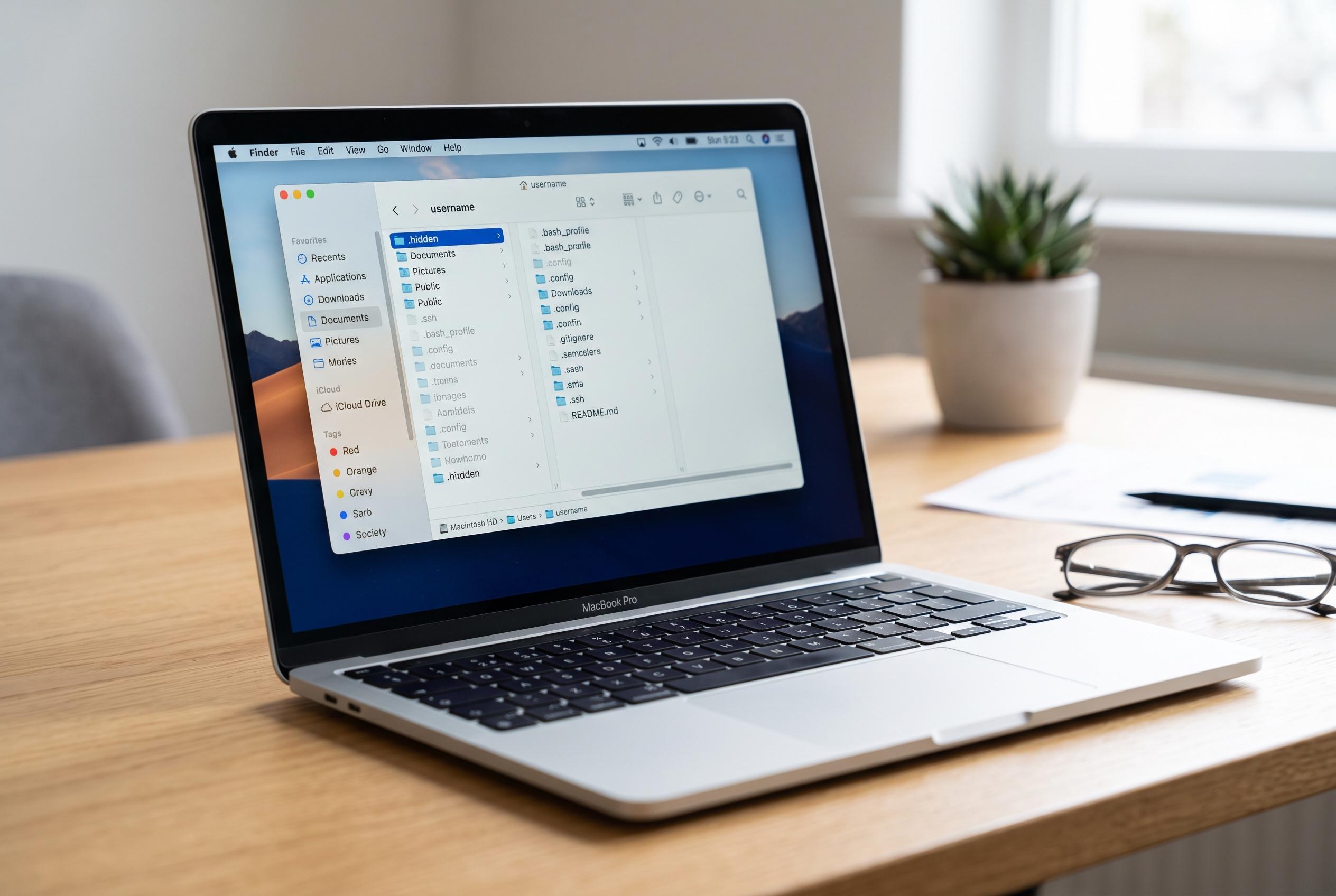

Discover the latest techniques to view and control hidden system and application files on macOS, from simple shortcuts to advanced Terminal commands, enhancing troubleshooting and system maintenance.
macOS hides many system and application files by design, which means Finder keeps them out of normal view unless you choose to reveal them. That behaviour helps reduce clutter, but it can also make troubleshooting harder when you need to inspect preferences, cache files or other support data tied to an app or account.
The quickest way to show hidden items is the Finder shortcut Command + Shift + Period. Pressing those keys together toggles visibility on and off in the current window, including many Open and Save dialogues. Hidden files usually appear lighter than regular files, making them easier to identify at a glance.
If you need the user Library rather than every concealed item, Finder also provides a direct route. Hold Option while opening the Go menu and select Library, which opens the current account’s ~/Library folder. That location is separate from the top-level /Library folder used for shared resources, so the leading slash matters.
When you already know the exact path, Go to Folder is often the cleanest method. Use Shift + Command + G, then enter a path such as ~/Library, ~/.ssh or /Library. Paths beginning with ~/ point to the signed-in user’s home directory, while /Library refers to the shared system-level folder.
Terminal offers a broader setting change for longer repair or development sessions. The command defaults write com.apple.finder AppleShowAllFiles -bool true && killall Finder makes Finder keep hidden files visible until you reverse it with the matching false value. If needed, defaults delete com.apple.finder AppleShowAllFiles && killall Finder removes the custom preference entirely.
That visibility should be used carefully. Hidden files are often essential parts of macOS, and deleting the wrong one can reset an app, break local data or force the system to rebuild information. Files such as .DS_Store or folders like .Trashes are normal on Macs and external drives, and showing hidden items does not bypass administrator permissions or System Integrity Protection.
Disclaimer: This content is intended for informational purposes only. Readers are advised to exercise their own judgement, conduct due diligence, or consult a qualified expert before acting on any information provided.