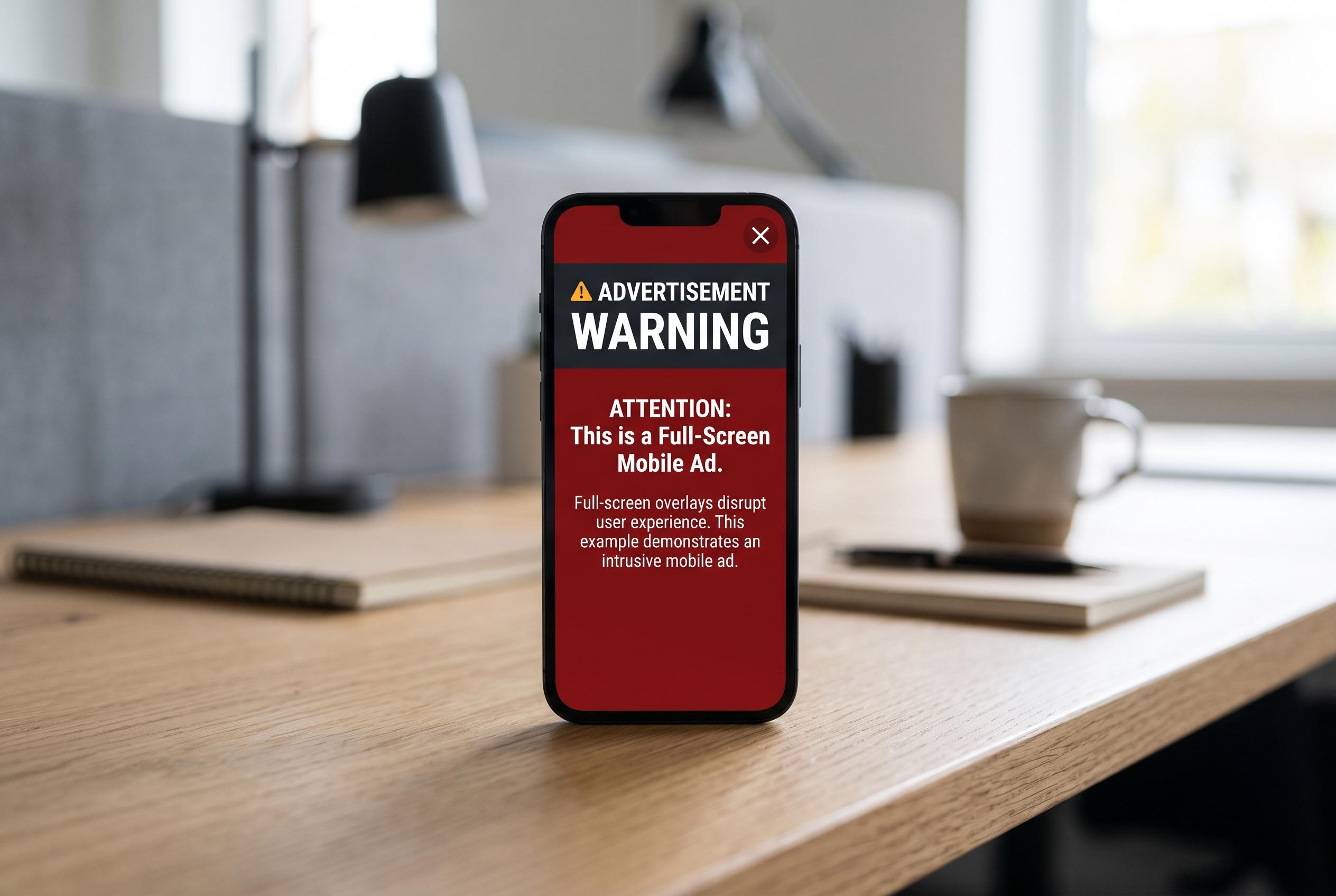

A concealed Android app can transform a smartphone into an advertising platform, displaying full-screen ads and warnings while remaining elusive to standard detection. Experts advise careful app scrutiny and targeted removal to combat this increasing threat.
A hidden Android app can turn a phone into a billboard, pushing full-screen adverts, browser redirects and fake warnings while remaining difficult to spot. The Fixology Digital guide argues that the issue is usually adware rather than a destructive system virus, and security advice from McAfee, Kaspersky and Android Authority suggests that similar symptoms can also appear with spyware or other unwanted software. That means the first step is not panic or a factory reset, but a careful check of what is actually running on the device.
The article recommends using the recent-apps screen at the moment an advert appears, because the running card may reveal the app responsible. If that does not work, it says to look for masked entries in Android’s app list, including blank icons, oddly named utilities or suspicious apps with little storage information. Security researchers say the same kind of inspection is useful when tracking spyware: review installed apps, device administrator settings, accessibility permissions and any unfamiliar entries in system menus.
Once the suspect app is found, the guide advises a strict removal sequence: force stop it, clear its cache and data, then uninstall it and restart the phone. That is broadly consistent with wider Android security advice, which also recommends enabling Google Play Protect and checking for unusual battery drain, heat, data use or account activity, all of which can signal background abuse. McAfee and Kaspersky note that modern threats often hide in plain sight and consume resources quietly rather than behaving like obvious malware.
The broader lesson is that many Android annoyances share the same root cause: an app granted too much access, or one that was installed in haste and later proved deceptive. The Fixology Digital piece also points readers towards safer-mode troubleshooting, browser notification controls and device-wide DNS blocking as part of a fuller cleanup routine. For users seeing repeated pop-ups or unexplained slow-downs, the practical response is to identify the source, remove it cleanly and then harden the phone against a repeat intrusion.
Disclaimer: This content is intended for informational purposes only. Readers are advised to exercise their own judgement, conduct due diligence, or consult a qualified expert before acting on any information provided.