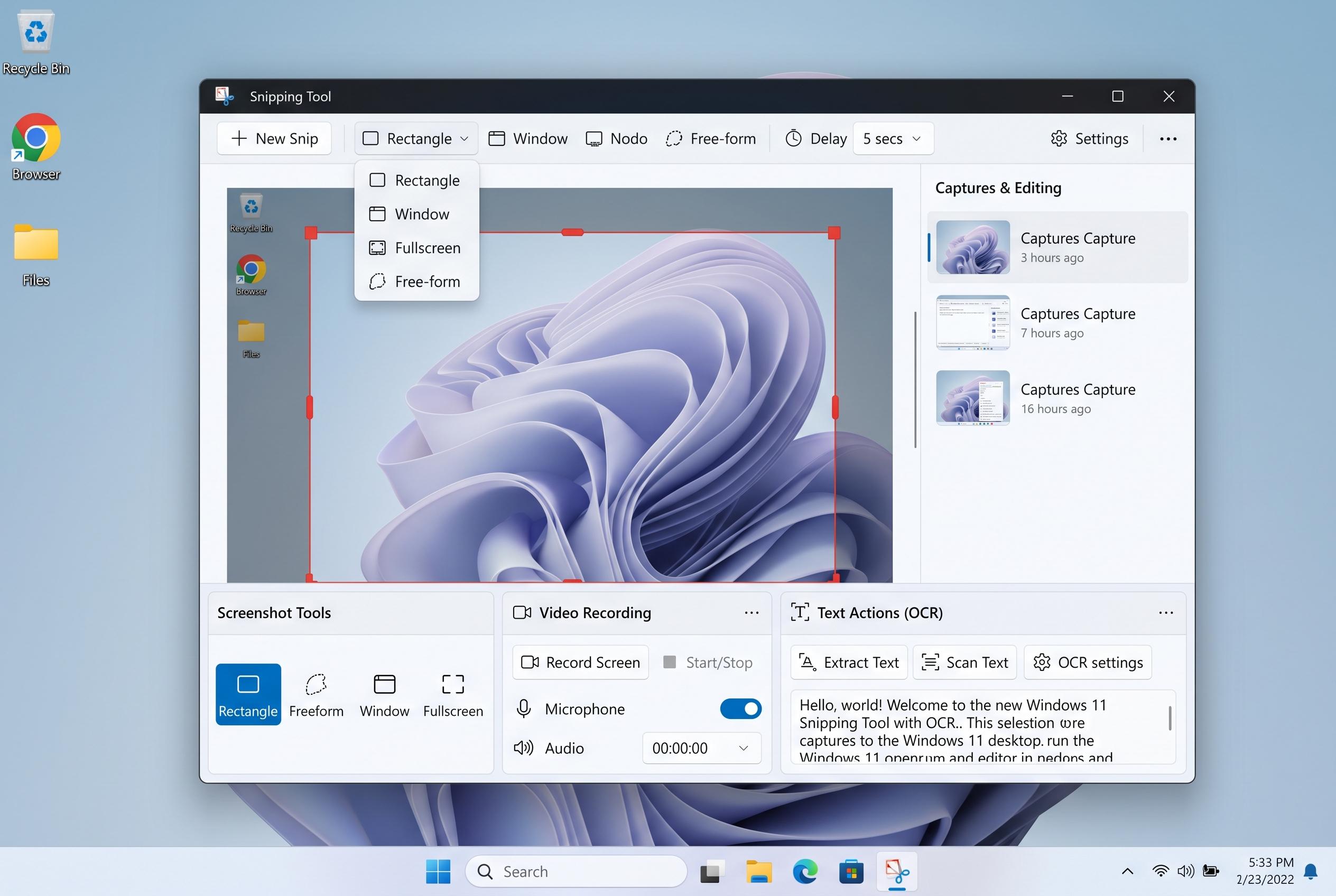

Microsoft has expanded Windows 11’s Snipping Tool, transforming it from a basic screenshot app into an all-in-one capture, edit, video recording, and OCR tool that integrates seamlessly with system shortcuts and updates via the Microsoft Store.
Windows 11’s Snipping Tool has moved far beyond simple screenshots. Microsoft now uses the app as a compact capture centre for still images, video clips, text extraction and quick edits, reducing the need for separate third-party tools. According to Microsoft’s own guidance, the current version combines the old Snipping Tool and Snip & Sketch into one app that is updated through the Microsoft Store, which means new features can arrive without a full Windows update.
The practical appeal is breadth rather than complexity. The app supports freeform, rectangular, window and full-screen captures, plus screen recording. It also offers annotation, saving and sharing tools, making it useful for both ordinary desktop work and technical documentation. Windows Central says the modern app has become a single place for capture, markup and export, with several functions designed to make routine tasks faster.
Keyboard shortcuts are central to that speed. Microsoft documents Win+Shift+S for the capture overlay and Win+Shift+R for screen recording, while Alt+M changes the snip mode and Alt+D enables delayed captures. Microsoft has also added Win+Shift+T for text extraction, a newer shortcut that is available in recent Windows 11 builds and in newer Snipping Tool releases.
The recording side is more capable than many users realise. Microsoft’s documentation says the app can capture video, and Windows Central notes that newer builds allow audio recording as well. Microsoft’s support material also points users towards trimming and sharing options after a recording is made, which makes the tool suitable for short walkthroughs and bug reports without opening a dedicated editor.
Text extraction is another major addition. Windows Central reports that the app now uses OCR, or optical character recognition, to turn text inside an image into selectable copy. The same feature set includes automatic redaction for sensitive details, such as email addresses and phone numbers, which is useful when screenshots are shared across teams or published publicly.
Microsoft has also added a colour picker and an AI-assisted “Perfect screenshot” feature. According to Windows Central, the colour picker returns HEX, RGB and HSL values, while Perfect screenshot helps fit a selection more precisely around the object on screen. The latter is tied to Copilot+ PCs, whereas Microsoft and other reports differ on how broadly the colour picker is being distributed, so users may need to update the app before assuming the feature is unavailable on standard hardware.
For everyday use, the main settings worth checking are automatic saving, copy behaviour and delayed capture. Microsoft’s guidance explains that screenshots can be saved locally, copied to the clipboard, or both, depending on the chosen configuration. The result is a tool that now covers the most common screenshot workflows in one place, from quick grabs to annotated recordings and text extraction.
Disclaimer: This content is intended for informational purposes only. Readers are advised to exercise their own judgement, conduct due diligence, or consult a qualified expert before acting on any information provided.