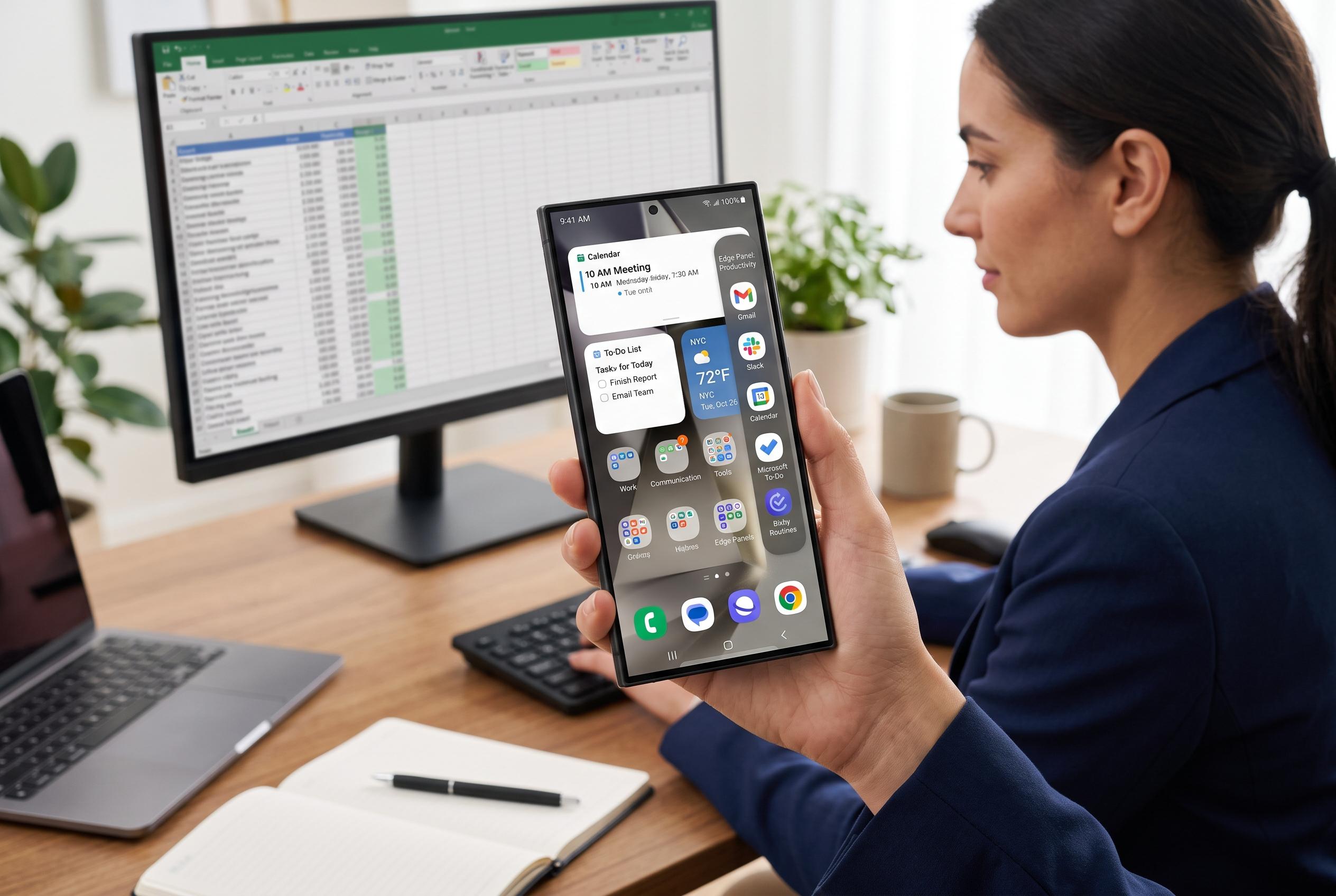

Samsung Galaxy users are transforming their device interfaces into efficient, information-rich hubs through innovative organisation techniques like widget stacking, Edge panels, and automation features, elevating user experience beyond simple aesthetics.
A Samsung Galaxy home screen can be more than a neat row of icons. In Android Police, one writer argues that the best setups are the ones that reduce friction, surface the right information at the right time and let the phone do more of the organising work before an app is even opened. Samsung’s own support material also makes clear that Galaxy devices are built for this kind of arrangement, with folders, widgets and extra home screens all part of the standard toolkit.
The biggest gain comes from turning the home screen into a live information board. Samsung’s widget system allows users to place calendar views, reminders, notes and weather directly on the front screen, while one of One UI’s most useful layout tricks is widget stacking. Samsung introduced widget stacks in One UI 5.0, and earlier Smart Widgets in One UI 4.1, both designed to let several same-sized widgets occupy a single space and be swiped through as needed. That makes it possible to show more without filling every available tile.
That approach matters because productivity widgets can otherwise swallow an entire page. By stacking widgets, a user can keep a monthly calendar, task list and note panel close at hand without turning the home screen into a cluttered dashboard. Samsung’s guidance on home-screen organisation reflects the same logic: group related tools, use folders and distribute content across pages only where it genuinely improves access.
Another useful layer is Samsung’s Edge panels. One UI’s side-panel system is intended as a quick-access space for apps, contacts and shortcuts that are needed often but do not deserve permanent real estate on the main screen. In the Android Police setup, that means utilities such as authentication, clock and health tools can stay close at hand while the primary home screen remains focused on the information the user needs to see first.
The same principle applies to automation. Samsung’s Modes and Routines features allow a user to trigger bundled settings with a single tap, such as a sleep profile that can combine Do Not Disturb, alarm and display changes, or a theatre mode that prepares the phone for a film without manual digging through settings. The result is not a radical redesign, but a more deliberate use of One UI’s existing features. For Galaxy owners who want a cleaner, faster and more practical phone, that may be the most effective kind of customisation.
Disclaimer: This content is intended for informational purposes only. Readers are advised to exercise their own judgement, conduct due diligence, or consult a qualified expert before acting on any information provided.