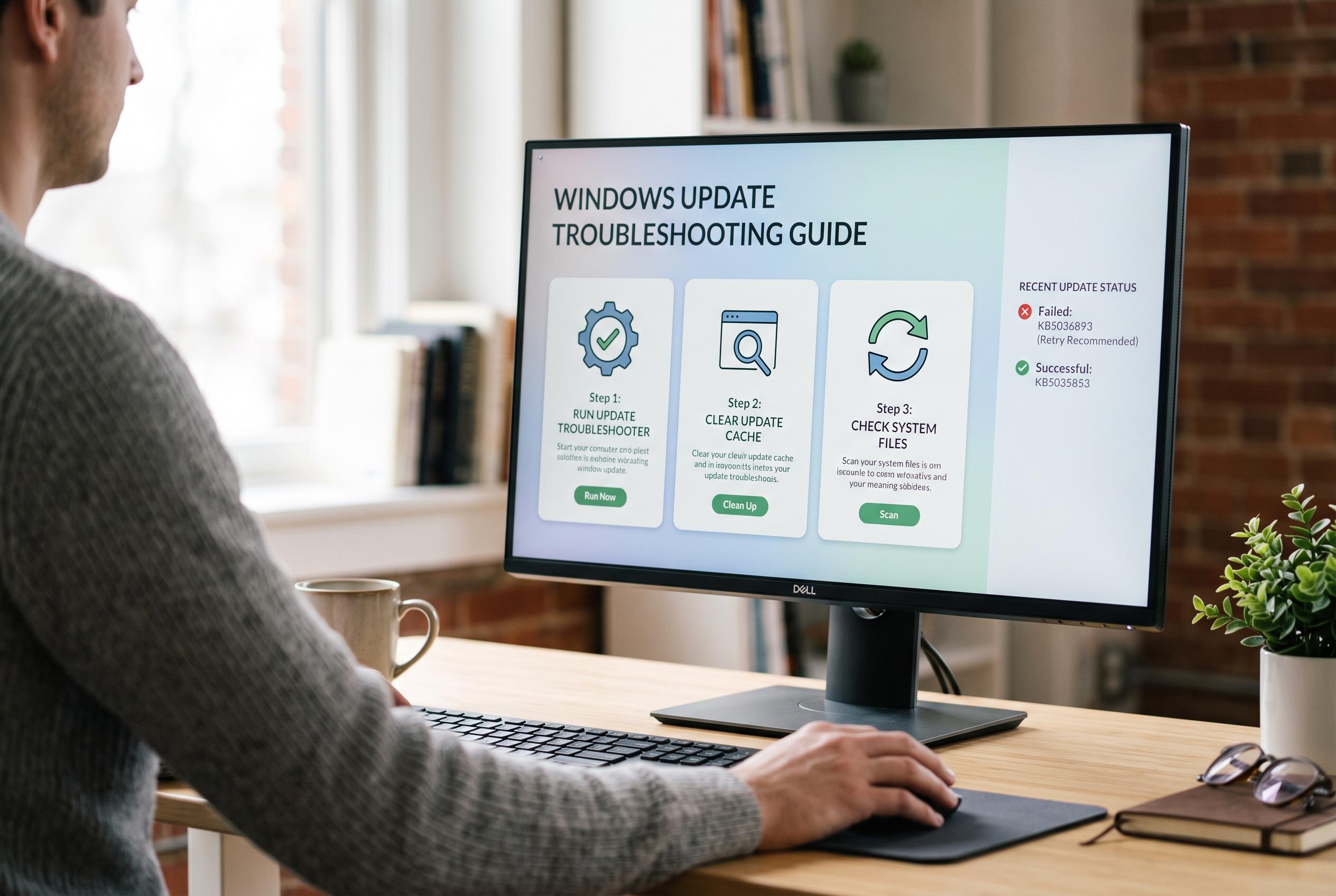

Microsoft offers a step-by-step approach to fixing Windows Update failures, highlighting common causes, built-in tools, and recent issues with Windows 11 updates that require targeted solutions.
Windows Update failures are often less mysterious than they first appear. In many cases, the cause is a damaged download cache, not enough free disk space, a temporary network fault, a blocked service or corrupted system files. According to Microsoft’s own guidance, most users should begin with the simplest checks: restart the PC, confirm the internet connection, free up storage and try the update again before moving on to deeper repairs. The company also recommends using the built-in Windows Update Troubleshooter, which can identify and fix common update faults in Windows 10 and Windows 11.
That troubleshooter is easy to reach through Settings, then System, then Troubleshoot, then Other troubleshooters, where Windows Update can be selected and run. Microsoft says the tool can automatically address failures and error codes, after which a restart and another update check are usually advised. If that does not resolve the problem, the next step is often to clear the Windows Update cache, because stale or corrupted download files can stop a patch from installing cleanly.
For more persistent failures, Microsoft recommends command-line repair tools. DISM, short for Deployment Image Servicing and Management, can restore the Windows image that update components depend on, while System File Checker can repair damaged operating system files. Microsoft says DISM works best when the machine can reach Windows Update to fetch missing files, and it often serves as a practical repair step before a full reinstall becomes necessary. When used together, DISM and SFC address a large share of update problems caused by deeper system corruption.
Recent update problems show why these steps still matter. Microsoft had to pull Windows 11 update KB5079391 after reports of installation failures linked to error code 0x80073712, which points to missing or corrupted files. Separately, Microsoft acknowledged a bug after the August 2025 security update KB5063875 that broke Reset my PC and the Fix problems using Windows Update feature on some systems, then issued KB5066189 as an out-of-band correction. Windows Central also reported that Microsoft is testing a fix for a long-running Windows 11 problem in which Update and shut down restarts the machine instead of powering it off.
If the basics, the troubleshooter and the repair tools still do not solve the issue, more targeted steps may be needed. Third-party antivirus software can occasionally interfere with updates, so temporarily disabling it may help. It can also be useful to restart Windows Update services, install the failing package manually from the Microsoft Update Catalog or review the exact error code for a more specific fix. In stubborn cases, a clean boot or an in-place repair install may be the most reliable way to restore update functionality without losing files and programmes.
Disclaimer: This content is intended for informational purposes only. Readers are advised to exercise their own judgement, conduct due diligence, or consult a qualified expert before acting on any information provided.