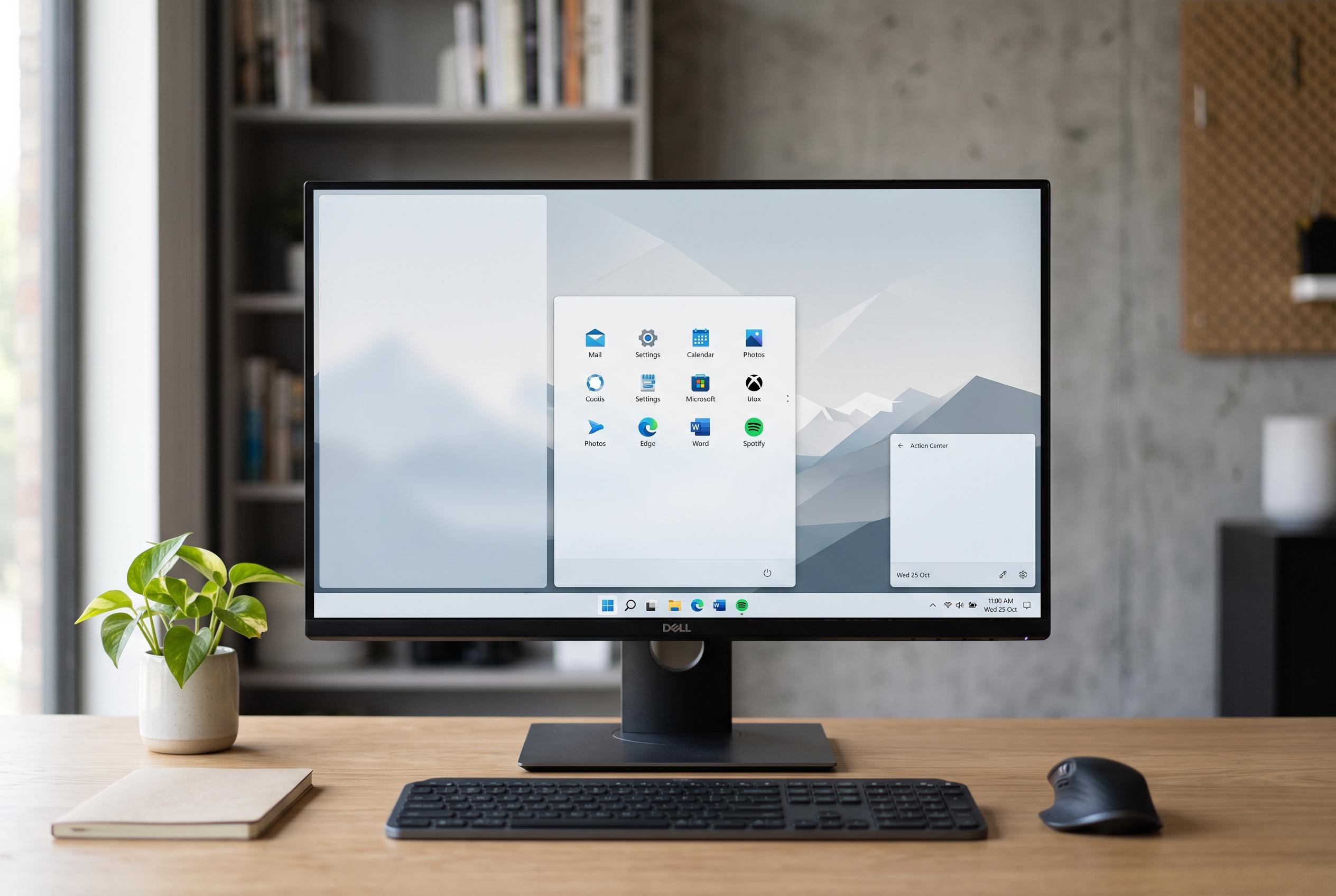

Many Windows 11 users are opting to disable widgets, notifications, and personalised content to create a calmer, faster desktop experience, according to experts and support guides.
Every new Windows 11 installation prompts the same early clean-up for many users: removing the parts of the interface that compete for attention. The aim is simple. Keep the system useful, but less noisy. Windows Central says that means stripping away widgets, recommendations, badges and other live content that can make the desktop feel busier than it needs to be. Microsoft’s own support material shows that many of these elements are built in precisely so users can surface news, weather and app activity quickly, but they are also optional and can be pared back for a calmer workspace.
One of the first changes is the lock screen. Windows Central recommends turning off lock screen widgets and replacing Windows Spotlight with a static picture so the sign-in screen becomes a simple gateway rather than a feed of sports scores, market data or promotional content. Independent guides from PC Guide and Windows on Hub describe the same general approach: remove lock screen status items or set them to none if you want the screen to do little more than show the time and wait for your password. That produces a cleaner first view of the PC and removes a small but constant source of visual clutter.
The taskbar is another obvious place to start. Windows Central says the Widgets button can be hidden entirely, while PCWorld notes that it can also be unpinned directly or switched off through Taskbar settings. Microsoft’s documentation confirms that Widgets is meant to deliver quick access to dynamic information, but it is optional. For people who do not want headlines, weather and other live panels sitting on the edge of the screen, removing the button keeps the taskbar quieter without taking away access through keyboard shortcuts or settings if the feature is needed later.
Notifications deserve similar treatment. Windows Central recommends enabling Do Not Disturb to stop toast alerts from interrupting work, while still leaving messages available in Notification Centre for later review. That is a useful distinction: it suppresses pop-ups without making notifications disappear altogether. For users who want even more control, Windows allows notifications to be turned off fully, though that also prevents the system and services from showing or collecting them. In practical terms, Do Not Disturb is the more balanced option for anyone who wants fewer interruptions rather than a complete shutdown.
The Start menu can also be made more restrained. Windows Central advises disabling the Recommended section, which can surface recent files, app suggestions and other content that may be useful to some people but unnecessary to others. The result is a Start menu that gives more room to pinned apps and less to algorithmic prompts. Microsoft has gradually expanded personalisation options in Windows 11, but the default layout still leans towards discovery and engagement. For users who already know what they need, removing those prompts makes the menu feel more direct and easier to scan.
Search and desktop clutter follow the same logic. Windows Central says search highlights can be switched off so the search box opens as a tool for files, apps and settings rather than a stream of web-driven quizzes, trending topics and news. Taskbar badges can be cleared as well, removing the small dots and counters that mark unread content on app icons. And for those who prefer an uncluttered workspace, desktop icons can simply be hidden, with files still accessible through File Explorer’s Desktop folder. Taken together, these changes do not remove useful features. They just strip away the background noise, which is often enough to make Windows 11 feel faster, calmer and more deliberate.
Disclaimer: This content is intended for informational purposes only. Readers are advised to exercise their own judgement, conduct due diligence, or consult a qualified expert before acting on any information provided.