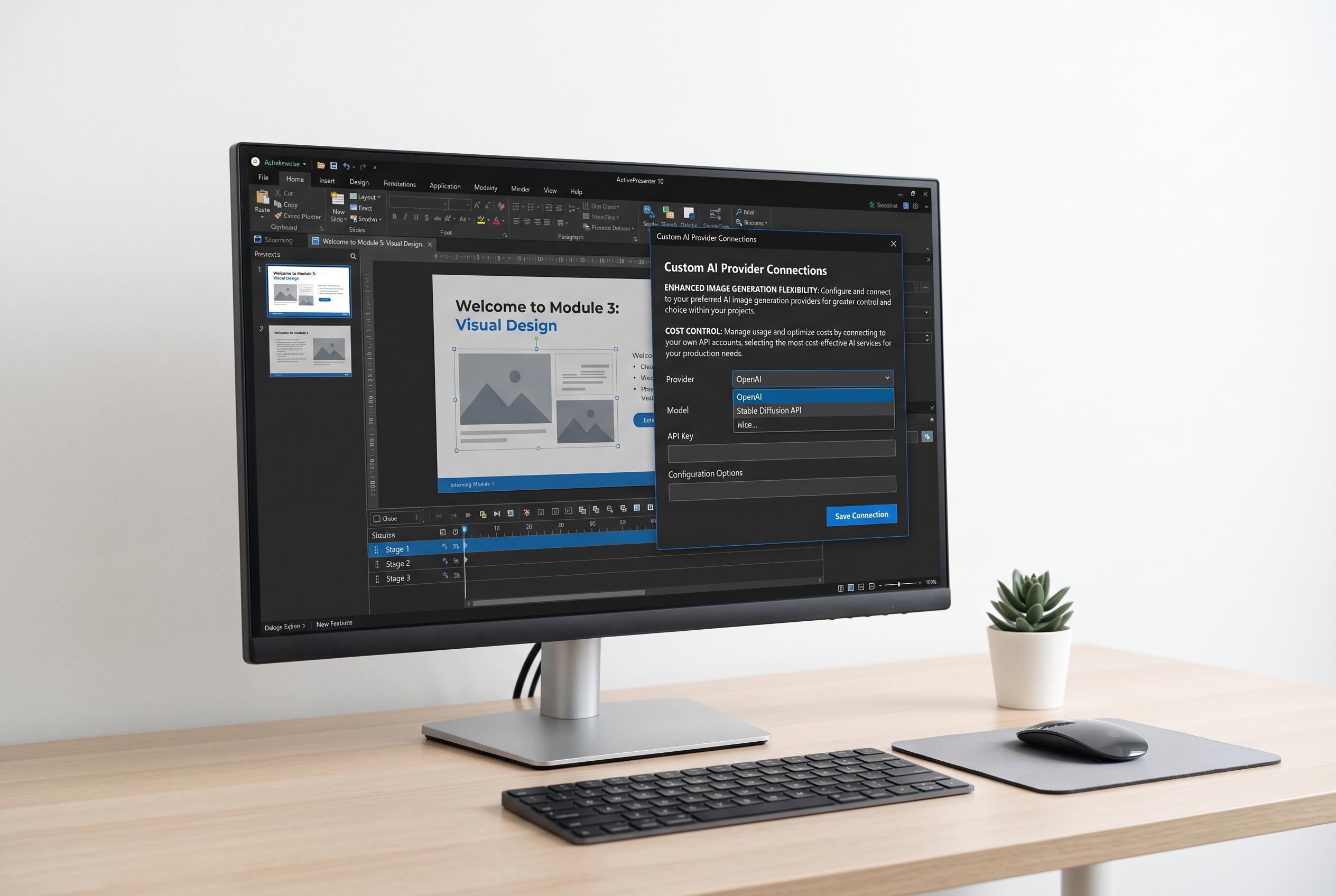

ActivePresenter 10 now allows users to connect and utilise third-party AI providers for image generation, offering more flexibility and cost control in multimedia production.
ActivePresenter 10 now lets users connect custom AI providers, extending the software beyond the default services bundled with the platform. The feature is aimed at teams that already have accounts with third-party AI vendors and want to use those credentials inside ActivePresenter, particularly for image generation. Atomisystems says images produced through a custom provider do not draw down ActivePresenter AI Credits, with any usage fees billed by the external provider under that provider’s own plan.
To set up a provider, users first open the AI tab and enter the AI Services settings. From there, they choose the relevant service category, such as image generation, and then work in the Service providers section to add or update a provider. The company says the required fields vary by service, so the information needed for an image generator may differ from other AI functions in the software.
Adding a provider involves creating a custom entry and supplying the script logic ActivePresenter will use to communicate with the external service. For image generation, the script can define available models, aspect ratios and styles, then pass the user’s prompt and selected options to the provider before saving the result to the output file path specified by ActivePresenter. The tutorial also notes optional logging and error-handling functions, which can help with troubleshooting if generation fails. Atomisystems emphasises that the generated file must be written to the exact output path or the application will not be able to load it.
Once saved, the new provider appears in the provider list and is marked as custom for easier identification. Users can later edit the entry if an API key changes or if service settings need to be adjusted. The tutorial advises checking that the changes are confirmed properly if the provider does not show up immediately.
The custom provider can then be selected from the relevant AI feature inside ActivePresenter. In the image generation workflow, users can open the feature from the AI tab or from Insert > Image > Generate Image, choose the custom provider, pick a model and other available options, then enter a prompt and generate the result. Atomisystems also recommends keeping API keys private, verifying that the external account is active and testing the connection with a simple request before relying on it in production work. Removing a provider is also straightforward and does not cancel the external AI account or subscription.
Disclaimer: This content is intended for informational purposes only. Readers are advised to exercise their own judgement, conduct due diligence, or consult a qualified expert before acting on any information provided.