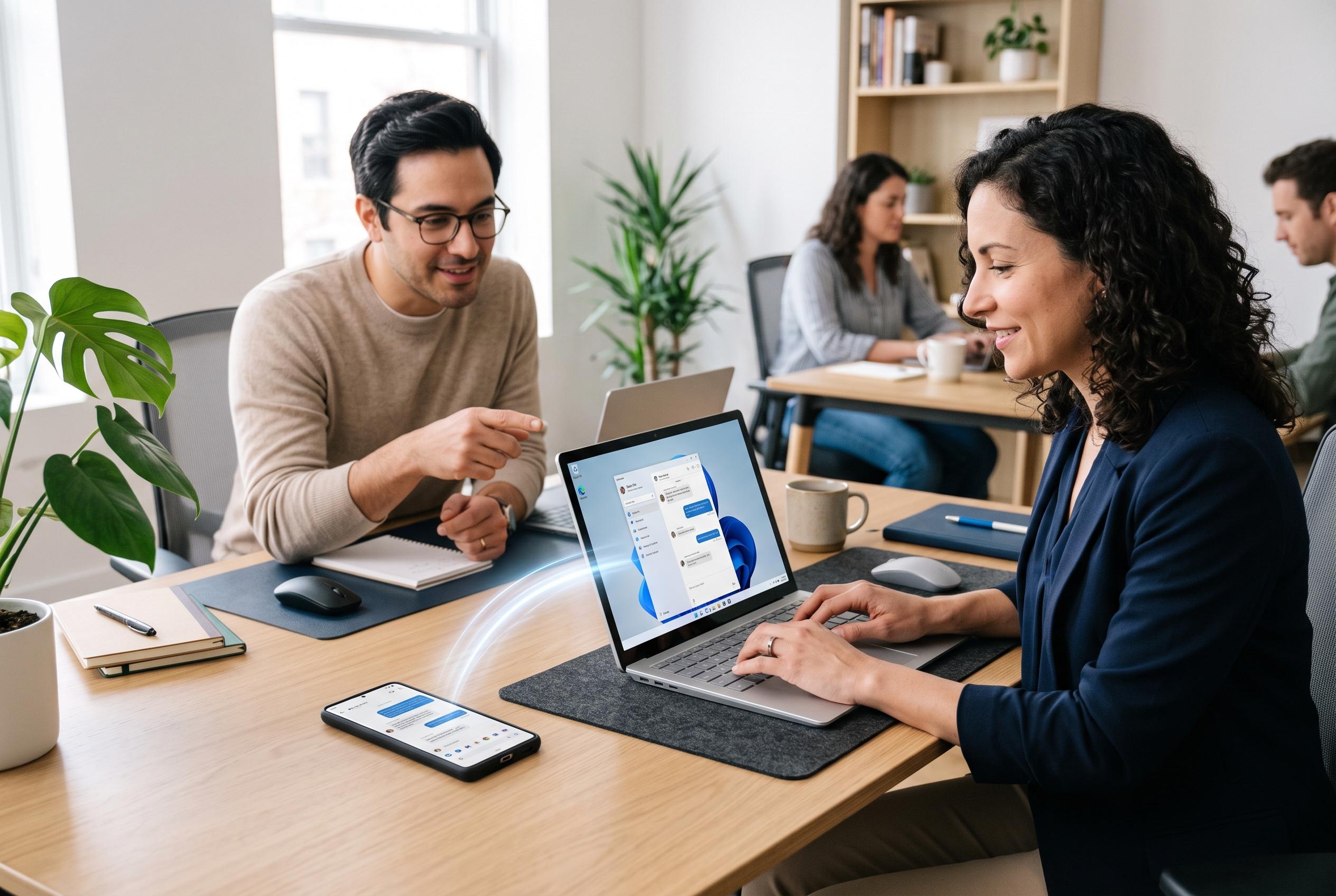

Setting up seamless messaging between Android and Windows devices hinges on precise management of versions, permissions, and session controls, ensuring fewer lost messages and fewer privacy risks.
Setting up messaging across an Android phone and a Windows PC is less about convenience than control. A stable arrangement depends on using compatible versions, knowing which device does what, and checking where messages, files and alerts are being stored. The practical aim is simple: reduce duplicate notifications, avoid lost attachments and make sure no old session remains signed in.
The first step is to match the software to the devices actually in use. That means checking the Windows version, storage, memory and whether the machine is managed by an employer or school, then confirming the Android version and available space. A phone can handle verification codes, camera use and quick replies, while a laptop may be better suited to longer conversations and file sharing. Deciding those roles in advance makes later settings easier to manage.
Download sources deserve close attention. Messaging apps are often promoted through search results, ads and third-party download pages, but not every listing is clear about platform support or version details. A Windows installer should be presented as a desktop file, while Android packages should be identified separately. If a page begins a download without clearly showing what it contains, it is safer to stop and verify the source first.
It is usually better to set up the mobile version before the desktop client. The phone is often the anchor for account sign-in, contact access and notification settings. Android users should review permission prompts carefully, because microphone, camera, storage and contacts access may be useful, but only if the feature is actually needed. Battery-saving controls also matter, since aggressive limits can delay notifications.
Notification management is one of the biggest determinants of reliability. If both devices alert on every message, the result is noise rather than useful redundancy. A better approach is to let the phone act as the main alert device away from the desk and use the Windows app for work periods. Privacy settings matter too: message previews on a lock screen or shared monitor can expose sensitive content, so many users will want to hide full text until the device is unlocked.
File handling needs similar discipline. Messaging apps can become informal repositories for photos, documents and videos, which creates confusion when the same file is downloaded more than once or saved in different places. On Windows, a dedicated attachment folder makes duplicates easier to spot and important files easier to move into long-term storage. On Android, users should check whether media is being saved automatically to the gallery. Industry guidance also stresses that conversations should not be treated as a backup system for contracts, receipts or records.
Microsoft’s documentation on cross-device configuration and resume features shows how much of modern multi-device software depends on careful session management and device awareness. In practice, that means reviewing active logins, removing old devices and avoiding persistent sign-in on shared computers. It also means keeping an eye on account security, especially when links or file requests arrive unexpectedly in a chat.
Troubleshooting is usually straightforward once the setup is understood. If the Windows app will not install, the usual causes are a mismatched installer, low storage or pending system updates. If messages fail to sync, users should check that the same account is active on both devices and that the internet connection is stable. On Android, delayed alerts are often tied to background restrictions or battery optimisation. On Windows, missing notifications can be caused by Focus Assist or app-level permissions.
The most reliable cross-device system is rarely the most elaborate one. It is the one that uses the right versions, limits unnecessary permissions, places files in predictable folders and keeps active sessions under review. Users who revisit these settings when they change devices or notice unusual activity are far less likely to lose messages, miss alerts or leave accounts exposed.
Disclaimer: This content is intended for informational purposes only. Readers are advised to exercise their own judgement, conduct due diligence, or consult a qualified expert before acting on any information provided.