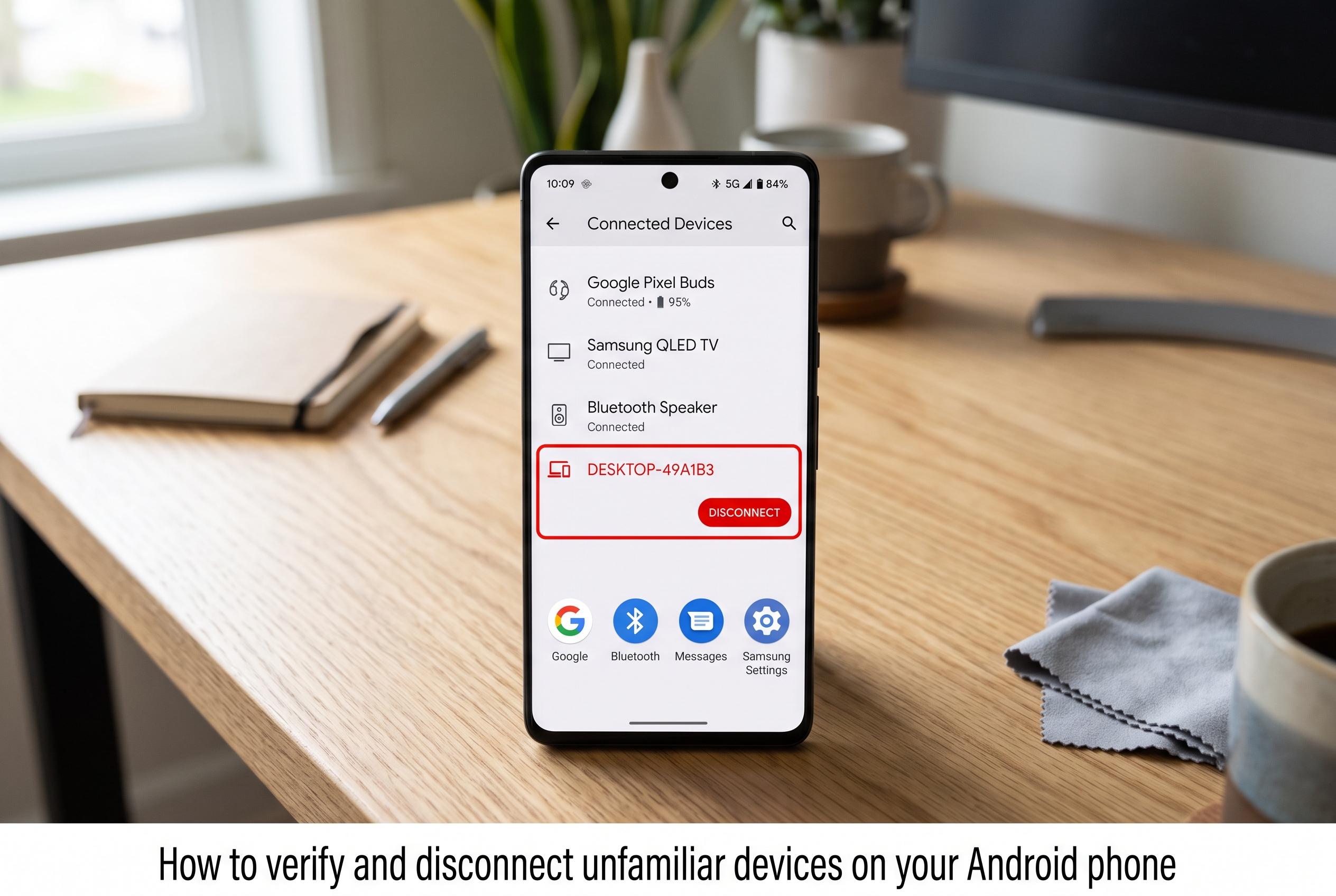

Discover how to check for and manage unfamiliar device connections on your Android to maintain your privacy and security, from review of Google, Bluetooth, Messages, and Samsung settings.
An unfamiliar connection on an Android phone does not always mean the handset has been compromised. It may simply reflect a Google Account session on another browser, a paired Bluetooth accessory, a Google Messages web link or a work-managed profile. Google’s account controls are the best place to begin because they show where the account has been used recently and allow suspicious sessions to be signed out.
The first check should be the Google Account device list. In Android settings, users can open Google, then Manage your Google Account, then Security & sign-in, and finally Your devices to review every active or recent sign-in. Google explains that these entries can represent a phone, tablet, computer, browser session or app, so one name does not always mean one physical device. If an entry is unfamiliar, it should be reviewed and, if necessary, signed out.
That list, however, is only one part of the picture. Android can be linked in several different ways, and each one reveals a different kind of relationship. A local account added to the phone, for example, is not the same as a remote Google session. A Bluetooth pairing can survive long after the accessory was last used. Quick Share only governs nearby file sharing. None of those automatically proves that another person can read messages or files.
Bluetooth deserves a separate review. Google’s Android support notes that users can open Bluetooth settings to see saved or paired devices and manage them from there. A device marked as paired may simply be an old headset, watch, car system or speaker. If the phone shows an active connection to something unknown, it can be disconnected or unpaired without affecting the Google Account itself. Google’s Bluetooth help also makes clear that pairing problems are often solved by removing saved entries and setting the accessory up again.
Google Messages is another important checkpoint. A phone can be paired with a browser or tablet through Messages for web, giving that device access to conversations and SMS replies. Google keeps this separate from the general account device list, so signing out of Google Account sessions does not automatically remove a Messages pairing. If an unknown computer or tablet appears in the Device pairing menu, it should be unpaired immediately.
Android also includes nearby-device features that can look more worrying than they are. Quick Share controls visibility for file transfers, while Cross-device services can recognise other Android devices using a shared Google Account for supported features. Google’s documentation shows that these options are meant to help devices work together, not to create a permanent remote-access channel. Still, if the phone is set to broad discoverability or the device group includes something unfamiliar, the visibility setting should be tightened or the feature switched off.
On Samsung phones, the situation can be more layered. Galaxy devices may support call and text sharing, file transfer, screen mirroring and other ecosystem features through Samsung account settings. Because menu names and available functions vary by model, software version and carrier, an unfamiliar Samsung-connected device should be checked in the relevant connected-devices menus rather than assumed to be harmless.
Google’s Find Hub can also help confirm what hardware is associated with the account. The service is designed to locate Android phones, watches, headphones and tracker tags, and it is useful for checking whether a device belongs to the account at all. But it is not a complete inventory of every login, pairing or app session, so it should be used alongside the other checks rather than instead of them.
The most important distinction is between evidence and certainty. An unfamiliar item in Google’s device list may be a forgotten browser session, a borrowed laptop or a background connection from an app. An unfamiliar Bluetooth pairing may be nothing more than an old accessory. But if the entry is genuinely unknown, the safest response is to record the details, sign it out or remove it, change the password, review third-party app access and enable stronger sign-in protection. Google’s support pages recommend treating unknown activity as a security issue worth investigating, not as proof of hacking on its own.
Disclaimer: This content is intended for informational purposes only. Readers are advised to exercise their own judgement, conduct due diligence, or consult a qualified expert before acting on any information provided.