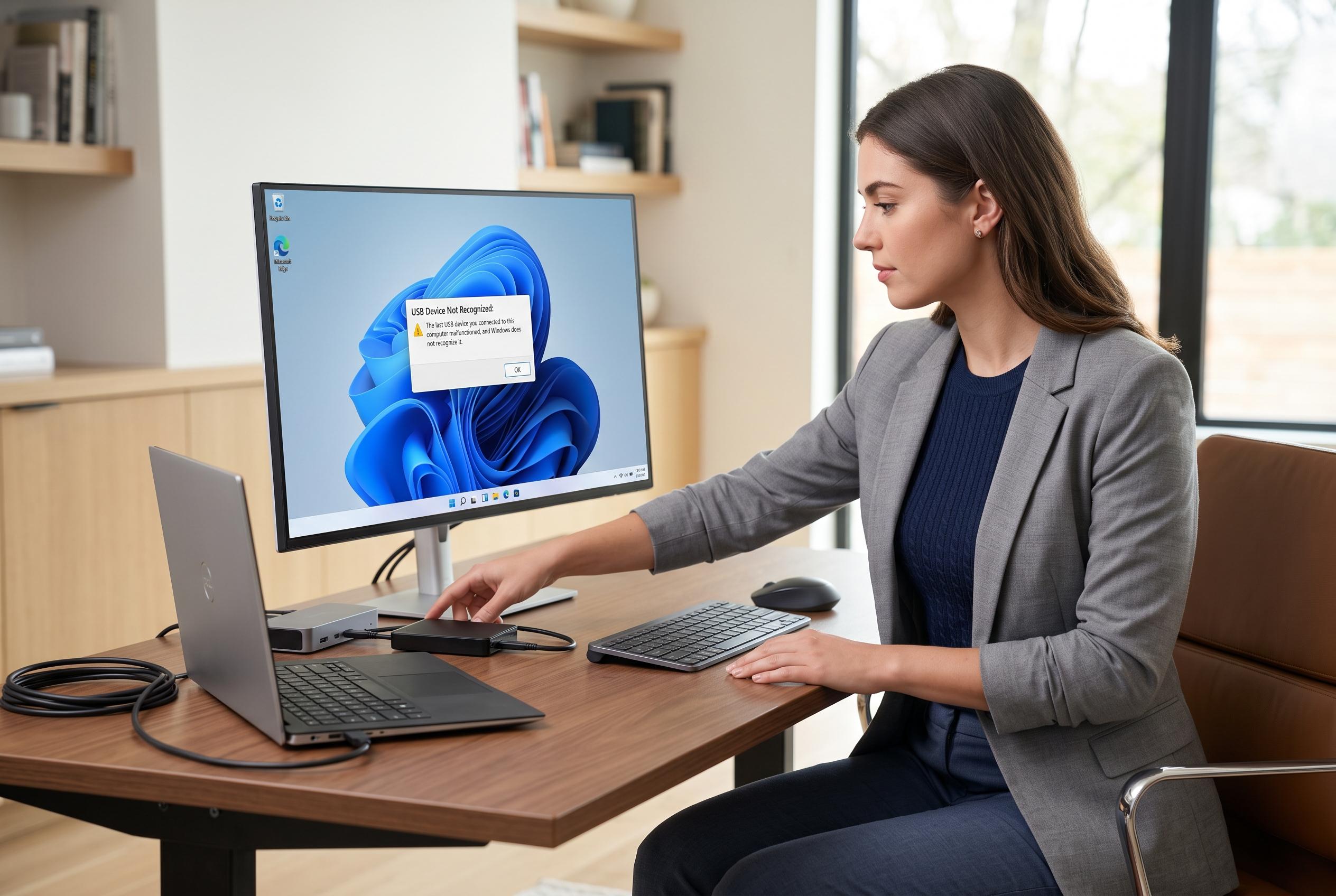

A detailed guide explains the common causes of USB device recognition errors in Windows 11 and the most effective troubleshooting steps, from physical connections to driver management and power settings, to resolve the issue quickly.
“USB Device Not Recognized” in Windows 11 is usually less mysterious than it first appears. Help Desk Geek says the error often comes down to a loose connection, a damaged cable, a port with poor power delivery, a driver fault or a device that has simply failed. The fastest checks are still the most useful: reconnect the device after a short pause, swap in a known-working cable, try another port, remove any hub or dock and restart the PC.
If the problem began after a sleep cycle, update or driver change, the next layer of troubleshooting should focus on software and power management. Microsoft’s support guidance on USB-C issues points users towards update checks, connector compatibility and port-capability mismatches, which matter because USB-C does not guarantee video output, charging speed or Thunderbolt support on its own. On Windows 11, it is also worth checking optional driver updates through Windows Update, but only when the driver clearly matches the device or computer model.
Device Manager is the most useful diagnostic tool once the physical checks are done. Help Desk Geek notes that entries labelled “Unknown USB Device”, along with Code 28 or Code 43 warnings, usually indicate a missing, corrupted or incorrect driver, although Code 43 can also mean the hardware has failed. Reinstalling the affected device, then rescanning for hardware changes, often clears the fault. If several USB devices fail on the same machine, the issue is more likely to involve the computer’s controllers, chipset drivers or power settings than the peripheral itself.
Power management settings can also interrupt stable USB operation. Windows’ selective suspend feature is designed to save energy, but it can cause devices to disappear after idle time or sleep, particularly on laptops. Help Desk Geek advises disabling selective suspend as a test, then checking the power-management tab for the relevant USB root hub or generic hub. If the device becomes stable only after those changes, the fault is likely in the power-saving configuration rather than the hardware.
When the issue affects storage, the fault may not be recognition at all. A USB drive can appear in Disk Management but still be missing from File Explorer if Windows has not assigned it a drive letter. That is a configuration problem, not necessarily a failed disk. By contrast, a device that still fails after being tested on another computer and with another cable is much more likely to be faulty, especially if the same symptoms follow it across different systems.
The broader pattern is simple. Start with cables, ports, hubs and power, then move to drivers, controllers and firmware, and only then assume the device itself has died. Microsoft and the other guides reviewed here broadly agree on that order because it narrows the failure point quickly and avoids unnecessary reinstalls. For users handling important files, the practical rule is to back up USB storage early and avoid repeated disconnects, since unstable connections can damage the file system as well as the device.
Disclaimer: This content is intended for informational purposes only. Readers are advised to exercise their own judgement, conduct due diligence, or consult a qualified expert before acting on any information provided.