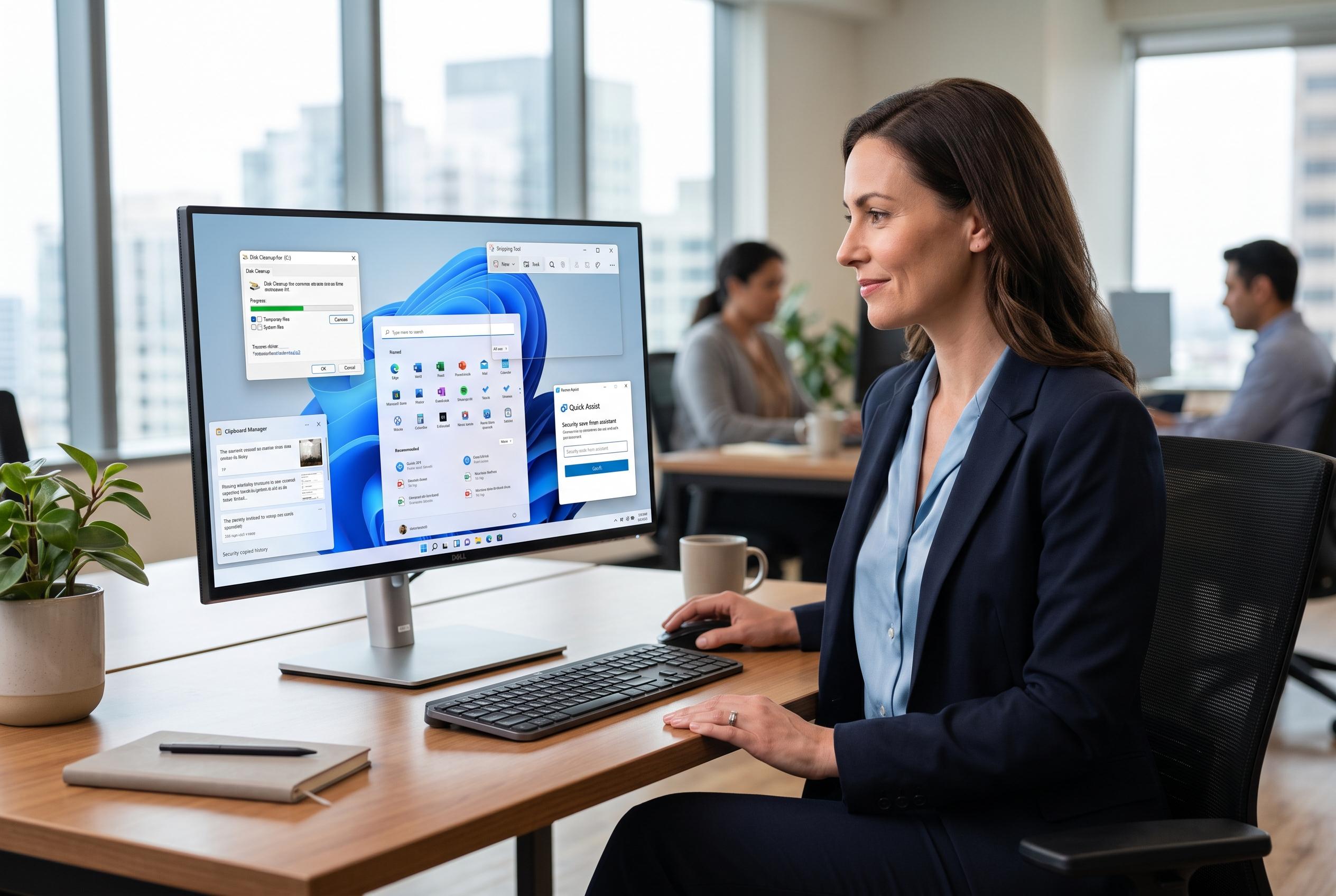

Microsoft’s latest Windows 11 update integrates essential utility functions, reducing reliance on third-party apps for tasks like disk cleaning, clipboard management, screen capturing, and remote support, leading to a streamlined user experience.
Windows 11 has steadily reduced the need for the small utility apps many users once installed by default. Features that used to require separate downloads now cover everyday tasks such as freeing disk space, managing copied text, taking screenshots, organising workspaces and handling remote support. The result is not that third-party tools have become useless, but that Microsoft has closed enough gaps for many people to rely on the operating system itself.
Storage Sense is a good example. Microsoft says the feature can automatically remove temporary files, empty the Recycle Bin after a set period and tidy the Downloads folder if a user chooses. It can also work alongside cloud storage so that older files remain visible in File Explorer while taking up less local space. That makes it a practical replacement for basic disk-cleaning tools, especially on laptops and small SSDs. Windows Central notes that users can also configure Storage Sense to run when disk space runs low.
Clipboard History has had a similar effect on clipboard managers. Microsoft’s own documentation says Windows key plus V opens a history of recently copied items, including text and images, and lets users pin entries so they remain available. That covers the core functions many people once paid for in separate apps. For routine office work, that is often enough to avoid installing a dedicated clipboard utility.
The Snipping Tool has also matured into a more complete capture tool. Microsoft now includes screen recording, annotation and text extraction, reducing the need for a separate screenshot app for everyday use. The same built-in utility can copy a capture straight to the clipboard, which makes it easier to paste into documents or messages without saving an extra file. For most users, that is a meaningful improvement over the earlier, limited version of the tool.
Windows virtual desktops have become another case where native functions are good enough for practical use. They let users separate work into different contexts and move between them with Windows key plus Ctrl and the arrow keys. That is not as feature-rich as some older third-party desktop managers, but it handles the main need: reducing clutter by splitting unrelated tasks across different desktops. For many users, that is the real value.
Phone Link and Quick Assist show how Microsoft has also improved cross-device support and remote help. Phone Link can surface messages and calls on a Windows PC and, on supported Android phones, move files between devices without email or cloud transfers. Microsoft has also expanded Quick Assist with screen annotation, a laser pointer, text chat and better multi-monitor support, making it a more credible option for occasional remote support. For a one-off problem, that is often simpler than installing a full remote-access suite.
The larger pattern is that Windows 11 now covers enough of the basics that many longtime utility apps have become optional. Windows Central and Microsoft’s own support material show how these features work in practice, while the broader trend is clear: native tools are not always the most advanced, but they are often sufficient. For users who only need the common tasks, that can mean fewer downloads, less background software and a cleaner system overall.
Disclaimer: This content is intended for informational purposes only. Readers are advised to exercise their own judgement, conduct due diligence, or consult a qualified expert before acting on any information provided.