

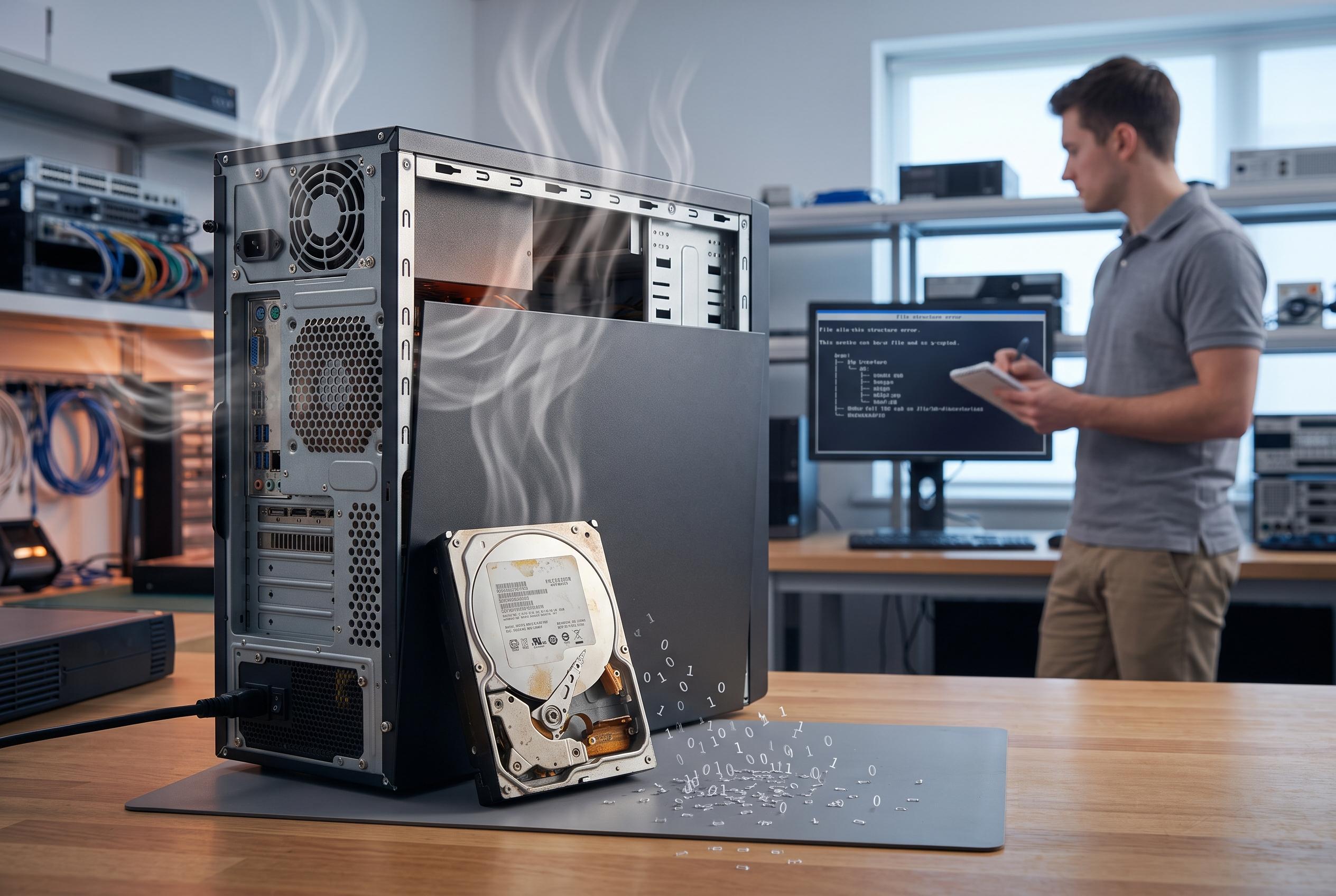

As hard drives age, overheat or suffer physical shocks, their risk of failure increases, posing significant threats to critical data. Experts emphasise the importance of early detection, routine backups, and hardware maintenance to prevent catastrophic loss.
A hard drive can appear to work normally one moment and then leave a user unable to open photos, schoolwork or business records the next. In practice, that kind of failure usually has more than one possible cause. Age, heat, physical shock, power problems and software corruption can all contribute, and the underlying issue is often easier to explain than to fix. For homes and small firms, the real priority is usually not the device itself but the data stored on it.
Traditional hard disk drives, or HDDs, store information on spinning platters and read it with a moving head, which makes them inherently more vulnerable than solid-state drives. According to GeeksforGeeks, PCWorld and Dell, mechanical parts can fail through head crashes, motor problems, bearing wear and media errors, while firmware and electronic faults can also make a drive unreadable. SSDs avoid moving parts, but Norton notes that they can still fail because of controller faults, worn flash memory, overheating or electrical damage.
Wear over time remains one of the most common risks. As a drive accumulates hours of use, internal components become less reliable and errors become more likely. That does not mean every older drive is on the brink of failure, but GeeksforGeeks and Dell both point out that mechanical and electronic faults become more significant as hardware ages. Once a drive holds anything difficult to replace, routine backups should already be in place.
Physical damage is another major factor. A laptop drop, a desktop moved roughly or an external drive knocked while active can damage the read/write head or the disk surface itself. PCWorld explains that this can trigger a head crash, where the head touches the rotating platter and destroys data. Because the drive is spinning when the machine is powered on, repeated attempts to restart a damaged device can make recovery harder.
Heat and poor airflow also shorten drive life. Dust, blocked vents, weak fans and cramped enclosures can push a drive beyond the temperatures it is designed to tolerate. Winfr.org and Norton both note that overheating can lead to slow performance, corruption, strange errors and, eventually, complete failure. This is especially relevant for desktop systems tucked under desks, external drives left in poor ventilation and business hardware running for long periods in closed spaces.
Power issues create another path to data loss. Surges, outages, failing power supplies and abrupt shutdowns can damage electronics or interrupt writes in progress. Dell describes power-related faults as a distinct category of failure, while Norton warns that both physical and logical damage may follow an unstable shutdown. A surge protector is useful, but it is not the same as an uninterruptible power supply, which gives users time to save work and shut systems down safely.
Not every drive problem is mechanical. Files can become corrupted, the operating system may fail to start or the drive may be hidden by a loose cable or faulty port. Dell, Norton and GeeksforGeeks all separate logical failure from hardware damage, which matters because the fix may be as simple as replacing a cable or repairing the file system. The danger is assuming a drive is dead and repeatedly powering it on when the issue may be more serious.
Malware, manufacturing defects and firmware faults add further risk. Norton and Dell note that factory flaws can appear early in a drive’s life, while firmware corruption can make a device appear to vanish from the system. Ransomware does not usually break the hardware itself, but it can lock away files so effectively that the result feels the same. In those cases, replacing the drive alone will not solve the problem if infected data or unsafe software returns with it.
The warning signs are often clear if users know what to watch for: slower performance, repeated freezes, missing files, error messages, startup loops and a drive that appears and disappears from the system. With an HDD, clicking, grinding or scraping noises are especially serious. If the drive still opens, copy the most important files first to a separate device or secure cloud storage. If it is clicking, grinding, no longer detected or asking to be formatted, stop using it. The safest defence is preparation: keep backups off the machine, test them occasionally and replace ageing hardware before it fails. TN Computer Medics says that, when a system begins to behave strangely, the key is to identify whether the problem lies with the drive, power supply, operating system or another component before more data is lost.
Disclaimer: This content is intended for informational purposes only. Readers are advised to exercise their own judgement, conduct due diligence, or consult a qualified expert before acting on any information provided.



