

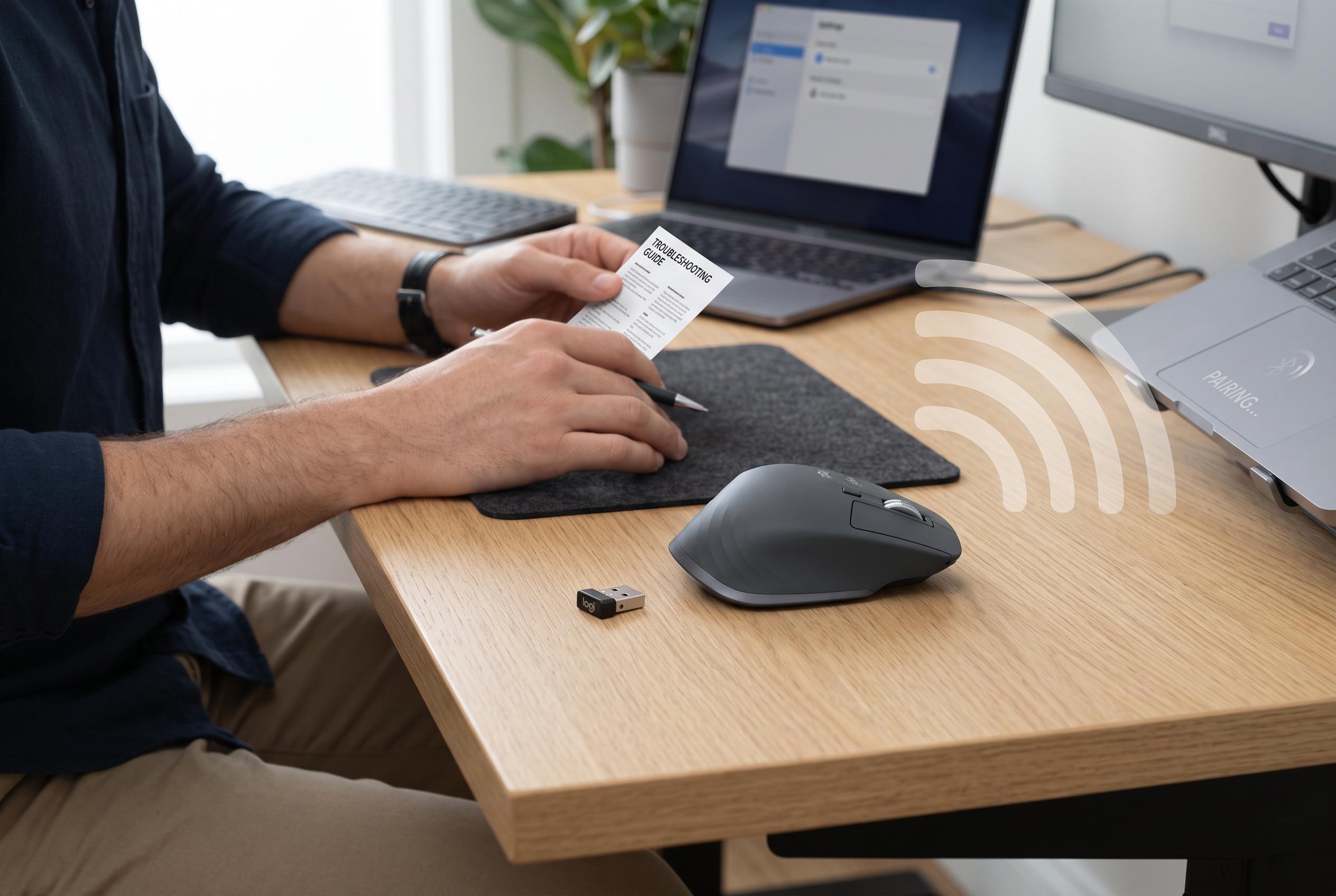

Learn the steps to connect and troubleshoot your Logitech wireless mouse, whether using Bluetooth or a USB receiver, with guidance on pairing, compatibility, and software support.
To connect a Logitech wireless mouse, the first step is to identify the model’s connection method. Logitech’s support material shows that some mice use Bluetooth, others rely on a proprietary USB receiver and some support both. Checking the underside of the mouse or the battery compartment usually reveals the model number, a Bluetooth symbol, an Easy-Switch or Connect button and, in receiver-based models, the type of dongle supplied with the device.
For Bluetooth pairing, the mouse must be placed into discoverable mode before it will appear in the computer’s Bluetooth menu. Logitech says that, on Windows and macOS, the usual process is to turn on the mouse, hold the Connect or Easy-Switch button until the light blinks, then select the mouse from the operating system’s Bluetooth settings. On Windows 11, that means using Settings, then Bluetooth & devices, then Add device. On macOS, the route is through System Settings and Bluetooth.
If the mouse uses a USB receiver, Logitech’s setup pages say the receiver should be plugged directly into the computer rather than through a hub or switch during installation. The mouse is still wireless; the receiver is simply the radio link. Logitech’s guidance also notes that its Logi Options+ software may be needed for supported devices if the user wants advanced features such as button customisation or device management.
Receiver compatibility matters. Logitech’s documentation distinguishes between basic receivers, Unifying receivers and Logi Bolt receivers, and these are not interchangeable. A Logi Bolt mouse will not work with a Unifying receiver, and the reverse is also true. That makes the logo and the exact model important when replacing a lost dongle or pairing a second device. Logitech says compatible Bolt receivers can support multiple devices, but only those designed for the Bolt system.
When a mouse fails to appear or stops responding, Logitech’s troubleshooting advice is to check power first, then verify that the mouse is actually in pairing mode and that the receiver is connected directly to the computer. If Bluetooth pairing fails, removing the saved device and pairing it again can help. If the pointer works but extra buttons do not, Logitech says that is usually a software issue rather than a connection fault. In that case, Logi Options+ is the relevant tool, but only for supported models.
Disclaimer: This content is intended for informational purposes only. Readers are advised to exercise their own judgement, conduct due diligence, or consult a qualified expert before acting on any information provided.



