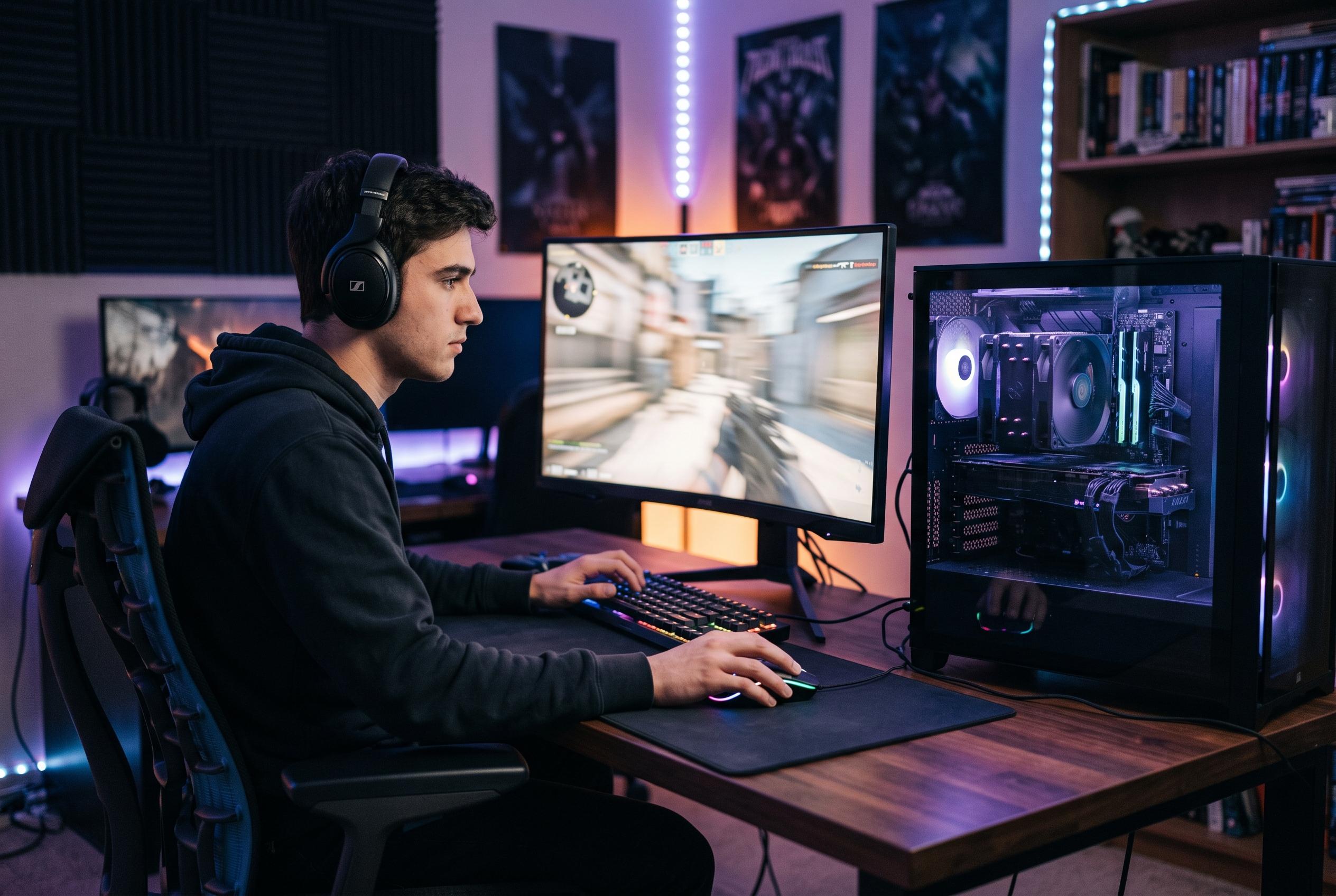

Hardware-based testing shows Nvidia Reflex and AMD Anti-Lag 2 delivering similar latency reductions in Battlefield 6, while Intel’s XeLL trails behind.
When PC players judge performance, frame rate is only part of the picture. Frametime data can reveal stutter and uneven delivery, but the final measure that often determines how responsive a game feels is input latency. In a fast shooter such as Battlefield 6, the delay between a mouse click and the resulting action on screen can matter as much as raw frame count, especially when competitive play demands both smoothness and precision.
That is why the distinction between calculated “PC latency” and true end-to-end latency matters. Tools such as FrameView, Radeon Performance Overlay, CapFrameX and PresentMon can estimate latency from rendering data, but they do not directly measure the full path from input to displayed image. For that, the article explains, PC Games Hardware chose LDAT, a hardware-based method designed to capture the actual delay a player experiences.
The comparison is especially relevant because AMD, Intel and Nvidia all offer their own latency-reduction features: Anti-Lag, XeLL and Reflex. ComputerBase has already tested these in Battlefield 6 with LDAT and found that the three systems do not perform equally well. In that test, Reflex on a GeForce RTX 5060 Ti cut latency by 32%, Anti-Lag 2 on an RX 9060 XT reduced it by 29%, and XeLL on an Intel Arc Pro B70 lowered it by 15%. The broad conclusion was that Nvidia and AMD were very close, while Intel’s result was noticeably weaker.
For players trying to lower latency in practice, the advice across several Battlefield 6 optimisation guides is largely consistent. They recommend enabling the vendor-specific latency feature, using exclusive fullscreen mode, avoiding frame generation in competitive play, disabling V-Sync, and applying a frame-rate cap slightly below the display’s refresh limit. Several guides also stress that keeping GPU load below full saturation, checking the monitor’s gaming mode and using a stable high-polling-rate mouse can all help reduce delay. In other words, latency tuning is not just about one setting, but about keeping the whole rendering pipeline under control.
Disclaimer: This content is intended for informational purposes only. Readers are advised to exercise their own judgement, conduct due diligence, or consult a qualified expert before acting on any information provided.