

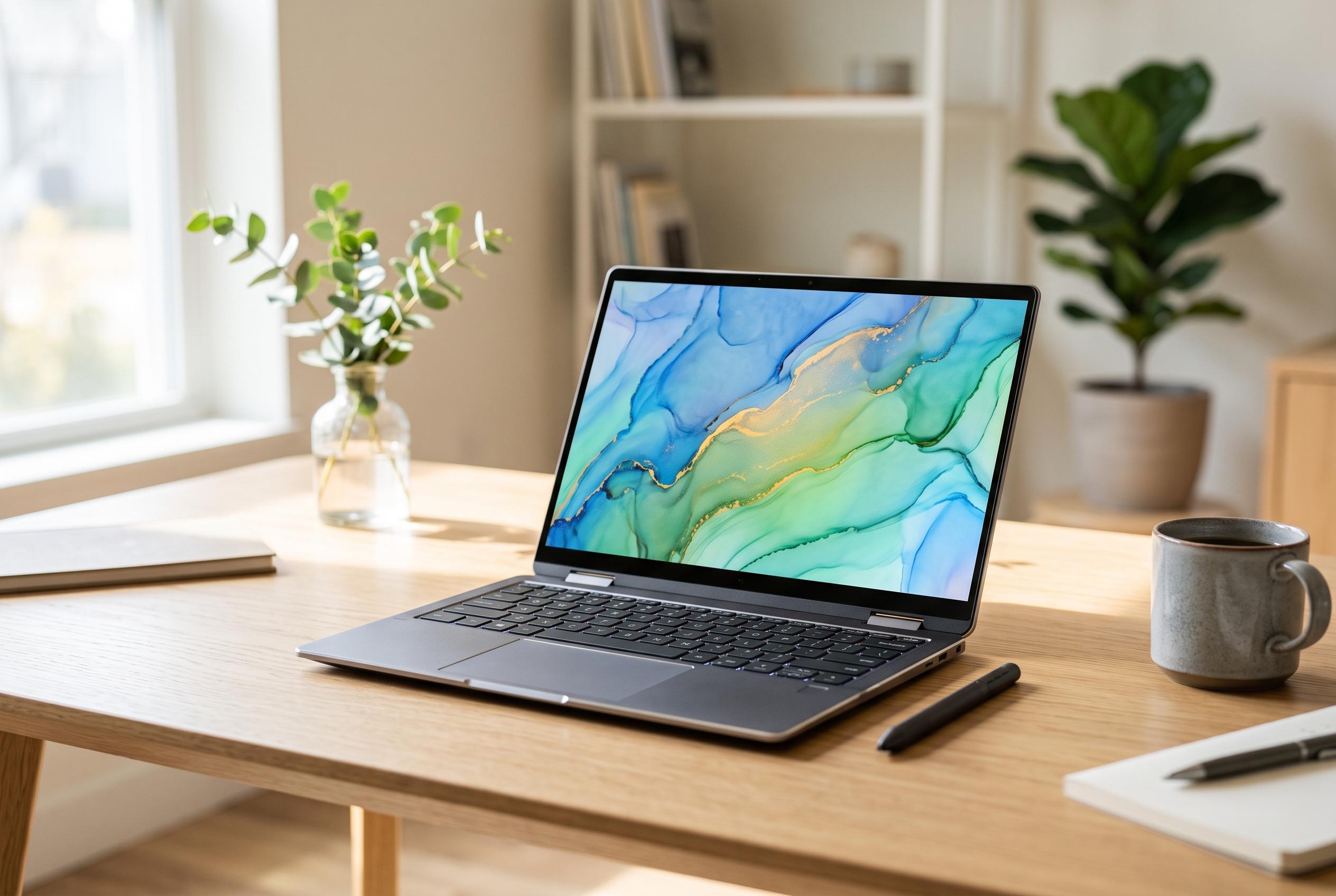

Touch screens on laptops have become commonplace, particularly in 2-in-1 devices, but choices around their use involve balancing sharper visuals, stylus support, and power consumption, with practical limitations influencing availability across models.
Touch screens on laptops are no longer a novelty, but they remain a trade-off. PCMag says the technology most modern machines use is capacitive, which senses the electrical properties of a finger or compatible stylus rather than physical pressure. That makes for sharper images and more responsive input than older resistive systems, which work by pressing two layers together. In practical terms, touch support is most useful when the screen is close to hand and the software is designed for it.
The category where touch matters most is the 2-in-1. By design, convertibles and detachables rely on finger input once the keyboard is folded away or removed. PCMag notes that stylus support can be equally important for note-taking and sketching, although pen hardware is often sold separately. Among conventional clamshell laptops, touch availability varies widely from one configuration to another, so buyers need to check the exact panel specification rather than assume that every model in a family includes it.
Not every laptop type benefits in the same way. PCMag says low-cost clamshells usually omit touch to keep prices down, while business and mainstream models are more likely to offer both touch and non-touch variants. Gaming laptops rarely include touch because most games do not use it and the extra layer can add to power demands. Large-screen systems can support touch, but the feature becomes less common as panels grow, partly because it is costly and partly because very large tablets are awkward to use. Chromebooks have moved in the opposite direction, with touch now more common as Android app support has become standard. Apple remains the exception: MacBooks do not offer touch input.
There are also practical drawbacks. PCMag points out that touch screens usually consume more power than comparable non-touch panels because the sensing layer must stay active. The difference is often modest in isolation, but it still matters on a portable system. Most touch panels are glossy, which can improve perceived colour and contrast but also increases glare and fingerprints. The extra hardware can also add a little thickness and weight. HP and TechTarget both note that capacitive screens dominate modern devices because they are sensitive and bright, but that same design depends on conductive contact, so gloves usually prevent normal operation.
For buyers, the real question is not whether touch is available in the abstract, but whether it fits the way the laptop will be used. PCMag recommends thinking about precision, ergonomics and whether the screen will be reached from a clamshell position or used more naturally in tent or tablet mode. Stylus support can be valuable, but the pen may be optional and storage can be awkward if the machine has no dedicated slot or magnetic attachment. The safest approach is to confirm the exact display variant before purchase, especially when a product line offers both touch and non-touch configurations.
Disclaimer: This content is intended for informational purposes only. Readers are advised to exercise their own judgement, conduct due diligence, or consult a qualified expert before acting on any information provided.



