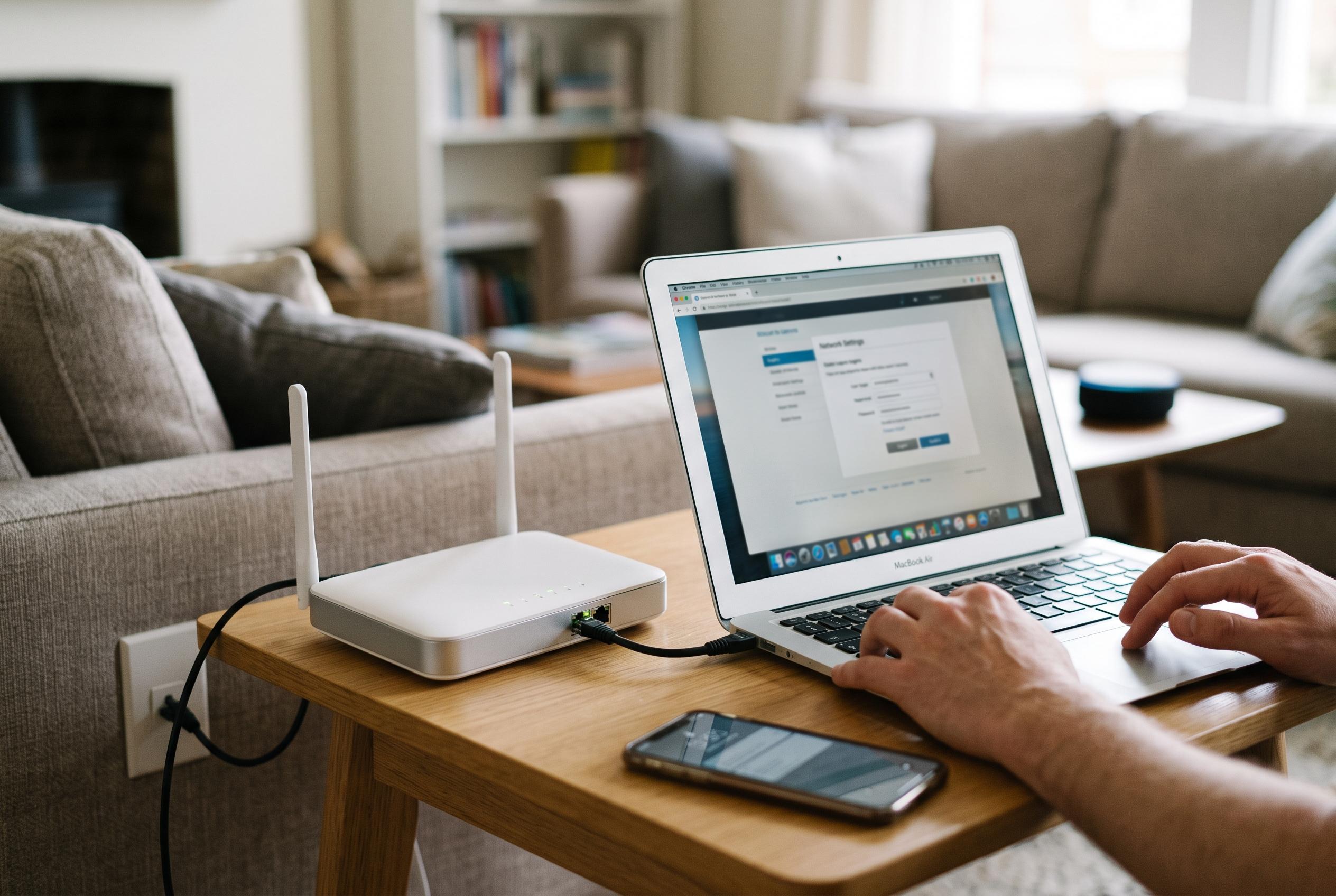

Many home users overlook their router’s admin settings, leaving their networks vulnerable , but a few quick adjustments can significantly bolster security and prevent unauthorised access.
Most home routers are installed once and then ignored, yet they sit at the boundary between a private network and the wider internet. That makes the administration page worth revisiting, because a handful of basic changes can materially reduce the risk of unauthorised access. Engadget noted that many users never move beyond the default setup, even though the most important security controls are usually only a few clicks away.
The first step is to reach the router’s management interface from a device already connected to the home network. According to Engadget, this is usually done by entering the router’s IP address into a browser, with 192.168.1.1 and 192.168.0.1 among the most common examples. Security.org, RouterHax and Modemguides all say that the address can vary by manufacturer and model, and that users who do not know it can find it in system settings: on Windows, the default gateway shown in Command Prompt or network details; on Mac, the router address displayed in Wi-Fi information; and on mobile devices, similar network fields in the connection settings. TP-Link’s support guidance adds that some models can also be reached through a manufacturer-specific web address or companion app.
Once inside the admin panel, the login details are not the same as the Wi-Fi password used by phones and laptops. If the administrator credentials have never been changed, Engadget recommends checking the sticker on the router itself, where the default information is sometimes printed. TP-Link says newer devices may require the owner to create a custom admin password on first use, which is a useful safeguard because the administrative account often has more power than the wireless password alone. A strong, unique admin password remains one of the simplest ways to prevent outsiders from altering network settings.
That said, the precise menus and labels will differ from one router to another, so users should expect some variation. Engadget’s examples are based on an ASUS device, but the same underlying task is the same across brands: find the gateway address, open the login page, and review the settings that protect the network. In practical terms, that usually means checking whether the router is still using factory credentials, confirming that the management interface is protected, and then tightening the options that matter most before moving on with the rest of the configuration.
Disclaimer: This content is intended for informational purposes only. Readers are advised to exercise their own judgement, conduct due diligence, or consult a qualified expert before acting on any information provided.