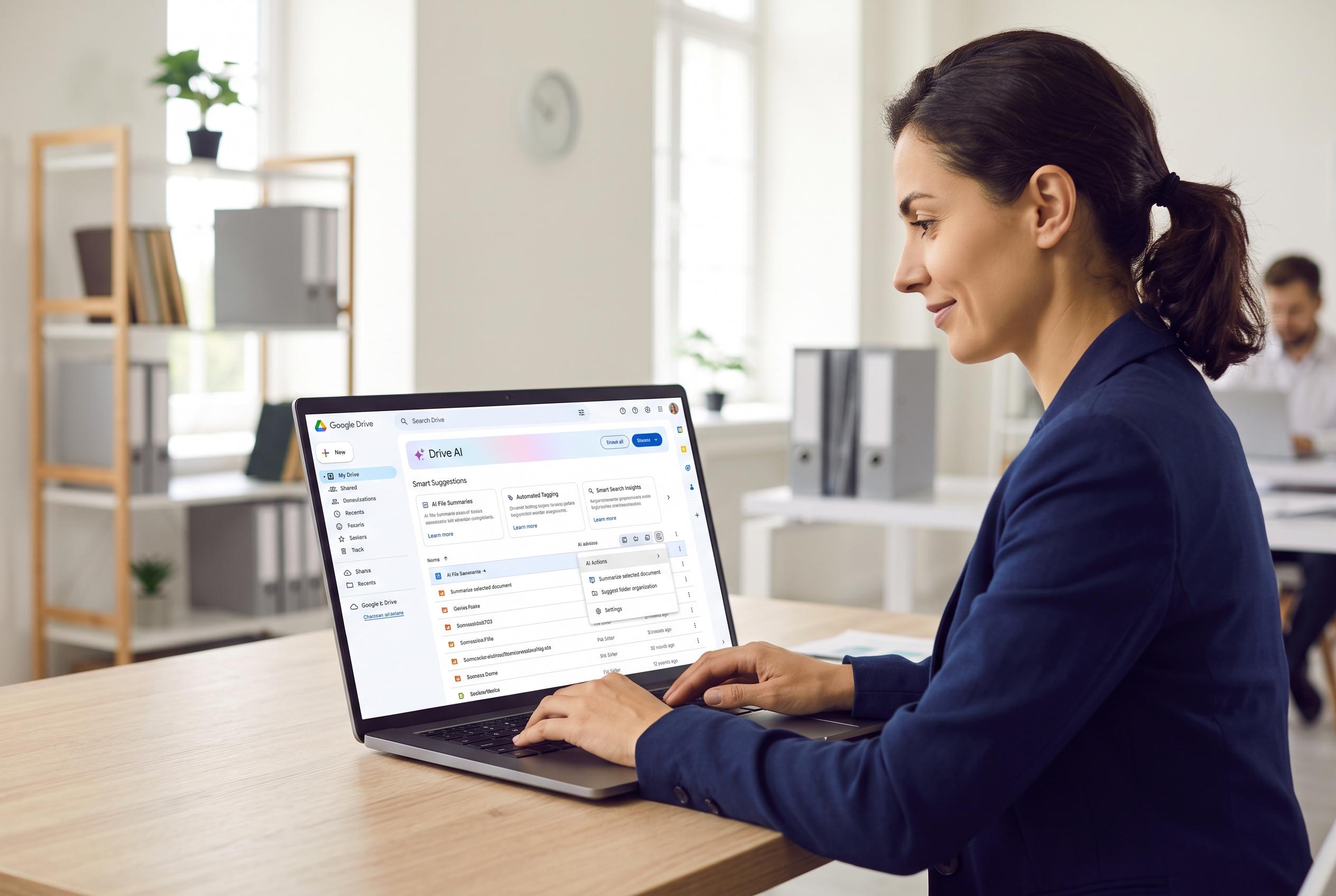

Google Drive now features multiple AI tools with distinct capabilities, shifting towards more integrated in-app assistance while highlighting limitations in editing and file management.
Google Drive now works with AI in several distinct ways, but the experience depends on which assistant you use and how it connects. Google’s own Gemini sits inside Drive itself, while Claude and ChatGPT rely on connectors that link externally to a user’s files. That difference matters because it affects what the tools can read, whether they can write back into Drive and how much control users keep over their data. Google’s support pages say Gemini in Drive can search files, summarise folders, build audio overviews and create content from within the interface, including through a full-screen workspace.
Gemini is the most native option. According to Google’s help documentation, users can open Drive, select “Ask Gemini” and use it to search across files, summarise folders, surface source material and create outputs such as text, images and audio overviews. Google also says the feature is tied to eligible Google Workspace or Google AI plans, so it is not a universal free-account feature. Recent coverage of Google’s rollout has also noted that Gemini can now work at folder level, making it easier to find a document by describing its contents rather than remembering the filename.
Google has also expanded the type of work Gemini can do inside Drive. Android Central reported that the company has introduced audio overviews for PDFs, using Gemini to generate spoken summaries that users can play in Drive or return to later from a dedicated folder. Google’s own documentation also says Gemini can organise files and share research sources through Drive projects, which makes it more useful for heavier research workflows than a simple chat bot. Even so, the feature set is still limited to supported file types, with text documents, PDFs, spreadsheets and presentations getting the main support.
Claude takes a different approach. Anthropic’s documentation says its Google Drive connector can search and read Google Docs, Sheets and Slides, and it lets users add documents directly in chats or projects. Support articles from Anthropic say the connector is available across several paid plans, while Google Workspace connectors can also be enabled at the organisation level for Team and Enterprise accounts. That makes Claude useful for users who already work in the chatbot and want to pull Drive material into the conversation without switching apps.
There are, however, clear limits. Anthropic’s connector documentation says Sheets data is pulled in by exporting it as CSV and Slides are read as plain text, which means the model is analysing a static view rather than a live spreadsheet with active formulas. The same materials say the connector does not support comments or file conversion tasks such as turning .xlsx into Google Sheets. In practical terms, Claude is strongest for search, summarisation and cross-referencing rather than document administration.
ChatGPT uses yet another model. Instead of a broad, always-on Drive link, users can add files from apps inside a chat or project and choose what to expose, which gives tighter file-by-file control. The supplied materials note that access levels vary by plan, with connectors available to Team, Enterprise and Edu users rather than free accounts. A recent 2026 change also matters for business customers: new Google Drive actions require additional OAuth scopes, so workspace administrators need to review and approve those permissions in Google Workspace.
The strongest use cases are predictable. These tools are good at turning a long report into a concise summary, comparing information across several files, drafting a new document from existing notes and finding material by meaning rather than exact title. They are also useful for light spreadsheet analysis, such as identifying trends or simple outliers. For teams buried in shared folders and legacy documents, that retrieval layer is often more valuable than the writing itself.
The bigger limitation is editing. The materials supplied here point to a consistent pattern: these integrations are mainly read-first systems, not full file-management replacements. Claude’s connector, for example, can create and save new material but does not edit, rename or reorganise files already in Drive. Google’s Gemini works inside Drive, but its folder-level tools are still focused on search, summarisation and content generation rather than deep file restructuring. For now, the safest way to use any of these systems is to restrict them to a separate set of files rather than attaching an entire personal Drive.
In practice, the best choice depends on the workflow. Users who stay mainly inside Google Workspace will find Gemini the most seamless option. Those who already draft and analyse inside Claude may prefer its connector-based access. ChatGPT offers more selective file sharing, which may suit teams that want tighter control over what is exposed. Across all three, the direction is the same: AI is becoming genuinely useful for reading Drive content, but it still stops short of fully autonomous file management.
Disclaimer: This content is intended for informational purposes only. Readers are advised to exercise their own judgement, conduct due diligence, or consult a qualified expert before acting on any information provided.