

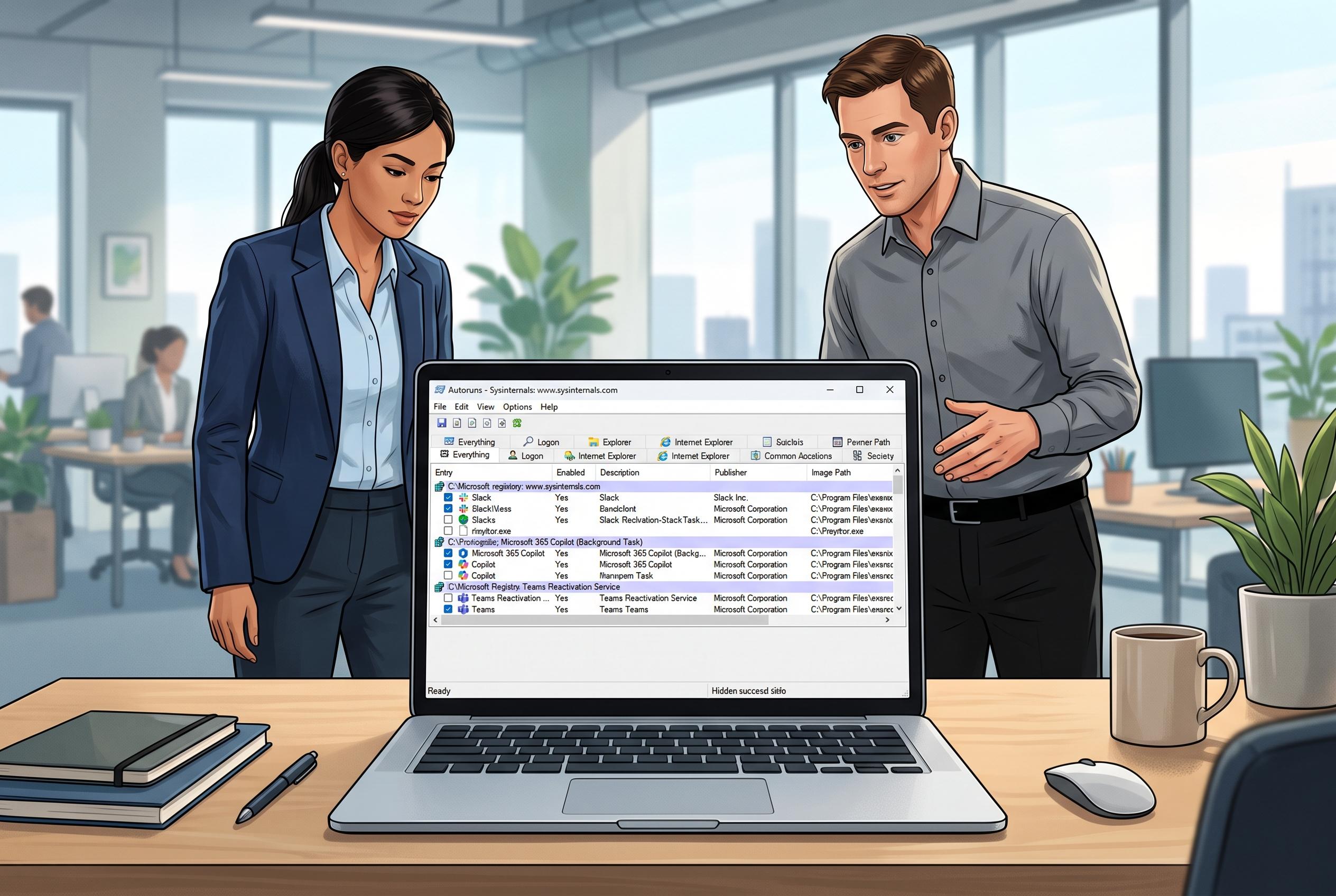

Microsoft’s Autoruns utility uncovers a broader spectrum of Windows startup locations than standard tools, exposing persistent background processes like Slack, Microsoft 365 Copilot, and the complex reactivation routes of Teams, highlighting layered startup management on Windows.
Microsoft’s Autoruns can expose a far wider set of Windows startup entries than the built-in Settings and Task Manager views, making it a useful tool for anyone trying to understand what actually loads when a PC signs in. Microsoft’s own documentation says the Sysinternals utility tracks a broad range of auto-start locations, including startup folders, registry Run and RunOnce keys, services, and shell extensions, while the separate Autoruns site describes it as a complete startup monitor for Windows.
That wider view can be revealing. In the case described by How-To Geek, Slack and Microsoft 365 Copilot were both starting in the background even though they had not been opened manually. After their startup entries were disabled in Autoruns and the machine was restarted, the extra Slack processes disappeared and Copilot no longer loaded automatically. That is a reminder that a programme marked to run at sign-in may still consume memory before the user launches it.
Microsoft Teams proved more complicated. The article found Teams entries in Autoruns’ Logon view that pointed to the Windows Run registry key, but disabling that entry did not fully stop the app from returning. The reason was another startup mechanism: a packaged-app task called TeamsTfwStartupTask, alongside Teams’ own “Runs at login” setting. Autoruns removed one route, but the app still had another path back into startup.
The broader lesson is that Windows startup management is layered. Settings > Apps > Startup is still a sensible place to manage ordinary sign-in apps, and Task Manager remains the quickest way to see what is using CPU and memory. Autoruns is better suited to investigation, because it shows registry entries and packaged-app tasks that are not always visible in the standard interfaces. For users trying to reduce background clutter or track down unexplained boot behaviour, that extra visibility can be the difference between guessing and knowing.
Disclaimer: This content is intended for informational purposes only. Readers are advised to exercise their own judgement, conduct due diligence, or consult a qualified expert before acting on any information provided.



