

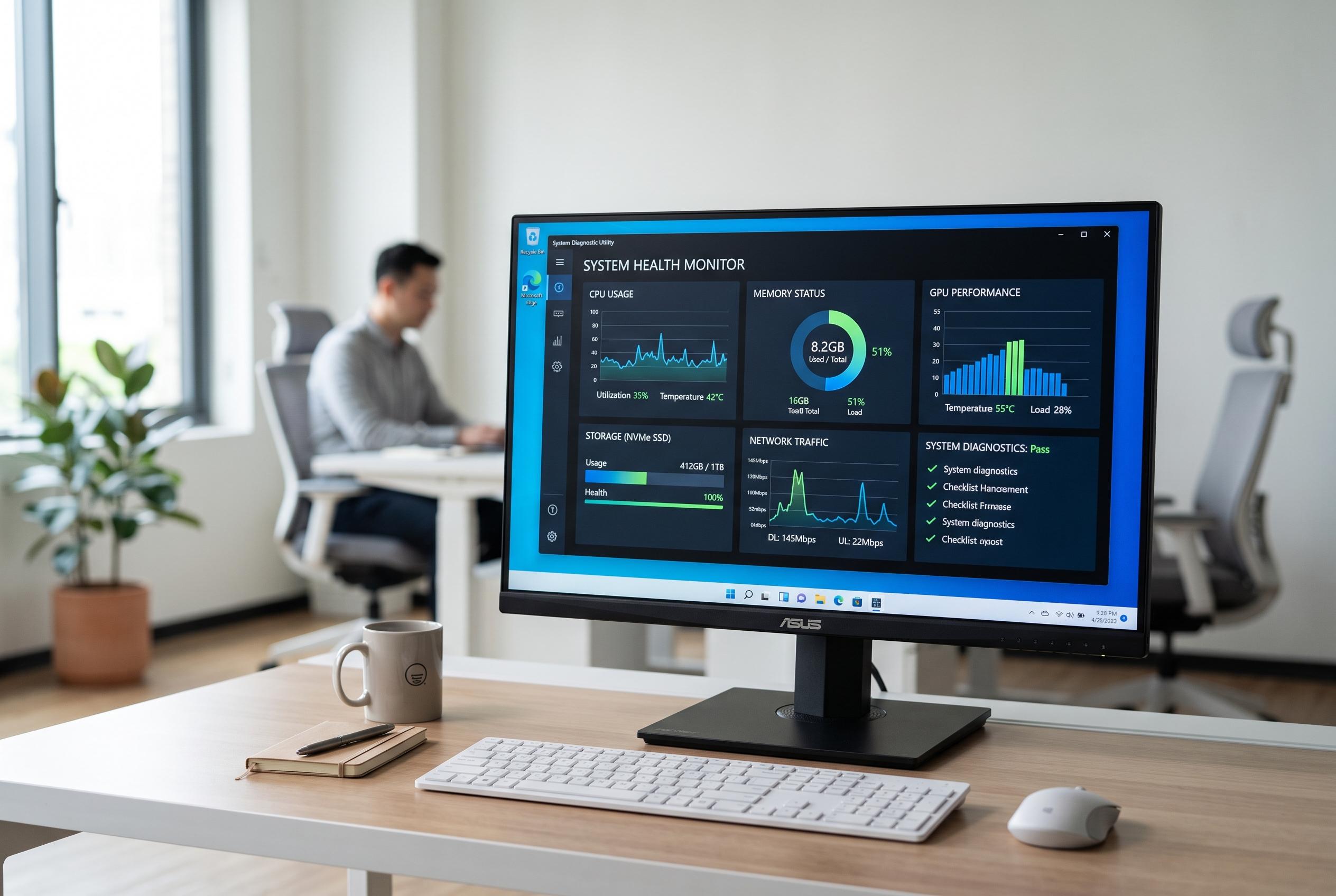

A suite of utility tools can track and diagnose the real causes of system sluggishness, helping users to resolve issues more precisely than ever before.
When a Windows PC begins to lag under the weight of Electron apps, multiple browsers and far too many tabs, the cause is not always obvious. Task Manager can show a live snapshot of CPU, memory and disk load, but that is often too late if the system has already frozen or recovered by the time it opens. That is why a historical monitor can be more useful than the built-in utility alone.
AppControl is designed for exactly that problem. According to its FAQ, it acts as a historical Task Manager, continuously recording CPU, GPU, memory, disk and temperature data so users can review past spikes rather than guess at them later. The tool also tracks app launches, silent updates and privacy events such as webcam or microphone access, which makes it more revealing than Task Manager when a slowdown is caused by background activity rather than the foreground app you happen to be using.
For users who want to clean up a sluggish system rather than merely observe it, Wintoys brings several Windows controls into one place. It combines app removal, service management and a set of system tweaks in a single interface, reducing the need to jump between Settings, Control Panel and the Services console. In practical terms, that can help identify unnecessary background services, turn off visual extras and disable features that may be adding load at boot or during everyday use.
Storage performance is another common bottleneck, especially when a machine is slow to start, launch programmes or apply updates. CrystalDiskMark is useful here because it measures both sequential throughput and random 4K performance. The latter is often the better indicator of how a drive will feel in day-to-day use. Poor random results can point to an ageing drive, a configuration problem or, in the case of an SSD, a possible issue with optimisation such as TRIM not running properly.
Microsoft PC Manager offers a more cautious route for maintenance. Rather than using aggressive registry cleaning, it focuses on temporary files, startup items, background apps and simple health checks. Its one-click boost can free RAM, while its deeper clean-up tools can remove junk files and leftover data after uninstallations. For many users, that is enough to trim waste without the risks associated with more intrusive cleaner utilities.
Taken together, the lesson is that slowdown is not always a single problem. It may be caused by memory pressure from too many active apps, a service that should not be running, slow storage or even an external factor such as a faulty charger forcing the processor to throttle. A good diagnostic workflow starts with observation, then moves to targeted fixes rather than broad guesses.
Disclaimer: This content is intended for informational purposes only. Readers are advised to exercise their own judgement, conduct due diligence, or consult a qualified expert before acting on any information provided.



