

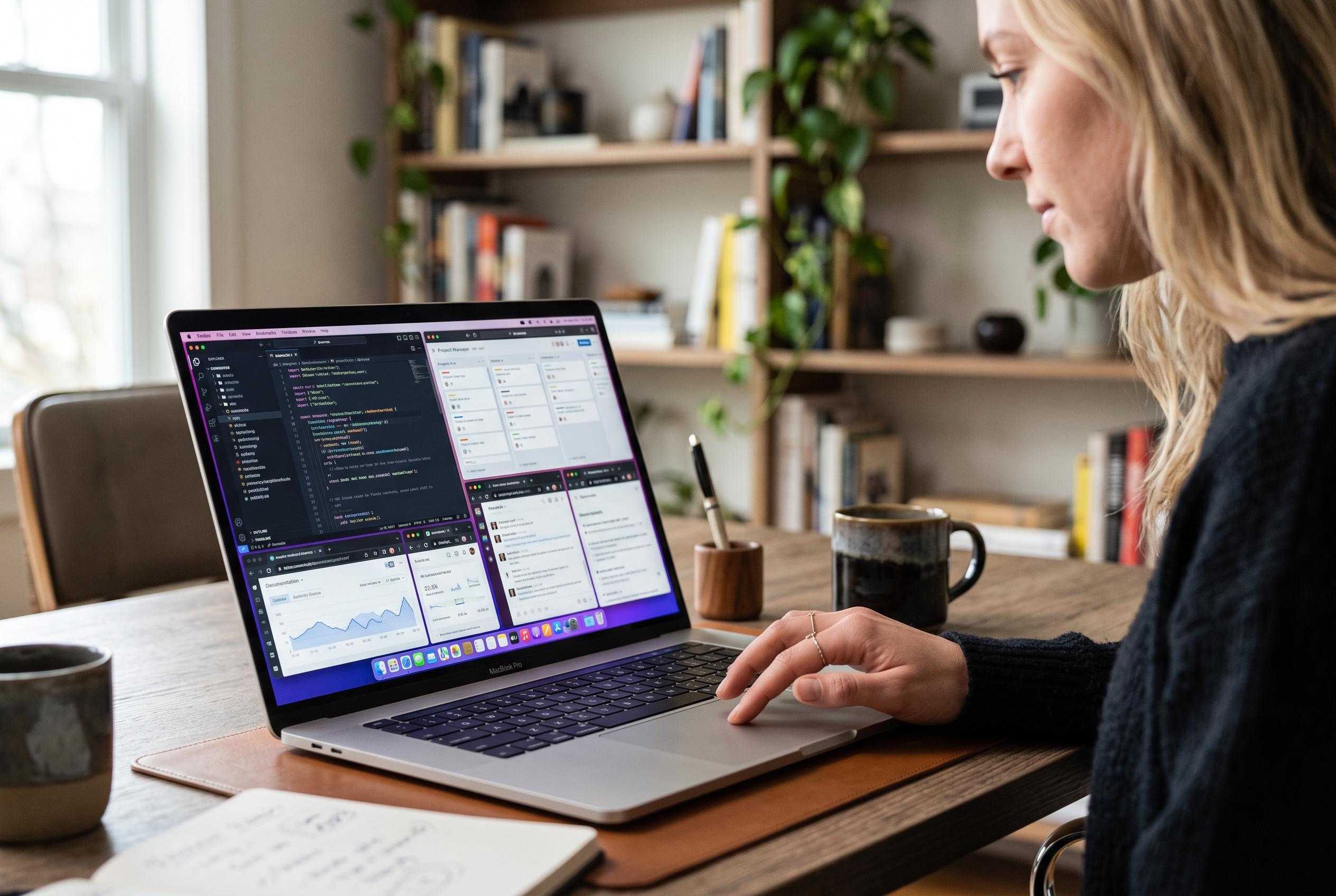

Microsoft’s PowerToys Workspaces enhances workflow organisation by capturing and replaying desktop layouts, offering detailed application control while acknowledging its limitations as a session restore tool.
PowerToys Workspaces has settled into a useful niche inside Microsoft’s Windows toolkit because it is not trying to be a new window manager. Instead, it saves a repeatable desktop state – a set of applications, positions and optional launch parameters – and replays it from the editor or a shortcut. The feature first appeared publicly in PowerToys 0.84.0 in September 2024, and Microsoft’s current documentation and release listings show that it remains part of the actively maintained PowerToys package. (pureinfotech.com)
In day-to-day use, Workspaces is essentially a capture-and-launch tool for people who begin their work in the same pattern each time. Users enable it in PowerToys, open the editor, arrange windows, press Capture, name the layout and optionally create a desktop shortcut, which Microsoft says can then be pinned to the taskbar as a workaround for the lack of direct taskbar pinning. Microsoft describes the utility as a desktop manager for returning to a preferred working state, and Pureinfotech notes that the process works on Windows 10 and Windows 11 across one screen or several. (learn.microsoft.com)
What lifts the feature above a simple batch launcher is the amount of per-application control inside the editor. Each app entry can take command-line arguments, allowing a browser to open a specific site or a list of URLs, while Word, Excel, a text editor or an IDE can be directed to a particular file on launch. Microsoft’s documentation adds that behaviour can be tailored on an app-by-app basis, including the use of VS Code’s --reuse-window argument if a user wants to pull an existing window into place rather than open another one. Pureinfotech also describes manual controls for left, top, width and height values, along with options for minimised, maximised or custom window states. (learn.microsoft.com)
The most important caveat is that Workspaces is not a true restore mechanism at operating-system level. Microsoft says PowerToys cannot “tell an app to launch to a specific position”; it launches the application first and then moves and resizes the window afterwards. That explains why the tool shows a launch-status dialog while it is arranging windows and why a saved layout can visibly jump into place on screen. It also explains another limitation in the official documentation: even though Workspaces uses the FancyZones engine underneath for positioning, that does not preserve native Windows snap states. (learn.microsoft.com)
Reliability also depends on what is already open before a workspace is launched. Microsoft’s documentation says the Move existing windows option will reposition running apps and then launch anything missing, but it also warns that software behaves differently when an instance is already active. Computerworld expands on that point, saying Chrome and Word may open extra windows while Spotify or Microsoft To Do may reuse the one already running. Microsoft adds that some applications are “single-instance”, with Windows Settings given as the example, so a second copy cannot be created for a layout. For that reason, Computerworld argued that the feature works best from a “clean, empty workspace”. (learn.microsoft.com)
There are further practical constraints for power users. If an application is marked to launch as administrator, PowerToys will display a separate User Account Control prompt for each such program, and Microsoft says there is a known issue in which admin-launched apps may fail to return to the intended position afterwards. TechSpot adds a performance warning that large workspaces can feel sluggish on lower-powered PCs because several applications are opening and being rearranged at once. PCWorld, which examined the interface in detail, found the editor less elegant than the concept, noting red outlines around displays during capture and showing that minimised windows are stored at the bottom of the saved layout. (learn.microsoft.com)
That blend of convenience and rough edges is consistent with the way Workspaces arrived. When Windows Central covered the launch on 6 September 2024, it framed the utility as a new PowerToys feature aimed at multi-monitor setups and noted that the same update also brought multiple measurements to Screen Ruler. PCWorld later described saved layouts as a kind of desktop bookmark, which is a more precise description than calling Workspaces a replacement for Windows snapping. It remembers what should open together and where it should end up, but it does not replace the operating system’s own layout logic. (windowscentral.com)
For users who reopen the same working set after every restart or project switch, that may be exactly the right balance. Workspaces offers a more accessible route than writing AutoHotkey scripts or assembling manual shortcuts, because the starting point is simply the arrangement already on screen. The trade-off is that expectations need to be set correctly: this is best understood as a repeatable launcher and layout reset tool, not a perfect session-restore system. Microsoft’s documentation and the independent testing from Computerworld, PCWorld and TechSpot all point to the same conclusion. (learn.microsoft.com)
Disclaimer: This content is intended for informational purposes only. Readers are advised to exercise their own judgement, conduct due diligence, or consult a qualified expert before acting on any information provided.



