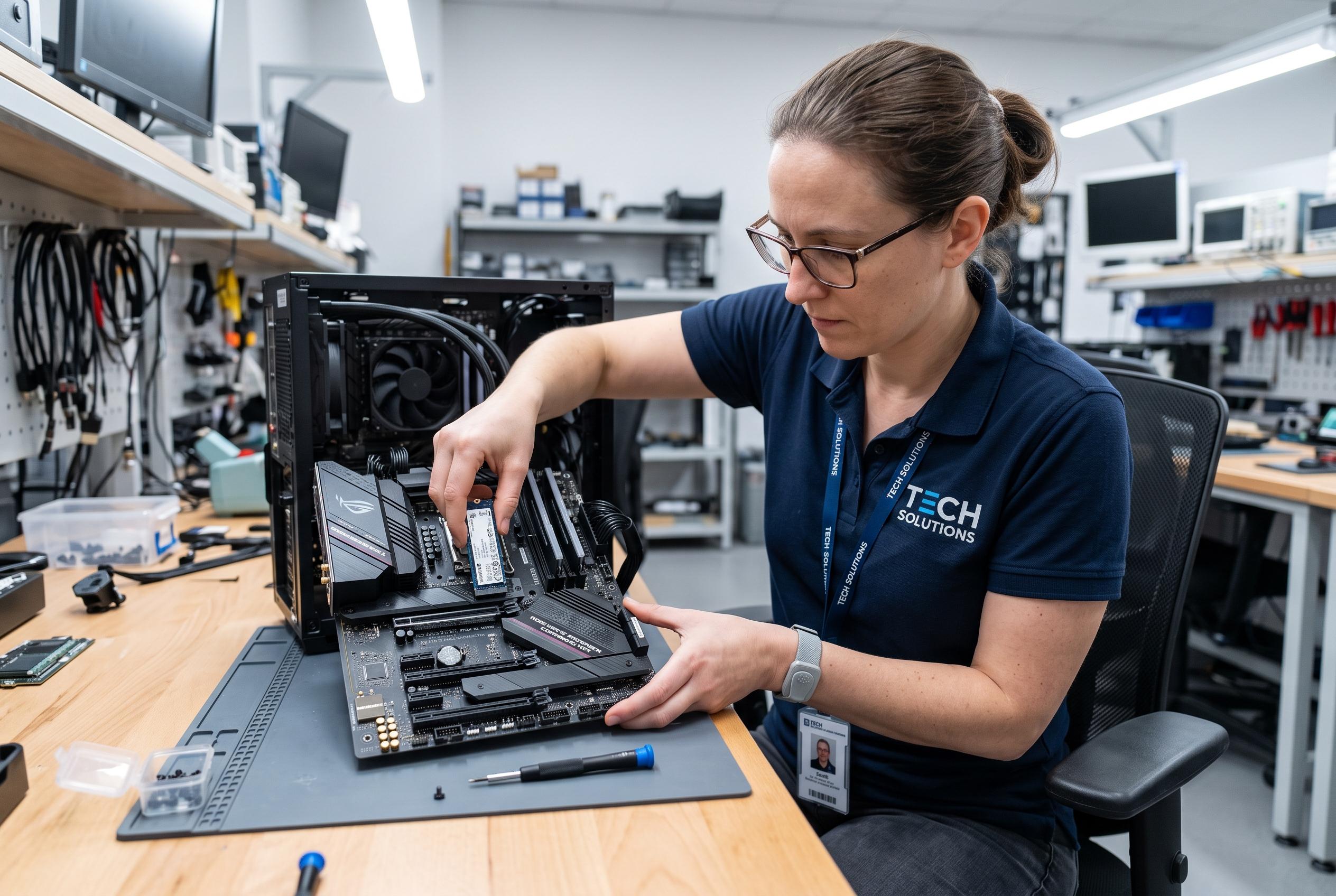

A few careful checks during SSD installation can significantly prolong its lifespan and performance. Experts warn that missteps like incorrect slot choice, improper mounting, or neglecting BIOS settings can silently reduce speed or damage the drive, costing users time and data recovery efforts.
Installing a solid-state drive can feel like a five-minute job: slot it in, tighten the screw and carry on. In practice, those few minutes can decide whether the drive performs as intended or spends its life undercut by a simple mistake. The XDA Developers piece argues that the most costly errors are often not dramatic failures but small oversights made before the system even boots.
One of the biggest is putting the drive in the wrong M.2 slot. On many motherboards, the upper slot is connected directly to the CPU, while other slots may share bandwidth through the chipset. That distinction matters for fast Gen 4 and Gen 5 drives, which can be held back if they are installed in a slot with fewer lanes or lower throughput. The article notes that this kind of bottleneck may not be obvious in day-to-day use, but a benchmark such as CrystalDiskMark can reveal when a drive is not running at full speed.
The physical installation itself also deserves more care than many users give it. An NVMe drive should slide into place cleanly; if it needs force, something is misaligned. The piece warns against tightening the screw as though it were meant to drag the drive into position, and it also stresses the importance of keeping the motherboard’s thermal pad and heatsink in place. That advice lines up with broader SSD guidance from PCWorld and other tech publications, which point to heat, overuse and poor cooling as common reasons drives wear out early.
Once the machine starts, a working Windows installation is not enough to prove the job is done. XDA Developers recommends a quick post-install check to confirm the SSD has been initialised correctly, is operating at the expected PCIe generation and is using the full set of lanes available. If something looks wrong, the cause is often a BIOS setting or motherboard lane-sharing rule rather than a defective drive. Other guides also recommend keeping firmware updated, leaving free space on the drive and using tools such as CrystalDiskInfo to monitor temperature and health.
The broader lesson is simple: good SSD habits cost very little, while bad ones can cost a drive, your time and your data. Even if modern SSDs are durable, they are still vulnerable to heat, poor installation and avoidable configuration mistakes. A few extra minutes spent checking the manual, fitting the drive carefully and verifying performance can prevent years of frustration later.
Disclaimer: This content is intended for informational purposes only. Readers are advised to exercise their own judgement, conduct due diligence, or consult a qualified expert before acting on any information provided.