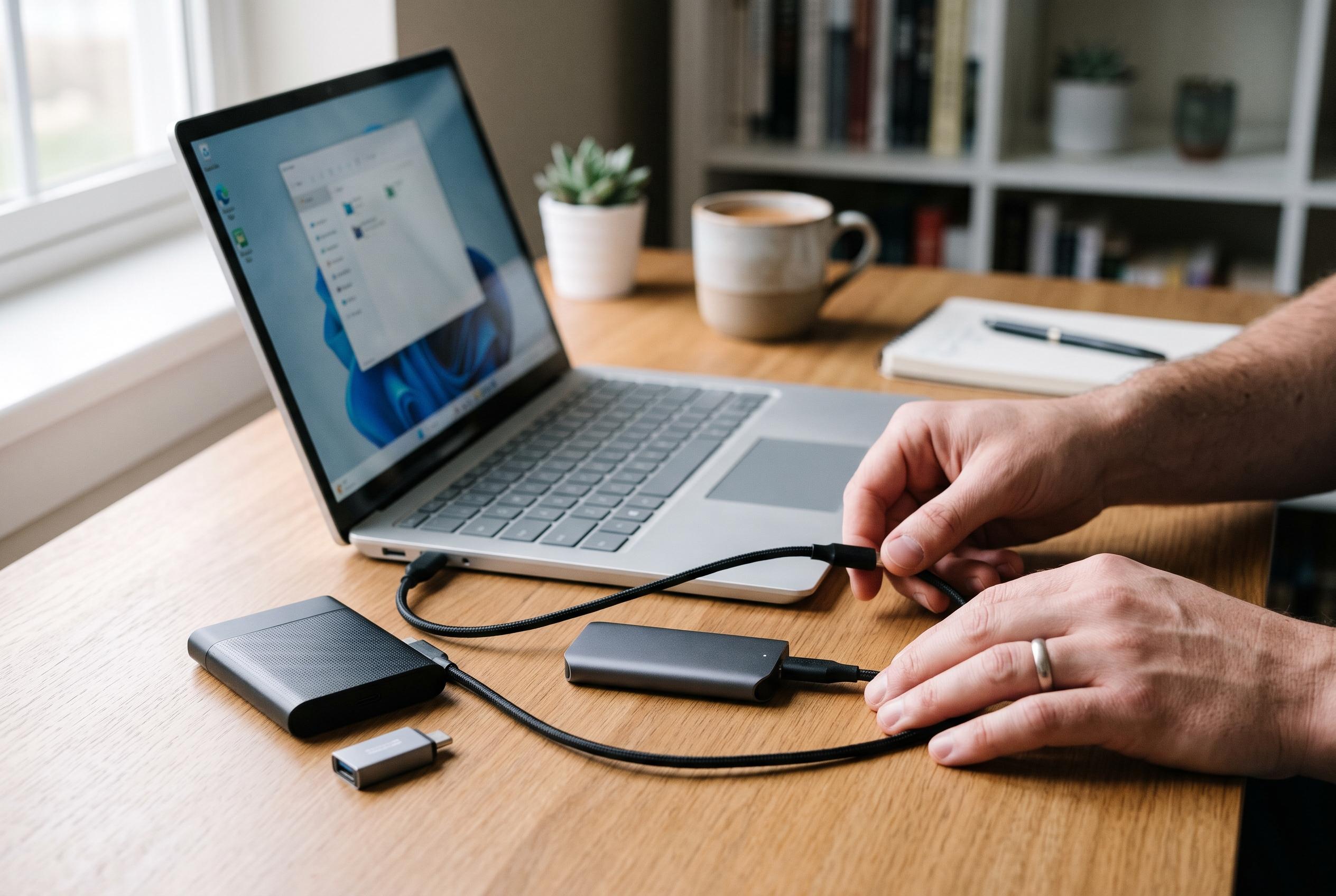

The Crucial X9 2TB balances capacity, speed and compatibility for most Windows users, while the Samsung T9’s extra performance only pays off on 20Gbps USB. Check product listings carefully and test a restore before trusting any drive with your backups.
For most Windows users looking for a portable SSD for backup, the Crucial X9 2TB is the most sensible choice. Crucial’s own product flyer lists the X9 at up to 1,050MB/s, with USB-C connectivity, Windows File History support and a 2-metre drop rating under the maker’s stated conditions. The 2TB version also gives File History enough room to retain previous file versions without forcing a compromise between capacity and convenience. On a typical USB 3.2 Gen 2 port, it should run at full rated speed, which is the level most Windows laptops and desktops can actually sustain. According to the USB Implementers Forum, USB 3.2 Gen 2 means 10Gbps, while Gen 2×2 doubles that to 20Gbps, so the port matters as much as the drive itself.
The main warning in this category is not performance but listing quality. Several of the Amazon entries reviewed for the original piece had mismatched brand fields, inconsistent model names or contradictory capacities, which makes them poor candidates for something as important as backup storage. That is a particular problem when a listing appears to describe one brand while the title and product details point to another. For a backup drive, a clean listing with matching brand, model and capacity is more valuable than a flashy speed claim.
That caution also explains why the cheapest-looking options are not always the safest. The original review found a SanDisk-labelled listing whose brand field did not match the product shown, and a Samsung T7 entry that used the same suspicious title pattern. For buyers, the practical rule is simple: verify the live product page, confirm the maker’s name and model number, and do not rely on Amazon’s ranking alone. A genuine 1,000MB/s-class drive is useful only if it is actually the product advertised and not a mislabelled listing with inflated or irrelevant reviews.
If capacity is the deciding factor, the 2TB X9 is better value than most smaller drives because backup software consumes space faster than people expect. Microsoft’s File History keeps copies of changed files over time, not just the latest version, and it protects common folders such as Documents, Pictures, Videos, Music and Desktop. That makes 500GB a tight fit for anything beyond a modest documents-and-photos setup, while 1TB is better for many home users but can still feel cramped once version history grows. Microsoft’s own guidance also notes that extra folders can be added to libraries if users want them included.
Samsung’s T9 sits in a different class. Samsung’s datasheet gives it a USB 3.2 Gen 2×2 interface, up to 2,000MB/s sequential read speeds and up to 1,950MB/s or 2,000MB/s write speeds depending on capacity. It also includes AES 256-bit hardware encryption and drop resistance up to 3 metres under controlled test conditions. That makes it the premium option, but only for PCs that actually support 20Gbps USB. On a standard 10Gbps port, the T9 will behave much like a faster T7 or X9 in real use, so buyers should not pay extra unless their machine can exploit the higher-speed interface or they specifically want the stronger security and ruggedness features.
Windows users should also remember that File History is not the same as a full system image. Microsoft explains that File History backs up personal files, not Windows itself, installed programmes or system settings. That means it is useful for recovering documents and photo libraries, but not enough on its own if an internal drive fails completely. The safer approach is to use File History for day-to-day file protection and keep a separate system-image strategy for disaster recovery. Microsoft also says Windows 10 support ended on 14 October 2025, so these backup instructions are increasingly relevant to Windows 11 users, while eligible Windows 10 machines may still need the extended security route rather than standard support.
There is one more reason to test a backup drive properly after setup. Microsoft’s September 2026 Windows 11 update notes confirm a File History bug that could stop backups or restores on some systems, even while the feature appeared to be working. That does not mean every PC was affected, but it does mean users should not assume a drive is backing up simply because File History is turned on. The practical checks are straightforward: install pending Windows updates, confirm the SSD is still selected in File History, run a manual backup and then try a restore. If the restore fails, the backup should be treated as untrusted until the problem is resolved.
For most buyers, then, the decision comes down to a balance of trust, capacity and port compatibility. The Crucial X9 2TB is the cleanest all-round choice because its published specifications are consistent and its speed class matches common Windows USB ports. The Samsung T9 is the performance and security pick for systems with 20Gbps USB, while smaller drives only make sense for lighter backup workloads. Whatever the choice, the best practice is the same: verify the listing, match the drive to the port, and test a restore before relying on it in an emergency.
Disclaimer: This content is intended for informational purposes only. Readers are advised to exercise their own judgement, conduct due diligence, or consult a qualified expert before acting on any information provided.