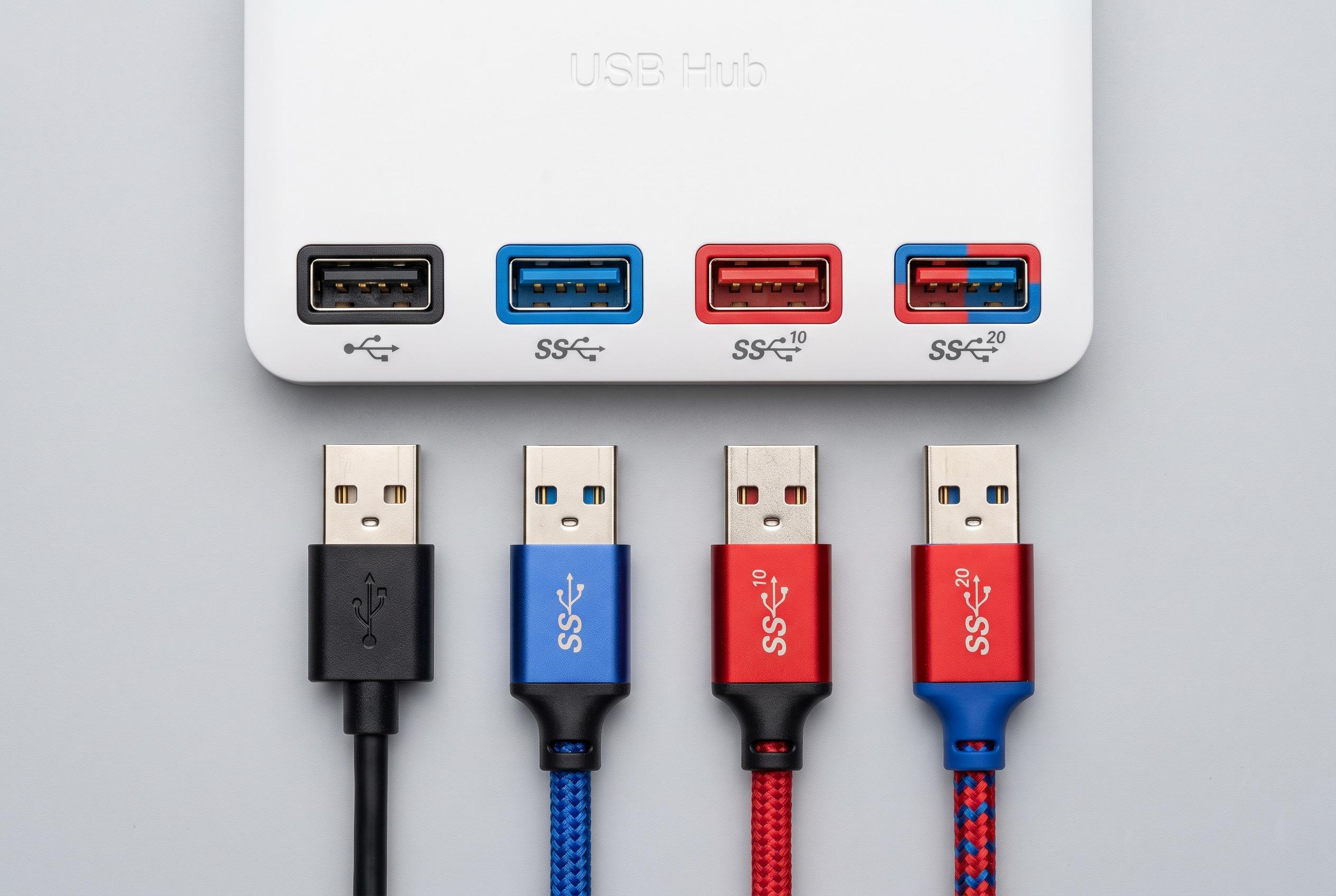

Confused by USB port markings and colours? Learn how to identify the right connections to speed up data transfers and avoid bottlenecks, as standards and symbols evolve beyond colour coding.
USB connectors were meant to simplify life. In practice, decades of revisions have turned them into a shorthand-heavy system of colours, symbols and speed ratings that can be easy to misread. Knowing how to identify the markings on a port or cable can prevent a fast device being bottlenecked by a much slower connection.
The clearest visual cue is still the USB trident. As Corsair explains, the symbol by itself is commonly associated with USB 2.0, the standard that arrived in 2000 and tops out at 480 Mbps. That is more than enough for a mouse, keyboard or printer, but it is poor for large file transfers or external storage. USB 3 brought a more complicated sequence of names and labels, with successive versions raising theoretical bandwidth from 5 Gbps to 10 Gbps and then 20 Gbps before the industry moved to simpler speed-based naming.
Colour can help, but only as a rough guide. Corsair notes that black and white ports are generally linked with USB 2.0, while blue usually indicates USB 3 at 5 Gbps. Red ports often signal higher speeds and may also support charging when the computer is off. Yellow ports can also offer charging power, although their data rate is not always the same across manufacturers. Industry Electronics cautions that colour coding is useful for orientation, not proof, because it is not a binding guarantee of capability.
For a more reliable reading, the printed symbols matter more than the plastic shade. SlashGear says markings such as “SS” point to SuperSpeed support, while other icons can indicate faster data transfer, power delivery or video output. USB-TEC adds that the trident logo itself remains a key identifier, but the surrounding symbols reveal whether the port is intended for charging, display output or higher-bandwidth data. Manufacturers now increasingly favour these markings over colour alone, partly because colour schemes are not consistent across brands.
USB-C has added another layer of confusion because shape no longer tells the whole story. A USB-C connector only describes the physical form of the plug or port; it does not guarantee speed. According to the materials summarised by Corsair and PCWorld, USB-C can carry anything from modest USB 2.0 links to much faster USB4 implementations. USB4, launched in 2019, brought 20 Gbps and 40 Gbps modes, while USB4 Version 2.0 raised the ceiling to 80 Gbps. Both work only through USB-C.
The practical difference is substantial. A 100 GB transfer over USB 2.0 can take close to half an hour, while a 5 Gbps connection cuts that to a few minutes and USB4 can reduce it to seconds. That makes the small symbols on a laptop or cable far more than decoration. They are the quickest way to match the right accessory to the right port and avoid paying for speed you are not actually using.
Disclaimer: This content is intended for informational purposes only. Readers are advised to exercise their own judgement, conduct due diligence, or consult a qualified expert before acting on any information provided.