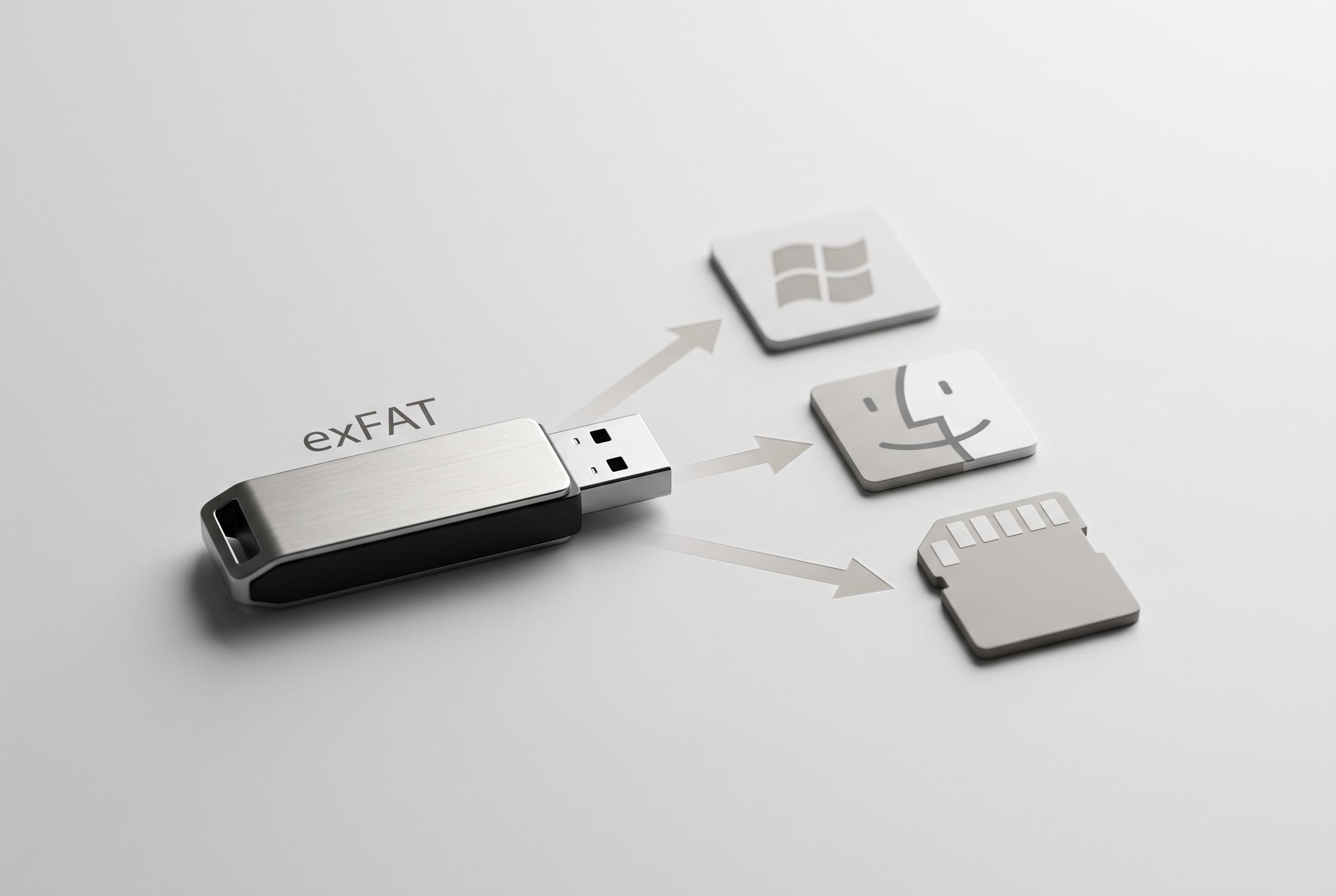

Choosing the right file system for USB drives is crucial for performance, compatibility, and data integrity. Recent insights highlight exFAT as the optimal default for users moving between Windows, macOS, and other devices, thanks to its flexibility and modern features.
Formatting a USB drive on Windows is not simply a way to erase files. It resets the file system, can clear out lingering corruption and may even flag bad sectors on the device. For that reason, a newly purchased drive is often worth formatting before use, even if it appears ready out of the box. According to the supplied material, many new drives ship with settings aimed at broad compatibility rather than a specific workload.
The choice of file system matters. NTFS is the strongest fit for drives used only with Windows, where it offers the most natural integration and better support for features such as permissions and encryption. exFAT is the more flexible option for shared storage because it works well across Windows, macOS, Linux and Android, while also avoiding the 4 GB single-file limit that still affects FAT32. That makes exFAT a practical choice for large videos, archives and portable SSDs. By contrast, FAT32 remains useful mainly when maximum compatibility with older hardware is the priority, such as older car stereos, printers or legacy devices.
The trade-off with FAT32 is its age. It is widely recognised, but its 4 GB file limit makes it a poor fit for modern media and software files. The supporting summaries also note that NTFS is not as convenient outside Windows, with macOS handling it poorly without extra software, while exFAT is supported by most newer devices and is designed for flash storage such as USB sticks and memory cards. In practice, that means exFAT is usually the safest default for a drive that will move between systems.
On Windows, the formatting process itself is straightforward. After connecting the drive, users can open This PC, right-click the correct device, choose Format and then select the file system that matches the intended use. The allocation size can usually be left at the default unless the drive will mostly hold very large or very small files. Once the format is confirmed, the process typically takes only a short time, after which the drive is ready for fresh use.
Disclaimer: This content is intended for informational purposes only. Readers are advised to exercise their own judgement, conduct due diligence, or consult a qualified expert before acting on any information provided.