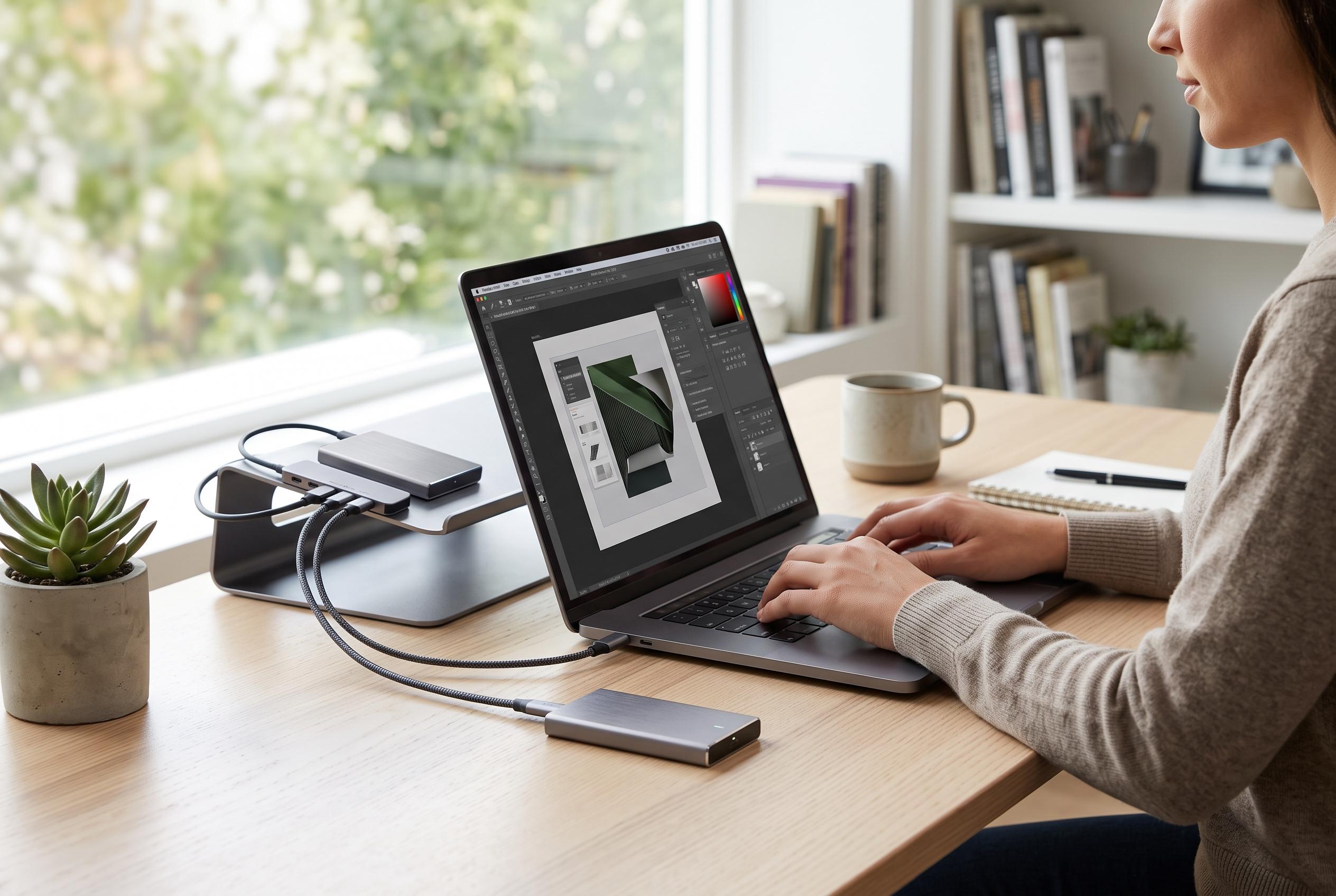

With internal solid-state drives nearing capacity and hardware upgrades often impractical, users can now explore various external and secondary internal options to boost their laptop’s storage, including innovative external drives and smart space management strategies.
When a laptop’s internal solid-state drive is full and swapping it out is not practical, there are still several ways to add usable storage without opening up the main drive bay. The best choice depends on whether the machine has spare internal slots, an SD card reader, modern USB ports or whether you are simply trying to free space by moving less-used files elsewhere.
The cleanest solution, if the hardware allows it, is to install a second internal drive. How-To Geek notes that some larger laptops still include an empty M.2 slot, which lets owners add capacity without replacing the existing SSD. A 2.5-inch SATA bay, though increasingly rare, can also hold a cheaper SATA SSD that remains fast enough for many everyday tasks. That approach has the advantage of keeping files neatly separated between drives.
If an internal upgrade is not possible, an external SSD is often the most practical alternative. According to How-To Geek, even a basic USB 3 connection can deliver performance that is close to a SATA SSD, while faster USB 3.2, USB4 and Thunderbolt enclosures can push far higher speeds for NVMe drives. PCWorld likewise points to external hard drives and SSDs as one of the main ways to expand laptop storage without installing a new internal drive.
For a more permanent but low-profile option, some USB flash drives are designed to stay plugged in all the time. How-To Geek points to SanDisk’s Extreme Fit line as an example of a drive that behaves more like a miniature SSD than a traditional thumb drive, with enough speed for storing media and other secondary files. SD cards can serve a similar role if the laptop has a reader, although both PCWorld and How-To Geek suggest they are better suited to movies, older games and other non-critical data than to irreplaceable files.
A traditional mechanical hard drive still has a place, especially for archives, project folders, music, video and backups that do not need SSD-level speed. PCWorld also lists network-attached storage and cloud storage as practical off-device options, while EaseUS and AOMEI recommend reclaiming space first by clearing temporary files, using partition tools and moving less-used content out of the laptop altogether. In practice, the most effective answer may be a combination of methods: trim what you keep locally, then add the cheapest storage tier that fits the way you work.
Disclaimer: This content is intended for informational purposes only. Readers are advised to exercise their own judgement, conduct due diligence, or consult a qualified expert before acting on any information provided.