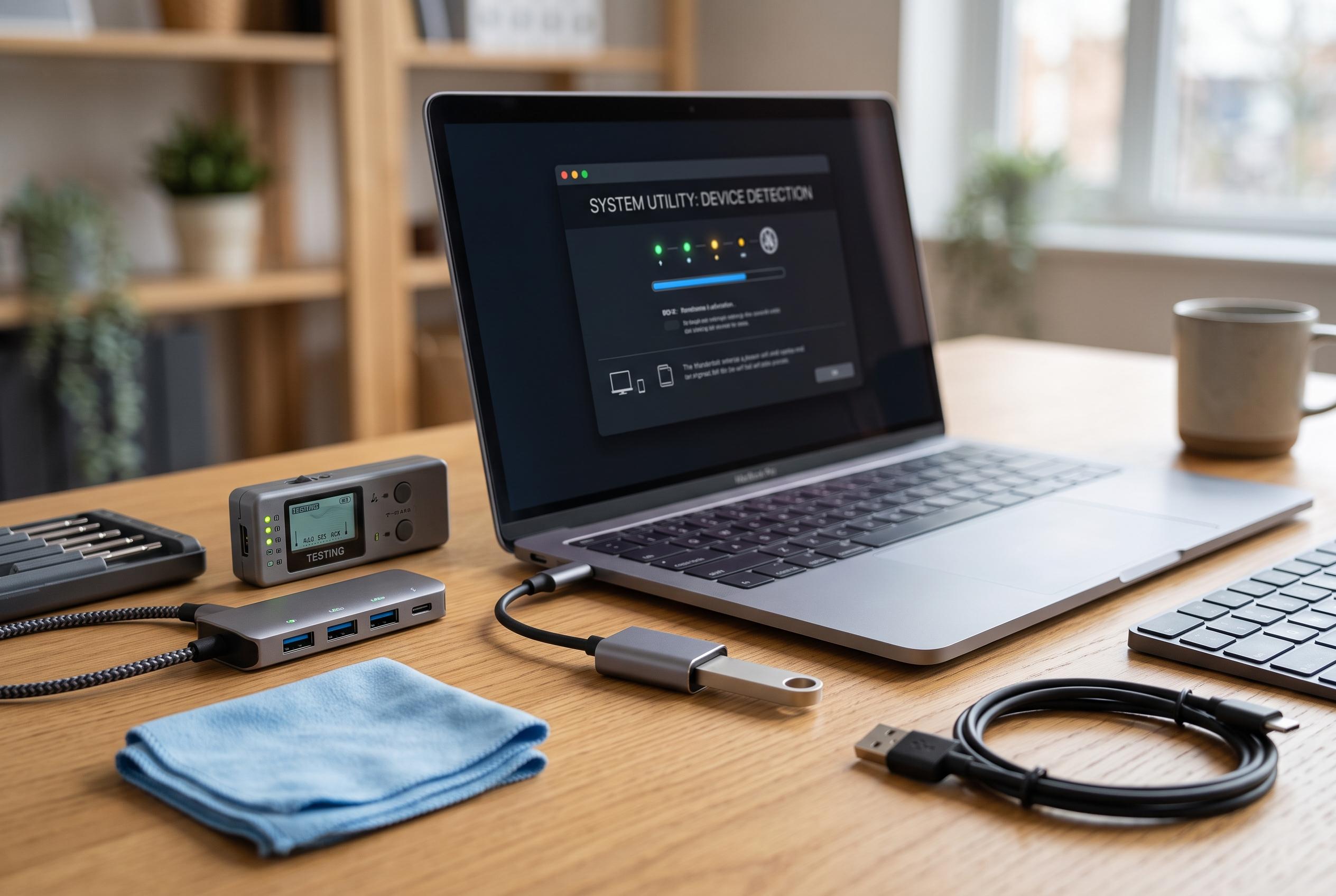

A comprehensive guide to diagnosing and resolving USB device detection issues on Mac, revealing recent insights into hardware, software, and compatibility challenges that can leave devices seemingly invisible but often fixable through systematic checks.
A USB device that seems invisible on a Mac is often not failing in the same way at all. The problem may be power, data transfer, volume mounting, file-system compatibility, permissions or app-specific access. A drive can also be working normally while simply hidden from Finder, which is why the first step is to identify what macOS can already see before attempting repair or reformatting.
The quickest safe checks are simple but revealing. Unlock the Mac, approve the accessory if prompted, connect the device directly rather than through a hub or dock, try another port and a known-good data cable, and then inspect System Information and Disk Utility. Those steps help separate a dead cable or port from a storage-device issue, and they also show whether the problem is only with Finder visibility. iDownloadBlog and several other Mac troubleshooting guides recommend the same basic sequence because it often resolves the issue without further intervention.
The type of accessory matters. External drives, SSDs, card readers and enclosures are best checked in Finder, System Information and Disk Utility. An iPhone or iPad is different: on recent versions of macOS it normally appears in Finder only after the Mac and device have been unlocked and trusted. Cameras and scanners often show up in Photos, Image Capture or the manufacturer’s own software rather than as mounted volumes. Keyboards, printers, audio interfaces and similar peripherals may never appear in Finder at all, so missing from Finder alone does not mean the device is not working.
If the device powers on but does not transfer data, the cable or approval state is often to blame. USB-C describes the connector, not the full capability of the cable, and a charging-only or damaged cable can make an accessory light up while preventing data detection. Apple-silicon Mac laptops can also block data from unapproved accessories while still allowing charging. If macOS asks whether to allow the device, choosing the wrong option can leave the accessory powered but inaccessible until it is disconnected and reconnected.
Finder settings are another easy place to check. A volume can be mounted correctly while hidden from the desktop or sidebar. If the drive appears in Disk Utility but not Finder, turn on connected hardware in Finder settings and check the sidebar’s Locations section. If that makes the disk appear, the connection was never the issue. If it still does not show, the next dividing line is System Information. A device listed under USB means macOS is at least detecting the hardware; if it is absent there too, the fault is more likely to be in the cable, port, hub, power path or accessory itself.
Disk Utility is the next critical test, especially with View set to show all devices. That lets you see whether macOS can find the physical disk, the partition map and the volume separately. A disk may be present but unmounted, encrypted, corrupted or formatted in a way that macOS can read only partially. If a volume is greyed out, mounting it may be enough. If the disk is read-only, the likely causes include NTFS, permissions, insufficient free space or a Time Machine configuration. NTFS is a common source of confusion because macOS can often read it but not write to it natively.
Repair should come after protection of the data, not before. If the drive is still readable, copy anything important first. Only then should First Aid be used, and even then Apple’s recommended order is to work from the lowest-level volume upwards. First Aid can fix some directory and formatting errors, but it cannot recover every damaged disk, and a failed repair is not a sign that formatting is the next safe step. Formatting is destructive and should be reserved for cases where the data is already backed up or no longer needed.
Some problems are not USB faults at all but policy or software conflicts. On managed Macs, an administrator can block external storage or set it to read-only. Security software, backup utilities, virtualisation tools and third-party storage drivers can also interfere after a macOS update. In those cases, Safe Mode is useful because a device that works there but not in normal startup points towards software loaded during a standard boot. Apple also recommends Apple Diagnostics when multiple known-good USB devices fail, one port repeatedly fails or hardware damage is suspected.
The most important distinction is this: if System Information shows the USB hardware but Disk Utility cannot see the physical disk, the issue is probably not a simple formatting problem. That points instead to the bridge inside the enclosure, insufficient power, a failing drive or a device mode macOS cannot use. If the device is absent from both reports after direct testing with a known-good cable and port, the remaining suspects are the accessory, the port, the power path or the Mac’s hardware.
Disclaimer: This content is intended for informational purposes only. Readers are advised to exercise their own judgement, conduct due diligence, or consult a qualified expert before acting on any information provided.