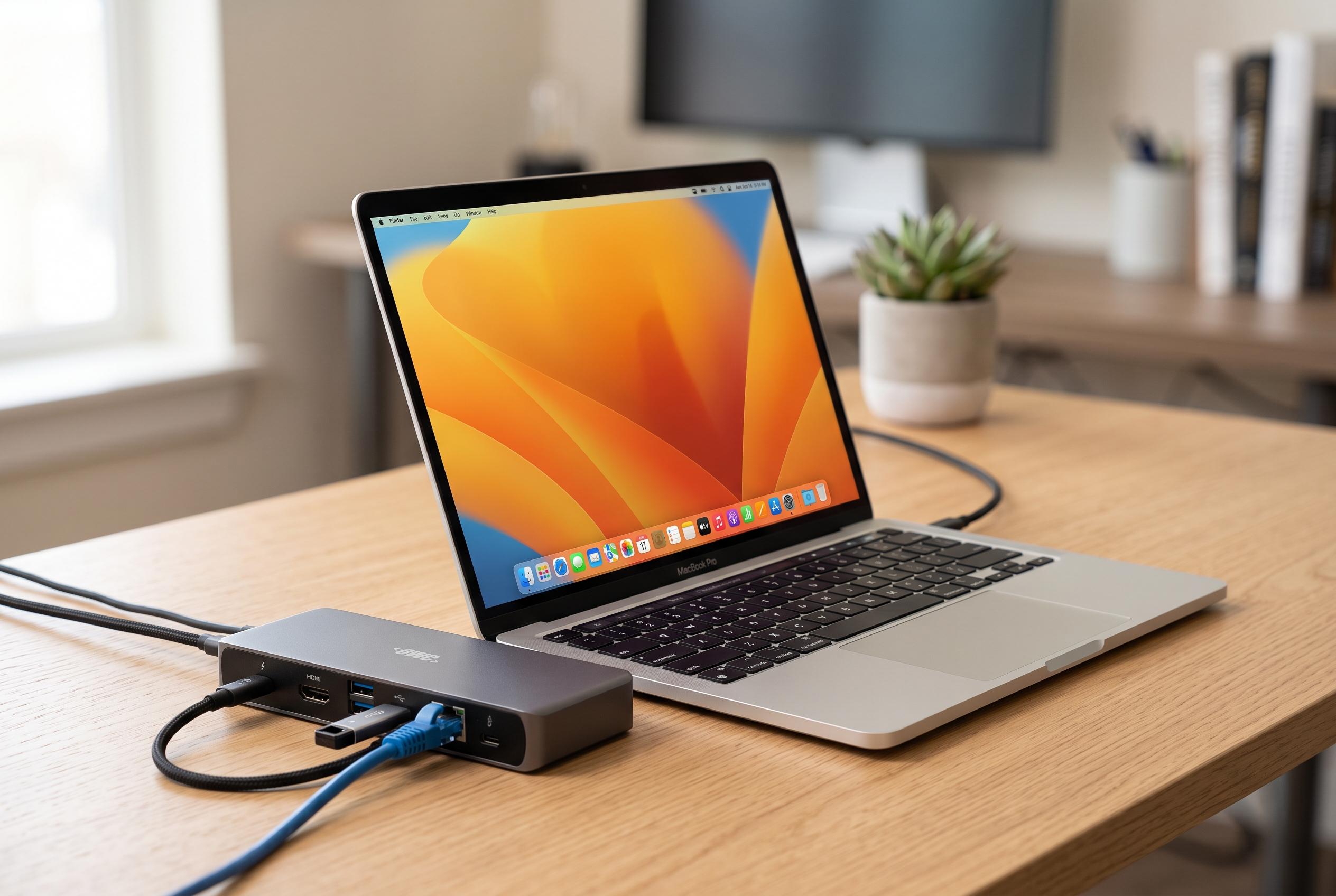

Mac users with limited USB-C ports must choose between simple USB-C hubs or high-performance Thunderbolt docks, with the distinction affecting speed, display support, and overall capabilities.
If you are working from a Mac with only a handful of USB-C ports, a hub or dock can make a noticeable difference to day-to-day use. But the terms are not interchangeable: a device with a USB-C plug is not automatically a Thunderbolt accessory, and that distinction affects speed, display support and overall flexibility.
OWC says the key issue is that modern Macs may support Thunderbolt through some or all of their USB-C ports, but users only get the full benefit of that standard with a Thunderbolt hub such as its Thunderbolt Hub or Thunderbolt 5 Hub. By contrast, the company argues that a simpler USB-C hub is often enough when the need is only to add a few extra connections or hook up a screen in a pinch, which is the role OWC assigns to products such as its Travel Dock range.
That distinction is echoed by other technology guides. RTINGS notes that Thunderbolt and USB-C often share the same connector shape on monitors, but the presence of a USB-C port does not mean Thunderbolt support is included. The Mac Observer and Creative Bloq both explain that USB-C describes the physical connector, while Thunderbolt is a faster protocol that uses that connector and can support more demanding setups, including higher data rates and multiple displays. TechRadar and Docking Stations Info likewise point out that Thunderbolt docks generally offer better performance and broader display support, but they require compatible hardware, while standard USB-C docks tend to be more universal and less expensive.
In practice, the right choice depends on the workload. For storage, dual-monitor setups or other bandwidth-heavy tasks, Thunderbolt is usually the better fit. For basic charging, file transfer and a simple desk setup, a USB-C hub may be all that is needed. The safest approach is to check both the laptop and the display or accessory before buying, because a matching connector does not guarantee matching capabilities.
Disclaimer: This content is intended for informational purposes only. Readers are advised to exercise their own judgement, conduct due diligence, or consult a qualified expert before acting on any information provided.