

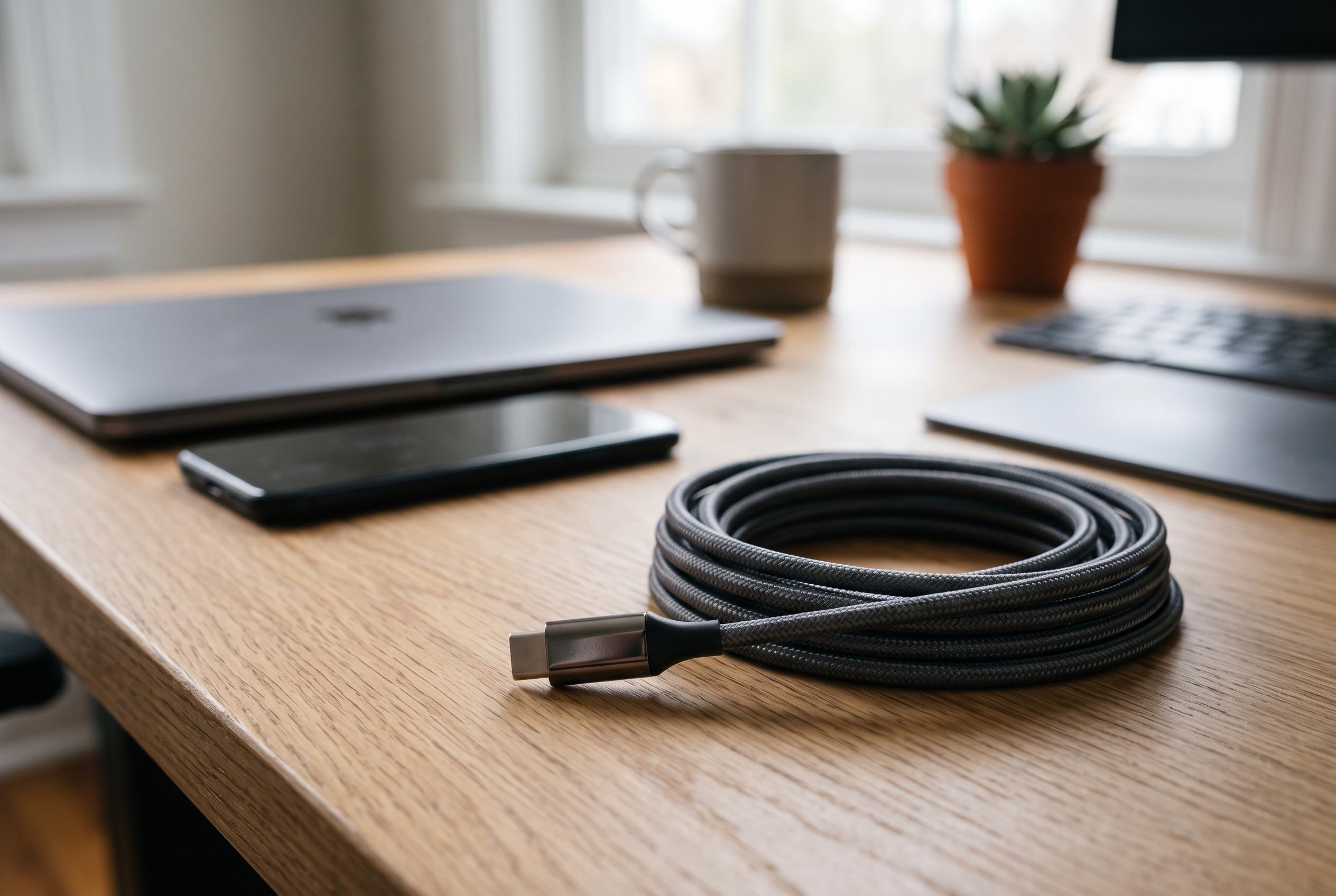

USB-C’s universal connector debut has not eliminated confusion over cable capabilities, with internal chips and standards crucial for ensuring optimal device performance. Experts advise selecting cables based on specification and certification to avoid issues with charging, data transfer, and video output.
USB-C has become the default shape for modern charging and data, but that does not make every cable interchangeable. The plug may fit the port either way round, yet the cable inside can still be built for very different jobs. As How-To Geek explained, one lead may support only basic USB 2.0 data and modest charging, while another can carry far faster transfers, higher power and even external display signals.
The key distinction is that USB-C defines the connector, not the cable’s full capability. According to USB-C Lab and other specialist guides, the small e-marker chip inside some cables tells devices what the lead can safely handle, including its current rating, supported power delivery and data limits. Cables above 3A, including those intended for 100W and 240W charging, generally need this chip; without it, devices tend to default to conservative settings. In practice, that can mean a cable that looks identical to another one is capped at 60W charging and basic data, with no video output at all.
That is why bundled phone cables so often disappoint when used with laptops, docks or monitors. They are usually made to meet the specification for the device they came with, not to serve as a universal high-performance lead. How-To Geek notes that a fully featured USB-C cable may carry many more conductors than a basic one, and missing even a few can break fast data links or video while leaving charging intact. The result is often confusing: the device powers up, but transfers crawl or the display never appears.
The practical fix is to buy to specification, not by appearance. Cable packaging or listings should state charging wattage, data speed and, where relevant, support for USB4, Thunderbolt or DisplayPort alternate mode. USB-IF certification is a useful signal because it means the cable has been tested against formal standards. If a laptop, handheld console or monitor depends on a certain level of power or bandwidth, the safest approach is to choose the cable that matches the most demanding task it will need to perform.
Existing cables can still be checked rather than discarded at random. Microsoft’s USBView utility, HWiNFO on Windows and the USB section of System Information on macOS can help identify what speed a connection is actually negotiating, while USB-C testers can confirm whether a cable contains an e-marker and what it reports. If a device falls back to slower operation, the most effective troubleshooting method is to change one part of the chain at a time: cable, port, then device. That is often the only way to identify the bottleneck.
Disclaimer: This content is intended for informational purposes only. Readers are advised to exercise their own judgement, conduct due diligence, or consult a qualified expert before acting on any information provided.



