

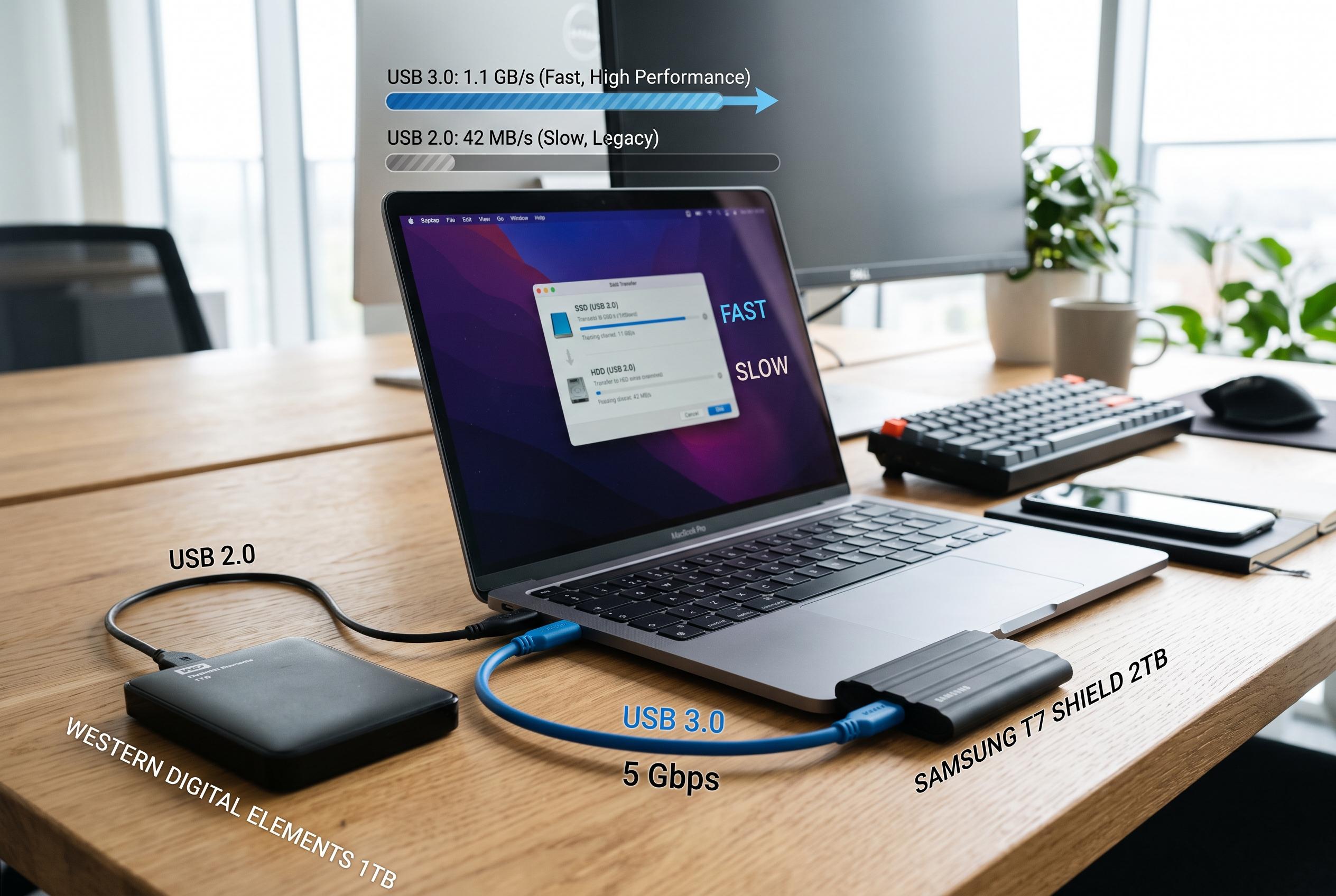

While USB 2.0 and USB 3.0 are broadly compatible, their performance disparities impact data transfer speeds, especially with high-bandwidth peripherals. This guide explores the differences, physical wiring changes, and practical implications for users seeking optimal configuration.
USB 2.0 and USB 3.0 are broadly compatible, but they are not equivalent in performance. In most ordinary uses, a newer port will accept an older device and an older port will still recognise a newer one. The connection, however, only runs as fast as the slowest part of the chain, whether that is the host, the device or the cable. That is why a USB 3.0 drive plugged into a USB 2.0 port will still work, but only at USB 2.0 speeds.
The main difference is throughput. USB 2.0 is commonly associated with a 480Mbps signalling rate, while the original USB 3.0 generation was built for 5Gbps, a tenfold increase in theoretical capacity. COMPUTER BILD, GeeksforGeeks, Diffen and CHIP all note that this makes USB 3.0 far better suited to external storage and other high-bandwidth tasks, although real-world transfers are always lower than the headline figure because of protocol overhead and device limitations.
USB 3.0 also changed the underlying wiring. Kaweei’s technical guide explains that the cable design expanded from four conductors to nine, adding dedicated differential pairs to improve signal integrity and support higher data rates. That physical difference is one reason a USB 2.0 cable can become the bottleneck even when both the port and the peripheral are capable of faster operation.
The naming system can still cause confusion. What was originally sold as USB 3.0 is now generally grouped under USB 3.2 Gen 1 or SuperSpeed USB 5Gbps. Later USB 3.2 tiers add 10Gbps and 20Gbps modes, so the label on the box matters more than the generation name alone. A product described only as “USB 3.0” usually refers to the 5Gbps class, not to the faster USB 3.2 variants.
Connector shape does not settle the question either. A USB-C port or cable may carry USB 2.0, USB 3.x or other functions depending on the device design, while a blue USB-A port often indicates SuperSpeed support but is not a universal guarantee. The practical rule is to check the specifications of the computer, the peripheral and the cable together. A charging-capable USB-C cable may still carry only USB 2.0 data, and a faster port cannot upgrade a device that was built for the older standard.
For most low-bandwidth peripherals, USB 2.0 remains sufficient. Keyboards, mice, printers and basic controllers usually do not benefit from the extra headroom. USB 3.x matters more for external hard drives, SSDs, fast flash drives and docks handling several devices at once. In those cases, matching the rated speed across the full connection is the only way to get the performance the hardware was designed to deliver.
Disclaimer: This content is intended for informational purposes only. Readers are advised to exercise their own judgement, conduct due diligence, or consult a qualified expert before acting on any information provided.



