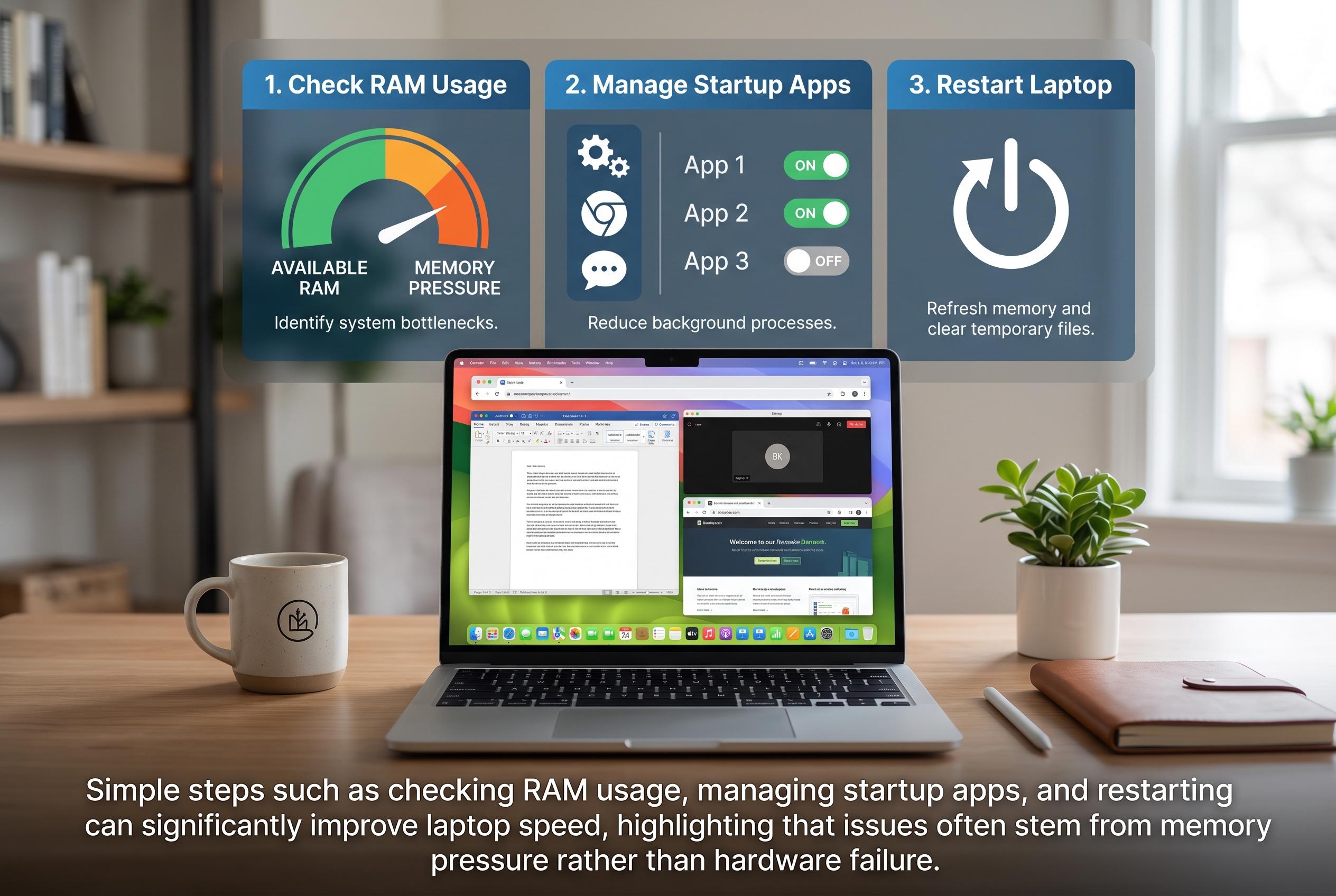

Simple steps such as checking RAM usage, managing startup apps, and restarting can significantly improve laptop speed, highlighting that issues often stem from memory pressure rather than hardware failure.
A sluggish laptop is not always a sign that the machine is failing. In many cases, the problem is simpler: memory pressure. When RAM fills up, the system has less room to keep active apps and data close at hand, so everyday tasks can slow down and, in severe cases, the machine can appear to freeze. The Vietnamese technology site Thanh Nien says this is now more common because 8 GB, once enough for most people, is often no longer ideal for modern multitasking. It also notes that higher memory capacities have become more expensive as demand for AI-related hardware has pushed component prices up.
The first step is to check what is using memory. Tom’s Hardware recommends Windows users open Task Manager, while Tom’s Guide points Mac users to Activity Monitor. These tools show how much RAM is in use and help identify whether the slowdown is caused by a single app, too many browser tabs or background processes that are consuming resources without being noticed. High memory use is not automatically a problem, but it becomes one when the system starts leaning on storage as a substitute, since storage is far slower than RAM.
Restarting the computer remains the quickest way to clear temporary memory use. Because RAM is volatile, its contents are wiped when power is cut, which can immediately relieve pressure on the system. Thanh Nien also says a restart can resolve memory leaks tied to Windows Explorer. If a full reboot is not practical, users can sometimes restart the faulty process through Task Manager instead.
Other common fixes are straightforward. Microsoft says startup applications can be managed in both Settings and Task Manager on Windows, which can reduce the number of programmes that load as soon as the device turns on. On Mac, login items serve the same role and can be removed to speed up boot times. Closing heavy browser tabs and shutting down unnecessary background apps can also free up memory. The result is often a noticeably smoother laptop, without the cost of a hardware upgrade.
Disclaimer: This content is intended for informational purposes only. Readers are advised to exercise their own judgement, conduct due diligence, or consult a qualified expert before acting on any information provided.