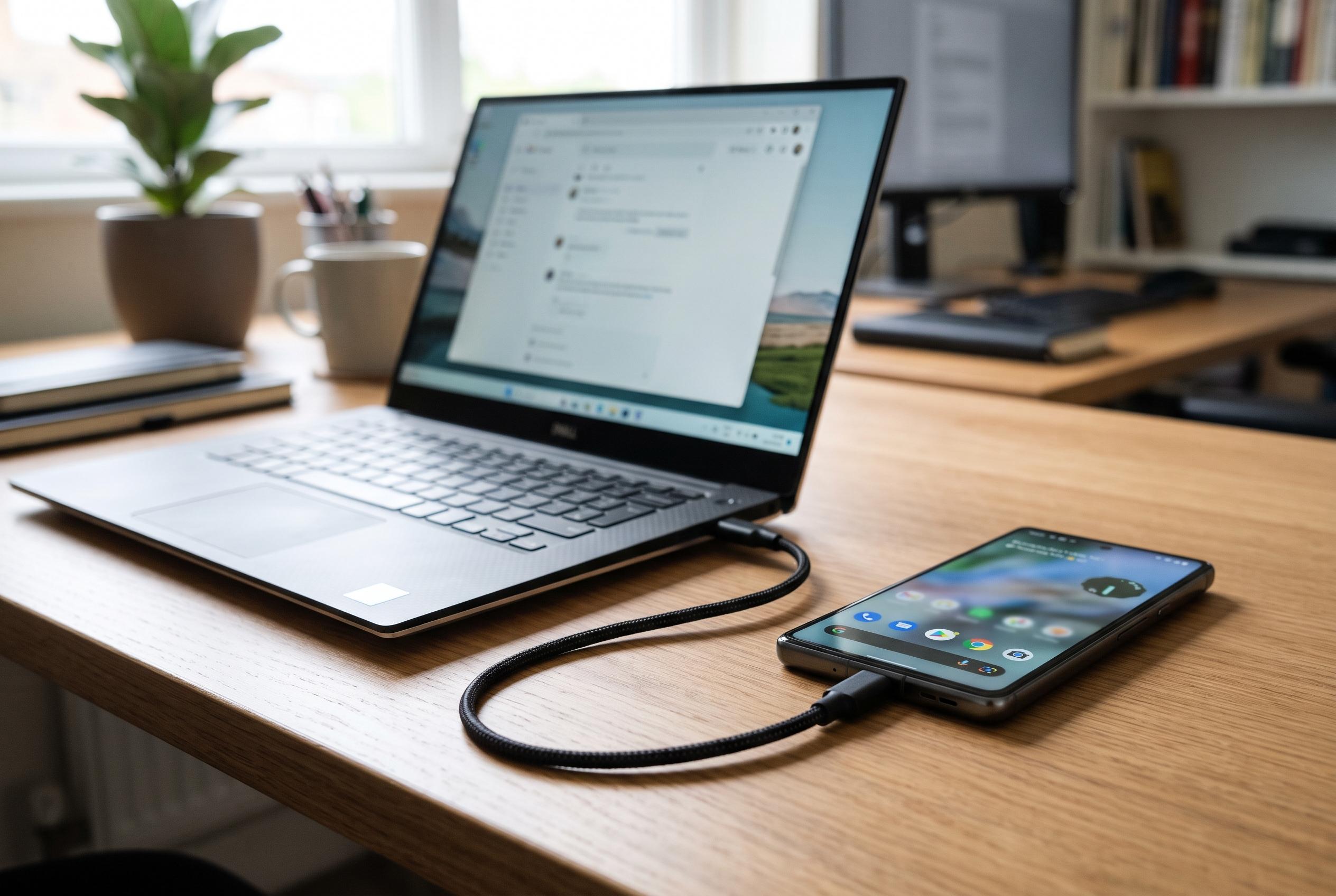

A charging phone that remains invisible to a Windows PC is often suffering from a cable, USB mode or driver problem rather than a serious hardware fault.
Android USB problems often look more serious than they are. A handset may charge normally, yet fail to appear on a Windows PC, refuse file transfer, or disconnect as soon as the cable is moved. In most cases, the cause is not a major fault in the phone itself but a basic issue with the cable, the connection mode, the computer port, or the driver software on Windows.
The first check should always be the cable. A large number of USB leads are designed for power only, so a phone can charge while remaining invisible to the computer. Android Central recently highlighted a related pattern in a separate Samsung setup bug, where network and software issues prevented normal phone use after an update. While that case was different, it underlines the same point: connectivity failures can arise from software as well as hardware, and the simplest remedies are often the most effective. A data-capable cable, tested against another device, is the most reliable place to start.
If the cable is sound, the next step is to try another USB port and then confirm that the phone is not defaulting to charging-only mode. Several troubleshooting guides for Android Auto and Windows recognition problems point to the same fix: unlock the phone, open the USB notification, and switch the connection to file transfer or data transfer. If that option does not appear, reconnect the phone, restart both devices, and test a different port directly on the computer rather than through a hub or front-panel extension.
Windows can also be the source of the fault. Android is often recognised automatically, but if Device Manager shows a warning symbol, the system may be missing the right driver or may have replaced a working one with a faulty update. Technical guides aimed at Windows 10 and Windows 11 users recommend checking Portable Devices, Android Device, Universal Serial Bus controllers, and Other devices for errors before downloading only official manufacturer drivers. That matters because a bad driver can leave the phone able to charge, yet unable to present storage to File Explorer.
When the phone still refuses to connect, the hardware itself may need attention. If the port is loose, dirty, or intermittently disconnects, the phone may be supplying power without establishing a stable data link. In that situation, inspection under good light is sensible, but the port should not be probed with metal tools or liquid cleaners. If the phone works with another computer and another cable, the fault is more likely to sit with the original PC. If it fails everywhere, the device software or the connector assembly may need professional repair.
The practical lesson is that Android USB faults should be approached in stages. Start with the cable, then the port, then the USB mode, then the driver and software layer. That order keeps the process simple and reduces the risk of unnecessary resets or invasive changes. For users who regularly move files between phone and PC, a known-good cable, a clean port, current software, and a backup of important data are the best safeguards against future disruption.
Disclaimer: This content is intended for informational purposes only. Readers are advised to exercise their own judgement, conduct due diligence, or consult a qualified expert before acting on any information provided.