

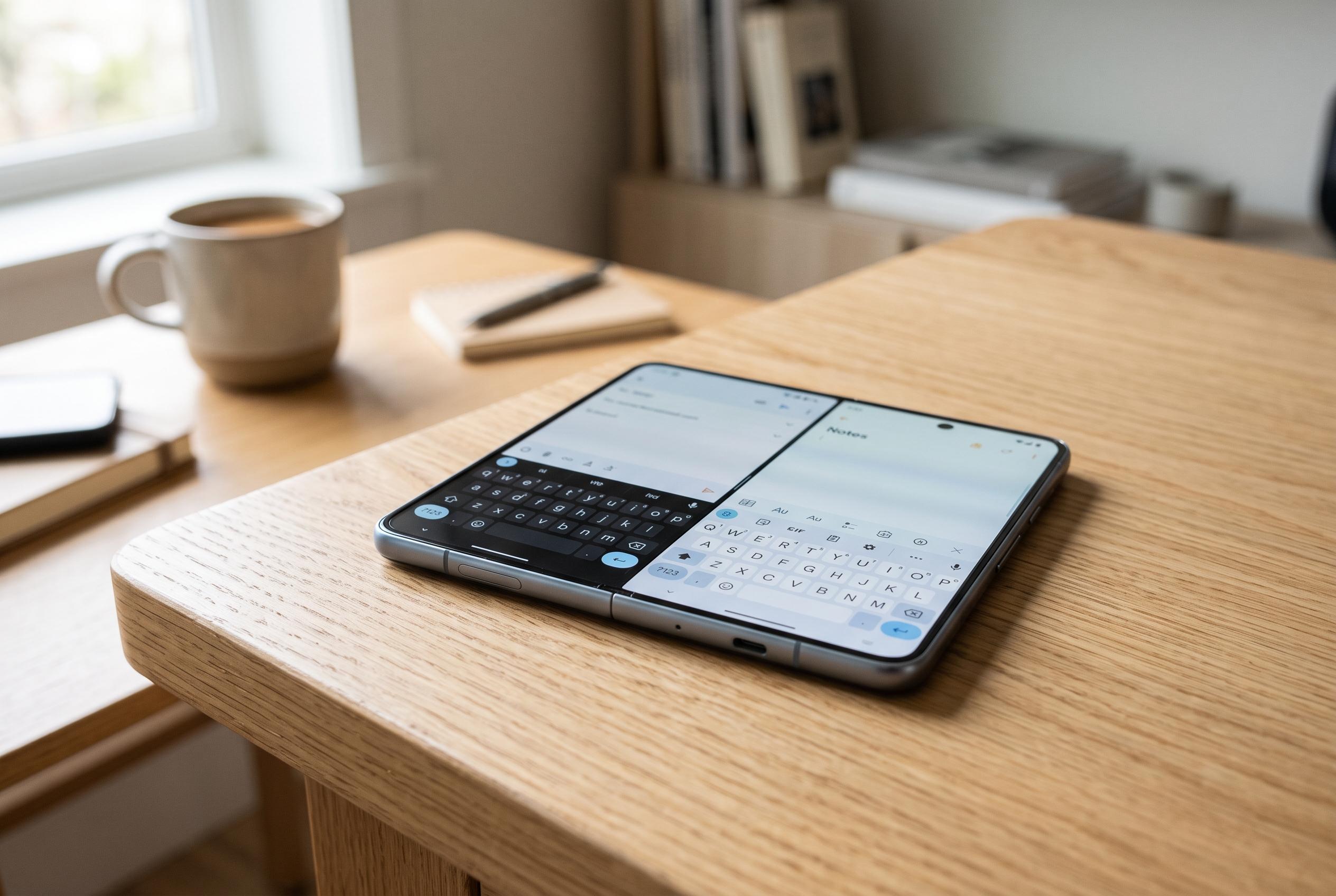

Android phones now facilitate seamless switching between multiple keyboards, allowing users to personalise their typing experience with ease and control over privacy and functionality.
Android phones allow users to change the default keyboard, add alternatives and switch between them without deleting the original setup. According to Android-focused guides from Android Central, Guiding Tech, Tom’s Guide and PC Guide, the process normally starts by installing a trusted keyboard app, then enabling it in the system settings before selecting it as the default input method. The exact menu names vary by manufacturer and Android version, but the route is usually found under System, Languages and input, or on-screen keyboard settings.
Once a keyboard has been installed, the next step is to open the relevant settings page and turn it on. Guides from Android Central and Guiding Tech note that Android may show a warning at this stage because keyboards can process everything a user types, so it is wise to review permissions, the developer’s reputation and the app’s privacy terms before activation. After that, the chosen keyboard can be set as the primary option for messages, notes, browsers and other apps with text fields.
Users are not limited to one keyboard. Microsoft Support says Android can keep more than one enabled at the same time, allowing quick switching when typing. That can be useful for anyone who wants one keyboard for a particular language, another for gesture typing or emoji, and a third for a different layout. In many cases, the keyboard selector appears automatically when a text field is active, making it easy to change input methods without reinstalling anything.
Changing back to the original keyboard is just as straightforward. The system settings menu usually lists all enabled keyboards, and the default can be changed again at any point. This does not normally remove saved words or personalisation data from the previous app, although those settings may remain inside the keyboard app until its data is cleared or the app is removed. That distinction matters for anyone who is comparing privacy or moving between keyboard services.
Customisation is often a major reason people change keyboards in the first place. Google Support explains that Gboard users can adjust themes, sound and vibration settings, while other keyboards offer their own appearance and typing controls. In practice, the best approach is to test the new keyboard in a messaging or note-taking app, confirm that autocorrect, swipe input and language switching work as expected, and then keep the setup only if it feels reliable and comfortable.
Disclaimer: This content is intended for informational purposes only. Readers are advised to exercise their own judgement, conduct due diligence, or consult a qualified expert before acting on any information provided.



