

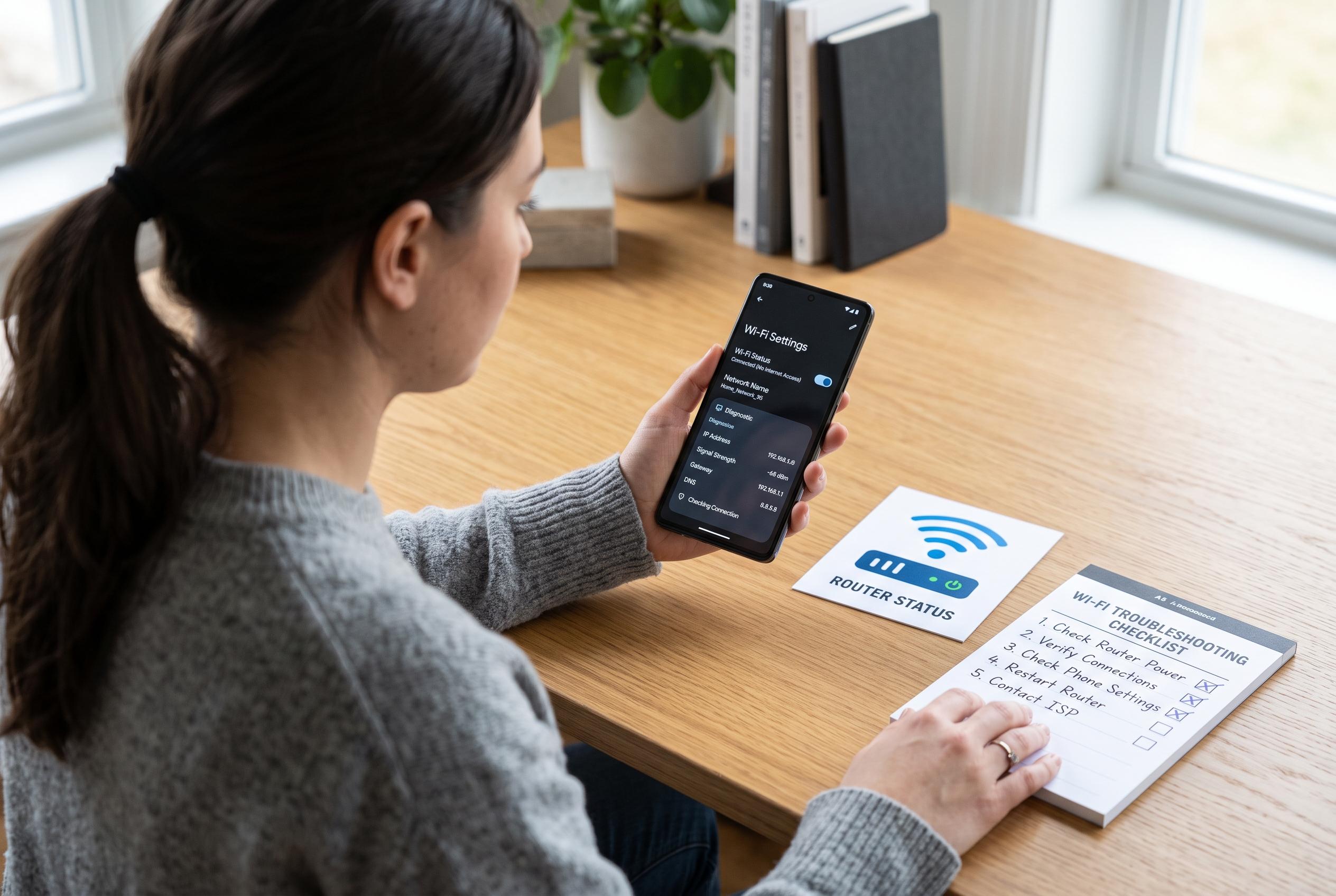

Experiencing Wi-Fi connectivity issues on your Android device? Learn step-by-step how to identify whether the fault lies with your device or the network, and discover practical solutions from basic resets to advanced checks.
When an Android phone reports that it is connected to Wi-Fi but apps will not load, the first task is to separate a device fault from a network outage. Google’s support guidance says to start with the basics: restart the phone, switch between Wi-Fi and mobile data, and check whether the handset can reach the internet on another network. Independent how-to guides also recommend testing the same connection on a second device before making any changes to the phone itself.
If another phone or laptop on the same network can browse normally, the problem is probably local to the Android device. A practical first fix is to forget the saved Wi-Fi profile, restart the handset, and join the network again. That refreshes the connection details and can clear a bad address or stale session. Several troubleshooting guides also note that some networks require a sign-in page, so it is worth opening a browser rather than relying on a single app to judge whether the connection works.
If the Wi-Fi link still shows as connected but nothing loads, the next checks should focus on settings that can block traffic without breaking the wireless link itself. VPNs, ad-blocking tools and custom Private DNS settings can stop name resolution, while an incorrect date or time can cause secure sites and app log-ins to fail. Guides from Google and third-party Android support sites also advise checking whether the network is being treated as unmetered and confirming that mobile data is not interfering with the test.
Signal conditions matter as well. If the phone works when it is close to the router but fails elsewhere in the home, weak coverage or interference is more likely than a software fault. Some devices perform better on 2.4GHz, others on 5GHz, so trying the alternate band can reveal whether the issue is with range rather than Android itself. Broad troubleshooting guides also point to router glitches, DNS faults, IP conflicts and ISP-side outages as common causes when multiple devices are affected.
Android’s network reset should be treated as a last resort rather than a first response. Google’s support material recommends simpler checks first, then a reset if the problem persists across known-good networks. The reset removes saved Wi-Fi networks and Bluetooth pairings, so the password should be ready before proceeding. If the phone still fails after that on several working networks, the fault may be with the handset or its software, and the maker’s support channel becomes the next sensible step.
Disclaimer: This content is intended for informational purposes only. Readers are advised to exercise their own judgement, conduct due diligence, or consult a qualified expert before acting on any information provided.



