

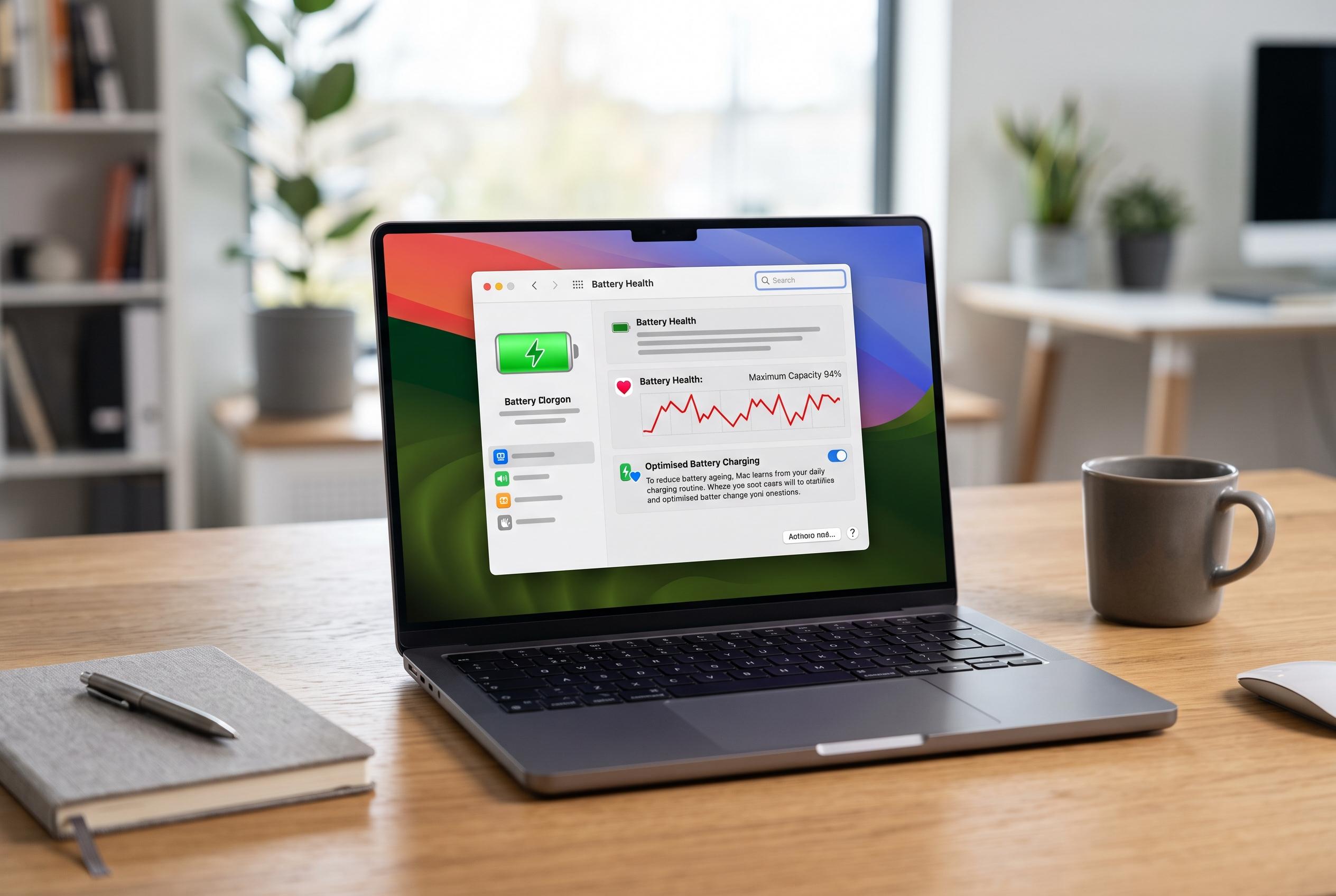

Owners can now enhance their MacBook’s battery performance by fine-tuning macOS settings, including Battery Health monitoring, Optimised Battery Charging, and activity management tools, offering a DIY approach to extending device lifespan.
MacBook owners looking to stretch battery life can make a meaningful difference by adjusting a handful of macOS settings, rather than relying only on hardware age or usage habits. Apple says battery health can be monitored in System Settings, where users can check capacity and turn on Optimised Battery Charging, a feature designed to reduce time spent at full charge. TechRadar and Tom’s Guide both note that battery condition and cycle count are also useful indicators when deciding whether a battery is still performing normally or may need replacement.
Apple’s own guidance is clear that Optimised Battery Charging is intended to learn a user’s charging pattern and delay charging beyond around 80% until it is needed. The company also now provides a Charge Limit option on supported Macs, letting users cap maximum charge manually. For those concerned about long-term battery health, these are the most direct built-in controls, and they are preferable to relying on guesswork or leaving the machine plugged in continuously.
Another practical step is to use Low Power Mode when running on battery. On modern Macs, this reduces energy use by limiting background activity and lowering performance demands where possible. The same battery menu also offers options to dim the display on battery power, while Lock Screen settings can shorten the time before the screen turns off. These changes matter because the display remains one of the largest and most consistent power draws on a laptop.
Apple and independent guides also point to activity monitoring as a useful diagnostic tool. In Activity Monitor, the Energy tab can highlight applications with a high Energy Impact score, while the Preventing Sleep column can reveal processes that keep the Mac awake unnecessarily. The Login Items & Extensions section in System Settings can show which apps launch in the background, although users should be careful not to disable services that are required for core functions or security.
Browser choice can also influence endurance. Power-efficient browsing in Safari is often recommended over heavier alternatives, and browser settings can limit the damage from auto-playing video and background tabs. Chrome users can reduce consumption by enabling its Energy Saver mode, while macOS also allows animated images to be disabled in Accessibility settings. For people who stream video frequently, Apple’s own settings can reduce power use further by limiting HDR playback behaviour on battery.
Finally, it is worth checking network and location-related background activity. Apple provides a Wake for network access setting that can be restricted to when the Mac is on power, which helps prevent unnecessary wake-ups while unplugged. Reviewing Location Services permissions can also expose apps that are requesting positioning data more often than they need. Taken together, these measures are unlikely to transform a failing battery, but they can add up to noticeably better day-to-day runtime and slower battery wear over time.
Disclaimer: This content is intended for informational purposes only. Readers are advised to exercise their own judgement, conduct due diligence, or consult a qualified expert before acting on any information provided.



