

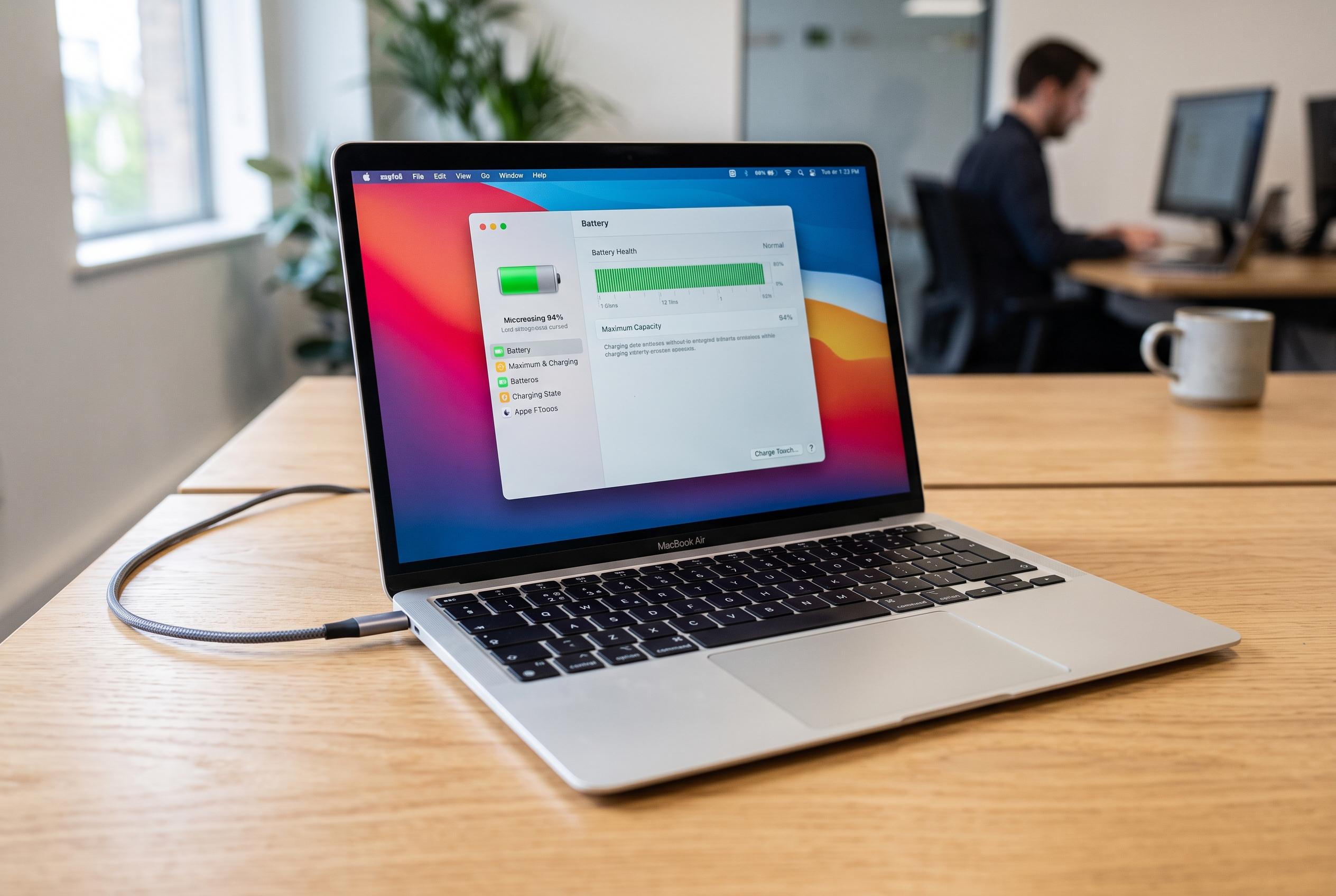

Apple introduces advanced battery management features in macOS Tahoe 26.4, including charging controls and capacity monitoring, to help users extend battery lifespan and minimise wear.
A MacBook’s battery settings can reveal more than a simple charge percentage. In System Settings, the Battery panel shows battery health, while the information icon beside it gives the remaining capacity as a share of the battery’s original design. If that figure is still close to 100 per cent, the battery is not yet the main constraint; if it has slipped into the mid-90s or around 90 per cent, the decline is usually modest. Apple says a battery at below 80 per cent capacity may trigger a service warning and should generally be replaced.
The same Battery menu also contains one of the most useful long-term preservation tools: charging controls. Apple says Optimised Battery Charging uses on-device learning to reduce wear by pausing charging above 80 per cent when it predicts the laptop will remain plugged in. On newer Apple silicon Macs running macOS Tahoe 26.4 or later, Apple has also added a Charge Limit option that lets users set a maximum charge between 80 and 100 per cent. Both features are designed to slow ageing rather than to extend runtime immediately.
For day-to-day use, the menu bar battery icon is the quickest place to check what is draining power and whether an energy-saving mode is active. It also lets users override the charging cap when they need a full battery for travel or a long session away from mains power. If the icon is missing, it can be restored through System Settings under Menu Bar, where Battery can be switched on.
These settings do not change the fact that battery wear is inevitable, but they do make the decline more manageable. For people who leave their MacBook on charge for much of the day, Apple’s own guidance and recent coverage from Macworld and other Apple-focused publications suggest that automatic charge control is one of the most practical ways to preserve battery health over time. Third-party tools can offer more aggressive limits, but Apple’s built-in options are the safest starting point for most users.
Disclaimer: This content is intended for informational purposes only. Readers are advised to exercise their own judgement, conduct due diligence, or consult a qualified expert before acting on any information provided.



