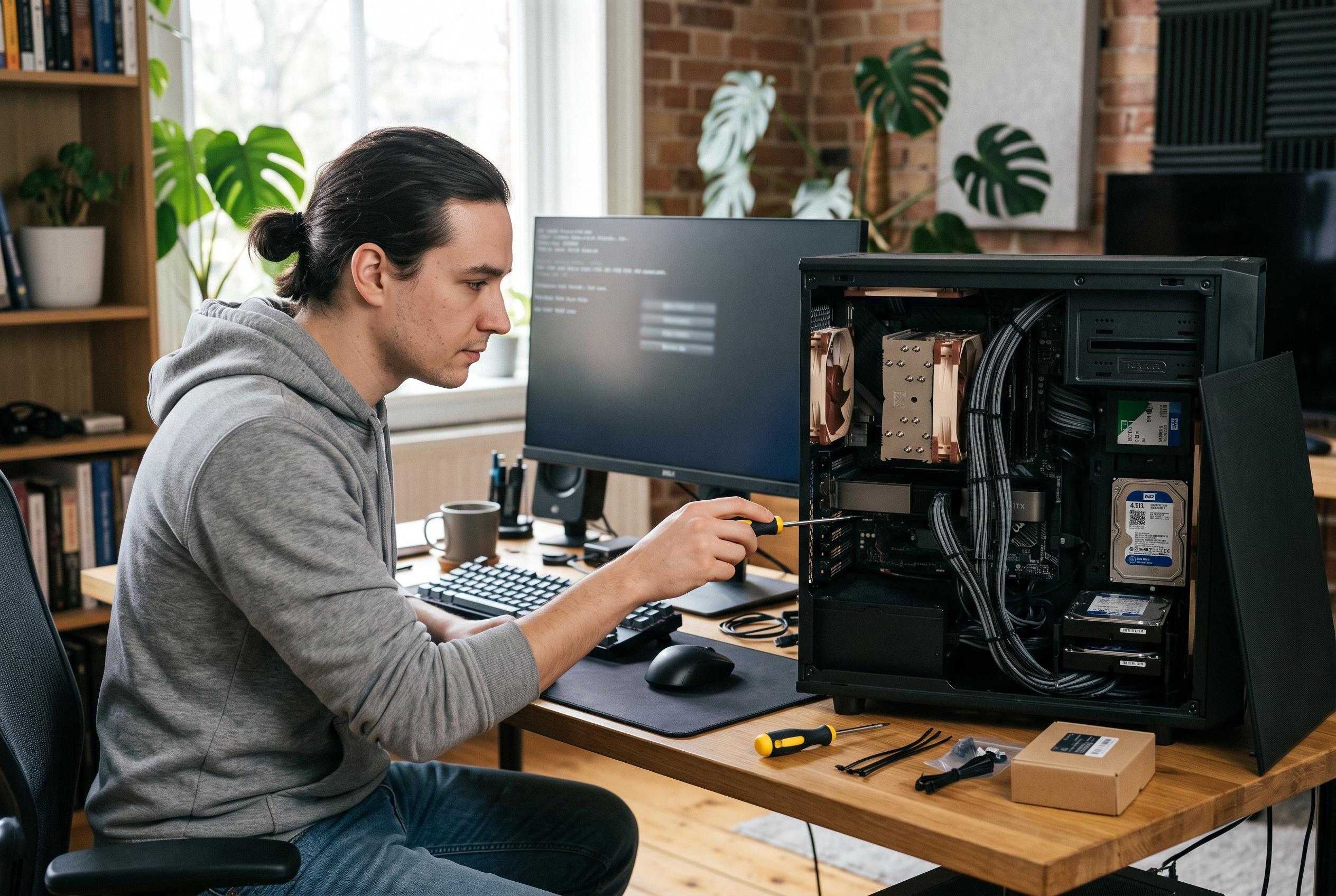

A failed startup does not always call for a fresh Windows installation. Tracing the point where booting stops can reveal whether the real culprit is a damaged update, faulty system files, failing storage or defective hardware.
Reinstalling Windows is often treated as the quickest cure when a PC refuses to start, but that instinct can be misleading. If the underlying fault is physical, wiping or repairing the operating system will not solve it and can make data recovery harder if the storage drive is failing. A more disciplined approach is to identify how far the machine gets in the boot process before deciding whether the problem is software-related or points to hardware failure.
The first clue is where the startup sequence stops. Microsoft’s own boot-troubleshooting guidance breaks the process into distinct stages, from initial hardware checks through to the operating system loader and kernel. If the machine does not power on properly, or shuts down after only a few seconds, the fault usually lies before Windows has even begun to load. If it reaches the motherboard logo, emits warning beeps or stops at a black screen, memory, graphics or motherboard issues become more likely. If it gets as far as the Windows logo or sign-in screen before freezing, the balance shifts towards drivers, damaged system files or a failing SSD, though storage faults can also imitate software problems.
Early hardware checks are worth doing before any attempt to reinstall. Microsoft notes that startup faults can be caused by missing or damaged boot data, incompatible drivers or simple connection problems, but the physical components themselves still need to be ruled out first. Checking RAM sticks one at a time, reseating the graphics card, confirming power delivery and verifying that the boot drive appears correctly in BIOS or UEFI can quickly expose a failing part. A system that cannot reliably detect its SSD, or shows the wrong capacity, is not a good candidate for a Windows reinstall.
Where the machine can reach Windows, recovery tools become far more useful. Microsoft’s Startup Repair utility is designed to automatically diagnose common boot failures, including corrupted system files and damaged boot configuration data. Safe Mode is another useful separator because it loads only essential drivers and services. If the machine becomes stable in Safe Mode, the evidence points more strongly to a recent driver, service or application than to a dead motherboard or defective memory module.
Recent updates can complicate the picture. A Windows update may change drivers, alter how devices initialise or simply expose a fault that was already present but hidden. Microsoft has also acknowledged cases in which particular Windows 11 updates have interfered with booting on some devices, making removal of the update through WinRE a sensible temporary step. That does not prove the update was the root cause, but it does mean the timing of the failure matters and should be treated as part of the diagnosis.
Before resorting to a reinstall, the sensible sequence is to protect data, then test the recovery environment. Microsoft’s recovery options include Startup Repair, uninstalling recent updates and, in some cases, reinstalling Windows while keeping files, apps and settings. Those tools are useful when the fault is software-based, but they should be used with caution if the drive may be failing. A system that can boot into WinRE, run Startup Repair successfully and start normally after a rollback is usually dealing with a software issue rather than a major hardware defect.
The decision point is fairly simple. If Safe Mode and recovery tools work, and the issue clears after removing a recent update or repairing startup files, reinstalling Windows is often unnecessary. If the PC still crashes in Safe Mode, recovery features will not load, or diagnostic tests flag the RAM or SSD, the operating system is probably not the real problem. In that case, replacing or repairing the failing component first is the faster and safer route, with Windows installation left until the hardware is confirmed healthy.
Disclaimer: This content is intended for informational purposes only. Readers are advised to exercise their own judgement, conduct due diligence, or consult a qualified expert before acting on any information provided.