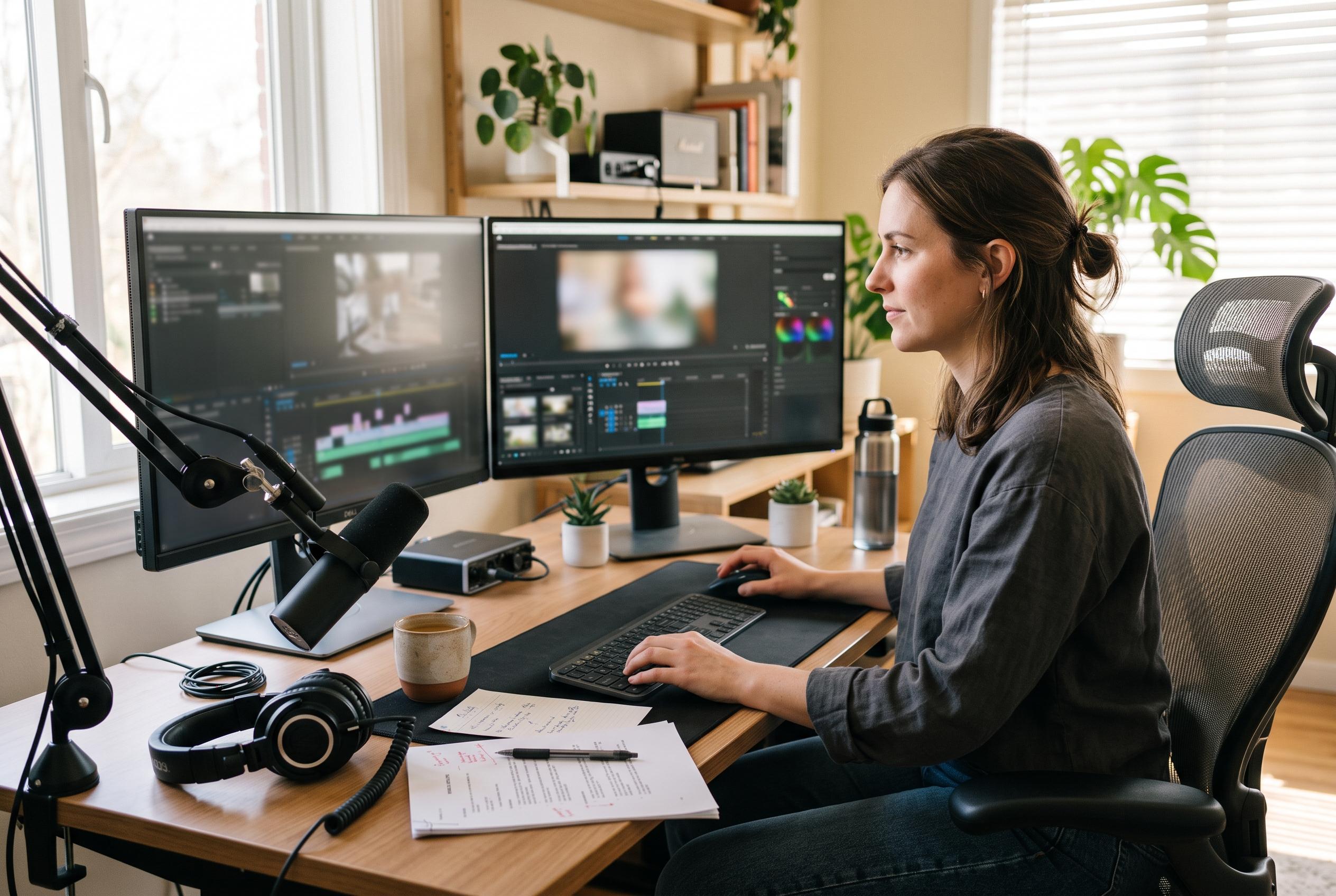

From scripting and audio checks to cursor highlights, captions and export settings, Camtasia’s workflow is designed to make screen tutorials easier to follow and quicker to refine.
Preparing a screen tutorial is less about pressing record than about deciding what the viewer must learn and clearing the path to get there. TechSmith’s own guidance stresses that a short script, a checklist of actions and a tidy desktop save time later, because fewer mistakes need trimming out in the edit. The same advice also applies to audio: close unnecessary applications, silence notifications and make a brief test recording before committing to the real take.
In Camtasia, recording begins from the editor’s home screen or from an open project. The recorder lets users define the capture region precisely, choose whether to capture the full screen or a single window, and switch on only the inputs they actually need, including camera, microphone and system audio. TechSmith’s support material also explains that users can set microphone levels, select the correct devices from drop-down menus and, on Windows, adjust recording preferences such as frame rate and encoder settings.
Once recording starts, pace matters. TechSmith recommends speaking a little more slowly than feels natural and using deliberate mouse movements so the viewer can follow each step. If a mistake happens, pausing and repeating the line is often cleaner than trying to rescue a broken sentence mid-flow. Stopping the capture is straightforward as well, with keyboard shortcuts available on both Windows and macOS, as well as controls in the recorder interface itself.
The real value of Camtasia lies in the edit. TechSmith’s support pages and tutorial videos put trimming, splitting and removing dead air at the top of the workflow, because those changes have the biggest effect on clarity. From there, the editor can add cursor emphasis, zooms, annotations and captions, which are especially useful when the important detail is a small button, a field label or another part of the interface that would otherwise be hard to see.
For longer or more formal recordings, TechSmith also recommends other refinements, including titles, transitions, background music, side-by-side layouts and even blurring private information when necessary. Its support material notes that captions can be generated automatically in newer versions through speech-to-text, although the result still needs checking for names and technical terms that are easily misheard. These additions are not essential for every tutorial, but they help when the recording needs to look polished or when viewers may watch without sound.
Export choices depend on how the video will be shared. TechSmith’s guidance says a local MP4 is the safest general-purpose format, while Smart Player features are needed if the project includes quizzes, chapter-style navigation or other interactive elements. The company also offers direct publishing to YouTube and Screencast, and its plans now range from a lower-cost Starter tier with watermark restrictions through to higher-priced bundles that add AI scripts, voiceovers, avatars, dubbing, translation and larger stock libraries. TechRadar’s 2025 screen recorder roundup still places Camtasia among the strongest tools for screen-based teaching, while noting that more general video editors such as Filmora serve a broader creative market.
Disclaimer: This content is intended for informational purposes only. Readers are advised to exercise their own judgement, conduct due diligence, or consult a qualified expert before acting on any information provided.