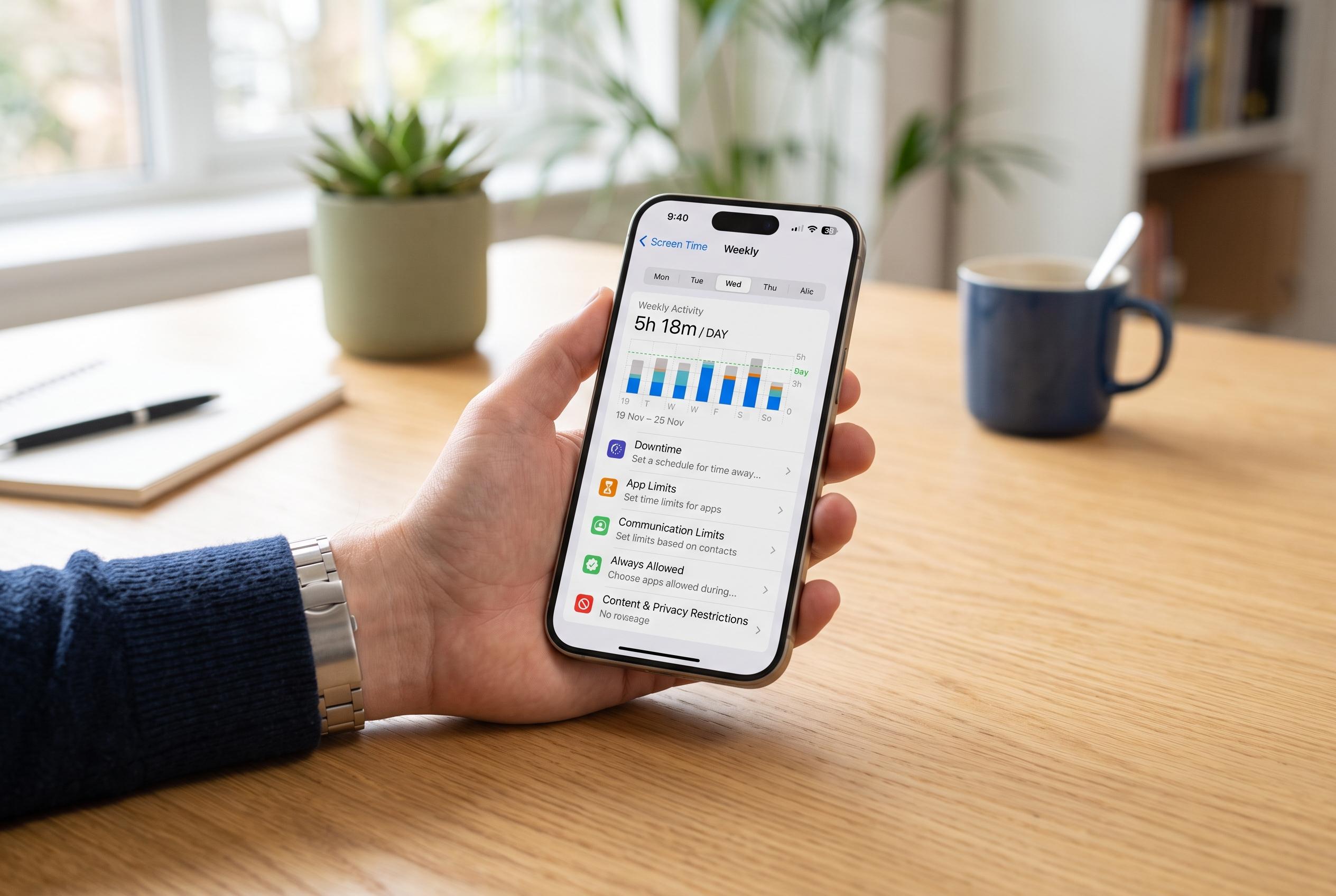

Understanding the root causes of Screen Time problems on iPhones uncovers a range of user errors and settings misconfigurations, highlighting the importance of accurate setup and maintenance for effective usage controls.
When Screen Time stops behaving on an iPhone, the cause is usually not a single fault but a missed setting. Apple’s support material points first to App & Website Activity, which must be enabled for usage reporting to work at all, and to the report view itself, where users can switch between day and week summaries and choose the correct device. If an iPhone is sharing data with an iPad or Mac, the figures may also reflect combined activity rather than handset-only use. That can make a working feature look broken. Apple also says Screen Time can synchronise across devices when Share Across Devices is turned on.
Downtime and App Limits cause most of the confusion after reporting issues. Apple explains that Downtime blocks apps and notifications during scheduled periods while still allowing calls, messages and apps left on the allowed list. If the schedule is set only for certain days, or if the start and end times are wrong, restrictions may never appear when expected. The same applies to App Limits: the wrong category may have been selected, the time allowance may be larger than intended or a customised day-by-day schedule may be overriding the rule.
One of the easiest mistakes to miss is Always Allowed. Apps listed there can continue to work during Downtime, which can make a restriction appear to fail when it is actually behaving as designed. Apple’s guidance also notes that allowed contacts matter for communication controls, so blocked calls or messages may be the result of a contact setting rather than a general Screen Time fault.
On a child’s device, the problem is often synchronisation rather than the control itself. Apple says Family Sharing settings work best when all participating devices are on the latest available software and signed into the expected family group. If a parent is editing the wrong account, or if the family organiser’s device is out of date, Screen Time changes may not propagate properly. That is especially important when limits are managed from one iPhone and enforced on another.
If a built-in app seems to have disappeared, the answer is usually Content & Privacy Restrictions rather than deletion. Apple’s Screen Time documentation makes clear that these controls can hide built-in apps, affect app store access and restrict web or age-rated content. That is separate from an App Limit, which only controls time spent using an app or category. The distinction matters because the wrong setting can make an app look missing when it is merely hidden.
Passcode problems are another common obstacle. Apple says the Screen Time passcode is separate from the iPhone unlock code, so entering the device passcode will not reset it unless both happen to be the same. Recovery depends on the Apple Account used when Screen Time Passcode Recovery was set up, which means the account shown on the phone may not be the one that actually controls the reset. In a family setup, the organiser usually has to handle the recovery from the managing device.
Before assuming the software itself is faulty, Apple recommends standard maintenance: restart the iPhone, install the latest iOS update and make sure other devices in the same Screen Time setup are current too. The company’s own support pages frame these steps as sensible troubleshooting rather than guaranteed fixes, but they can resolve temporary synchronisation problems. If wireless updating fails, Apple also documents updating through a Mac or Windows app.
The safest final step is to back up before escalating. Apple advises creating a backup before making major changes and says restoring an iPhone erases its information and settings while installing the latest software. That makes a factory reset a last resort, not a first response, particularly when the real issue may be a misconfigured Screen Time account rather than damaged software. In practice, the most effective approach is to verify the activity switch, confirm the report view, inspect Downtime and limits, check allowed apps and contacts, then move on to account recovery and support only if those checks fail.
Disclaimer: This content is intended for informational purposes only. Readers are advised to exercise their own judgement, conduct due diligence, or consult a qualified expert before acting on any information provided.