

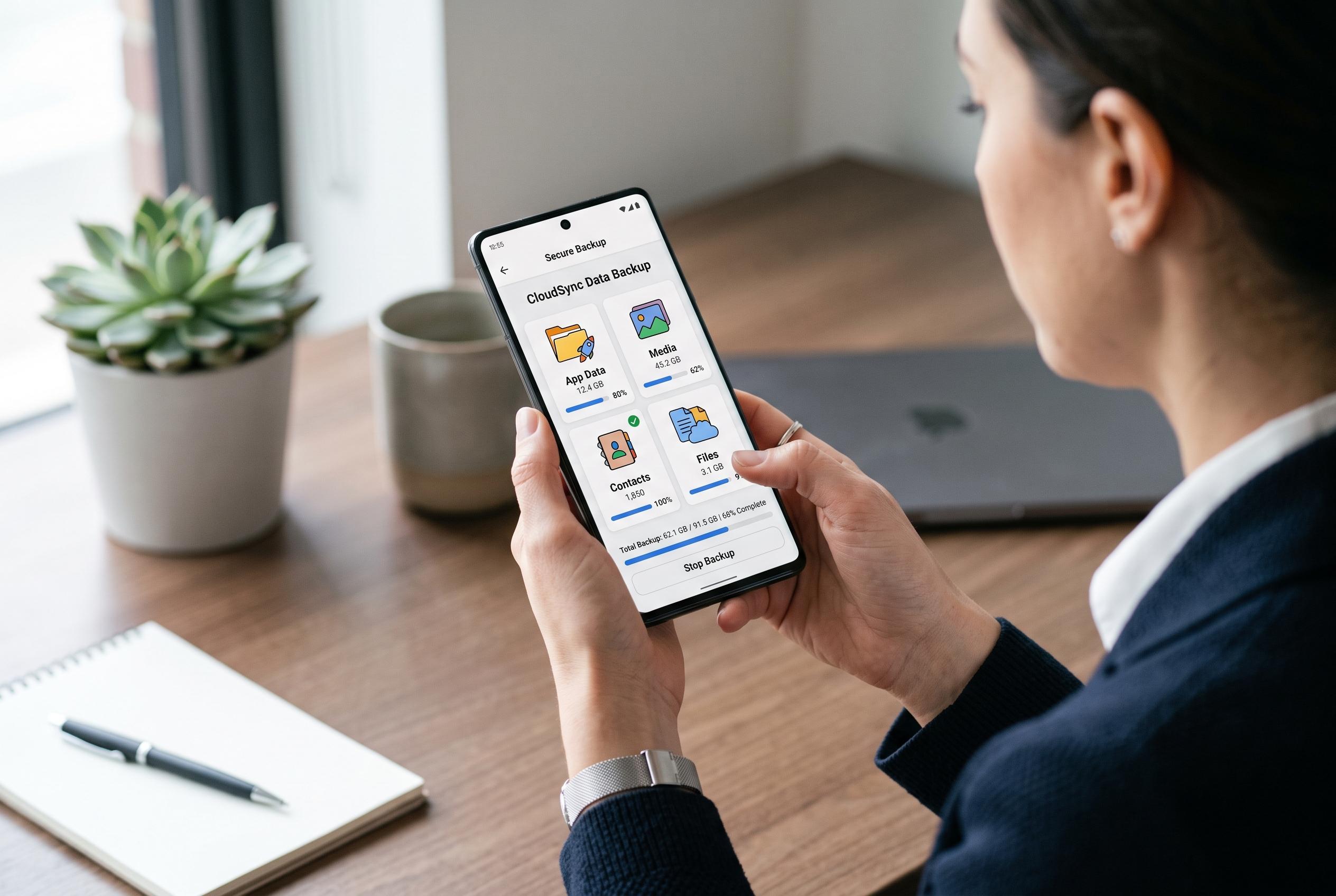

A comprehensive guide emphasises the importance of layered backups for Android users, highlighting new trends in safeguarding app data, media, contacts, and files across multiple tools and solutions.
Backing up an Android phone properly is less about one switch and more about several layers of protection. Google’s own Android support pages say the built-in backup covers supported app data, call history, contacts, device settings and SMS or MMS messages, but that still leaves gaps for photos, WhatsApp chats and many locally stored files. Google One’s backup guidance also makes clear that backups count against the account’s storage quota, so capacity is only part of the issue; verification matters too.
The first step is to secure the device with a real screen lock, then turn on Backup by Google One and confirm that it has actually run. Google’s instructions show that backup can be set from the Android settings menu and restored later to a new device, but the process is not instantaneous and should be checked after completion. Android Central notes that Google’s newer backup system is intended to replace the older Android backup flow and is available without a Google One subscription, which makes it broadly accessible.
Photos and videos need separate attention. Google Photos backup must be enabled independently, and users should review which device folders are included so screenshots, downloads and media saved by other apps are not missed. Android Central’s setup guide also recommends checking upload quality and using the app’s space-saving tools only after the upload has completed, since freeing space too early can leave important files at risk.
Contacts should also be handled on their own. Google’s Android and Google One guidance allows contacts to sync through the account, but it is safer to confirm that important entries are stored in the intended Google Account rather than only on the phone or SIM. For a second copy, exporting contacts to a VCF file provides a portable archive that can be stored elsewhere and restored later if needed.
Local files are a different problem again. Documents, downloads, audio recordings and project folders are often outside the scope of the standard Android backup, so they should be copied to Google Drive, a computer or another external location. Google’s restore guidance focuses on account-backed data, not a full device image, which is why a manual file copy is still useful for anything important.
WhatsApp should never be assumed to follow Android’s general backup rules. Its chat history uses its own backup and restore process, and users should confirm the backup date before changing phones or wiping the old one. Samsung users have an additional option in Smart Switch, which Android Central says can back up and restore selected categories on Galaxy devices through a computer or supported storage device.
Once the data is copied, it still needs to be tested. Google’s restore documentation says backups can be restored to a new device, but the account must be available and the data needs time to finish syncing back. That is why the safest approach is to open a few restored photos, documents and contacts on the new phone before the old one is erased or traded in.
The wider point is simple: one backup method is rarely enough. A reliable Android routine uses Google’s device backup for supported settings and app data, Google Photos for media, separate handling for contacts, a manual copy for local files, WhatsApp’s own tools for chats and, on Galaxy phones, Smart Switch as an extra layer. Google’s own support pages and the third-party setup guides all point in the same direction: back up in layers, then verify each layer before you need it.
Disclaimer: This content is intended for informational purposes only. Readers are advised to exercise their own judgement, conduct due diligence, or consult a qualified expert before acting on any information provided.



