

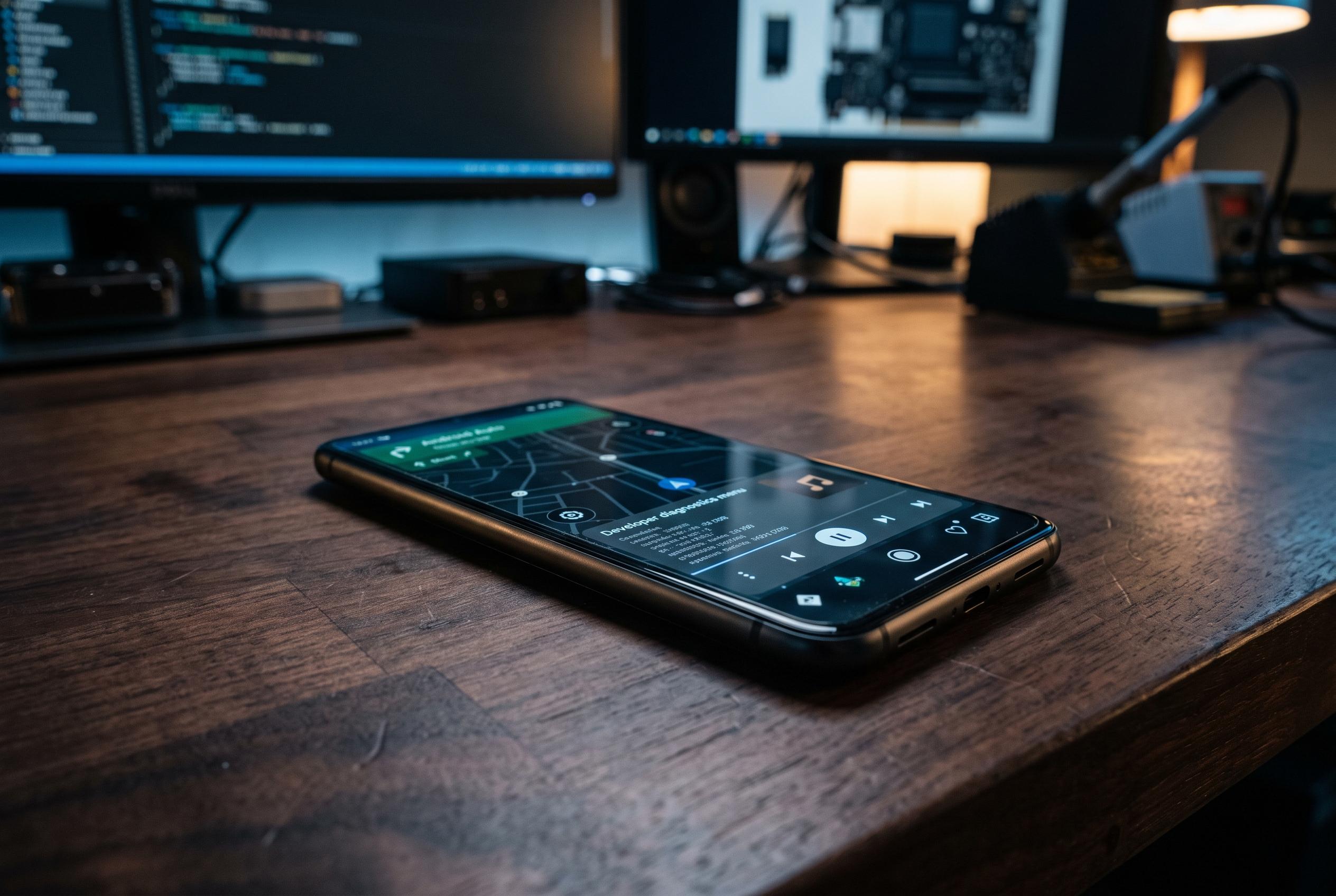

A discreet developer menu in Android Auto can be unlocked with a simple tap sequence, offering diagnostics and troubleshooting tools for users and developers alike, without the need for sideloading or system tweaks.
Android Auto has a hidden developer menu that can be unlocked in seconds from a phone’s settings, without sideloading tools, ADB commands or system tweaks. Google documents the process as a repeated tap on the Android Auto version entry, after which the developer panel appears inside the app’s own settings. The feature is easy to miss, which helps explain why many drivers never encounter it, despite its presence in Google’s official guidance and repeated coverage by Android Authority and other outlets.
To reach it, users must first open Android Auto on the handset, find the version section and tap the relevant information entry ten times. A prompt then asks whether development settings should be enabled. Once confirmed, the three-dot menu in the top-right corner reveals the developer options page. This is not the same as Android’s broader developer mode, which controls phone-level functions such as USB debugging and graphics settings. Android Authority, Yahoo Autos and Journal du Geek all describe the same access route.
The most practical option for ordinary users is the wireless Android Auto toggle. In some builds it allows drivers to switch off wireless operation and rely on a cable instead, which can be useful if a car’s infotainment system is unstable or if battery drain is a concern. Wireless use is convenient for short daily trips, but it depends on Wi-Fi and Bluetooth and may be less reliable on certain combinations of phone and car. That makes the wired connection preferable on longer journeys or when charging is needed anyway.
Another setting that draws attention is “unknown sources”, but it does not remove Android Auto’s safety limits. Google’s car-app documentation makes clear that the option is not a blanket permission to run any APK on a vehicle display. It applies only to particular categories, including some media apps, messaging notifications and certain parked-car use cases. Even then, Google still distinguishes between trusted test channels such as Google Play, internal sharing and test tracks, and it does not treat all sideloaded software as equivalent.
That distinction matters for users who try to run community-built tools that are not distributed through Google Play. An app installed manually may still fail to appear in the car interface if it does not meet Android Auto’s rules or if a particular version of the platform blocks it. Google’s restrictions exist for a reason: in-car software must minimise distraction, so video and other unsuitable interfaces are tightly controlled. The developer menu is therefore a diagnostic and testing tool, not a method for bypassing platform policy.
Other controls can still be useful in limited cases. A resolution setting may help when a head unit shows graphical glitches, unexpected lag or display issues, although it will not make a low-quality screen physically sharper. In some versions, day and night mode can also be forced for testing or troubleshooting, but automatic switching is usually preferable for normal driving. Most of the menu remains aimed at developers collecting logs, reproducing bugs or checking app behaviour in a vehicle environment. Users who no longer need the panel can disable it again from the same settings area.
Disclaimer: This content is intended for informational purposes only. Readers are advised to exercise their own judgement, conduct due diligence, or consult a qualified expert before acting on any information provided.



