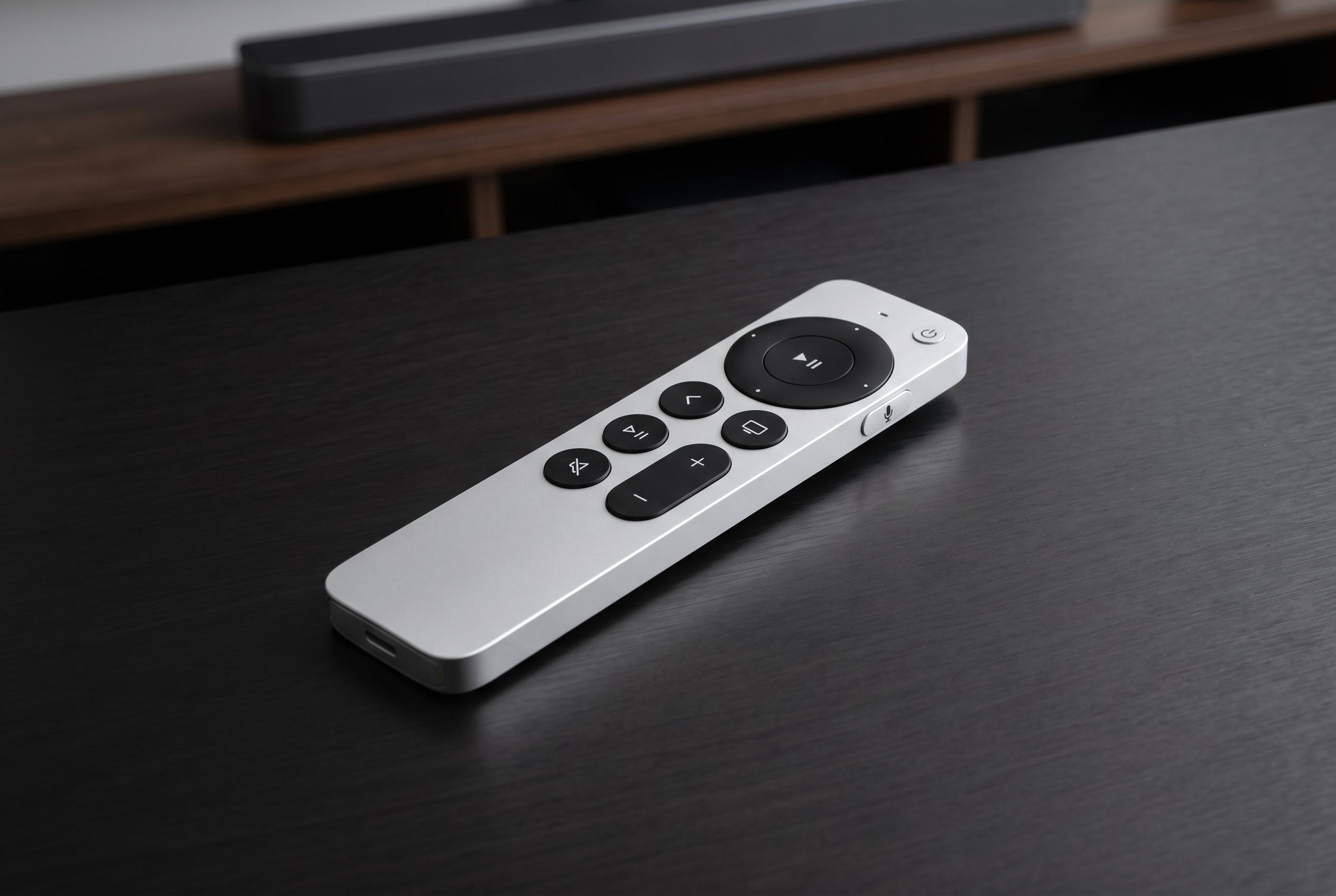

Beyond basic navigation, Apple’s Siri Remote offers a suite of advanced controls, from app launching to precise playback management, that remain largely hidden, offering users a more versatile entertainment experience.
Apple’s Siri Remote can do far more than move through menus on Apple TV. It can launch apps, control playback, switch profiles, adjust subtitles and audio, and even operate a television or soundbar when the home cinema setup supports HDMI-CEC. Many of its most useful functions remain hidden behind long presses, swipes and button combinations that are easy to overlook in everyday use.
The current silver Siri Remote has a touch-enabled clickpad, while older black versions use a rectangular touch surface and a Menu button instead of Back. On the latest remote, the centre of the clickpad selects items, the outer ring moves in four directions, and swiping across the surface allows faster navigation. Apple says users who find touch input too sensitive can change the clickpad to click-only mode or adjust tracking speed in Settings, which can make the remote easier to use in dense app grids and long lists.
Several buttons have more than one purpose. The Back button returns to the previous screen, while holding it takes the user straight to the Home Screen. The TV/Control Centre button can open the TV app, summon the App Switcher with a double-press, or open Control Centre when held down. The Power button can wake Apple TV and connected equipment, then put the system to sleep again. Play/Pause, Mute and the volume controls work as expected, but they also expose quicker ways to manage sound and playback than most users realise.
That includes precise scrubbing and subtitle control. Pressing left or right skips roughly 10 seconds, while holding either side starts continuous rewind or fast-forward. For frame-level movement, pausing a video and then sliding around the clickpad ring allows finer control of the timeline. During playback, swiping up reveals subtitle and audio menus, where users can switch language tracks, turn on audio descriptions, or enable features such as Enhance Dialogue and Reduce Loud Sounds, which can make voices clearer in films and television programmes.
Siri adds another layer of control. Holding the side button while speaking can pause playback, jump to a scene, turn on subtitles, search for titles, or open an app. In supported regions, Apple also allows dictation into text fields through the remote. If the physical handset is out of reach, Apple provides a remote in Control Centre on iPhone, iPad and Apple Watch. Apple also says a nearby Siri Remote can be located from an iPhone, while battery, Bluetooth signal and pairing issues can be checked from the Apple TV settings menu.
Disclaimer: This content is intended for informational purposes only. Readers are advised to exercise their own judgement, conduct due diligence, or consult a qualified expert before acting on any information provided.