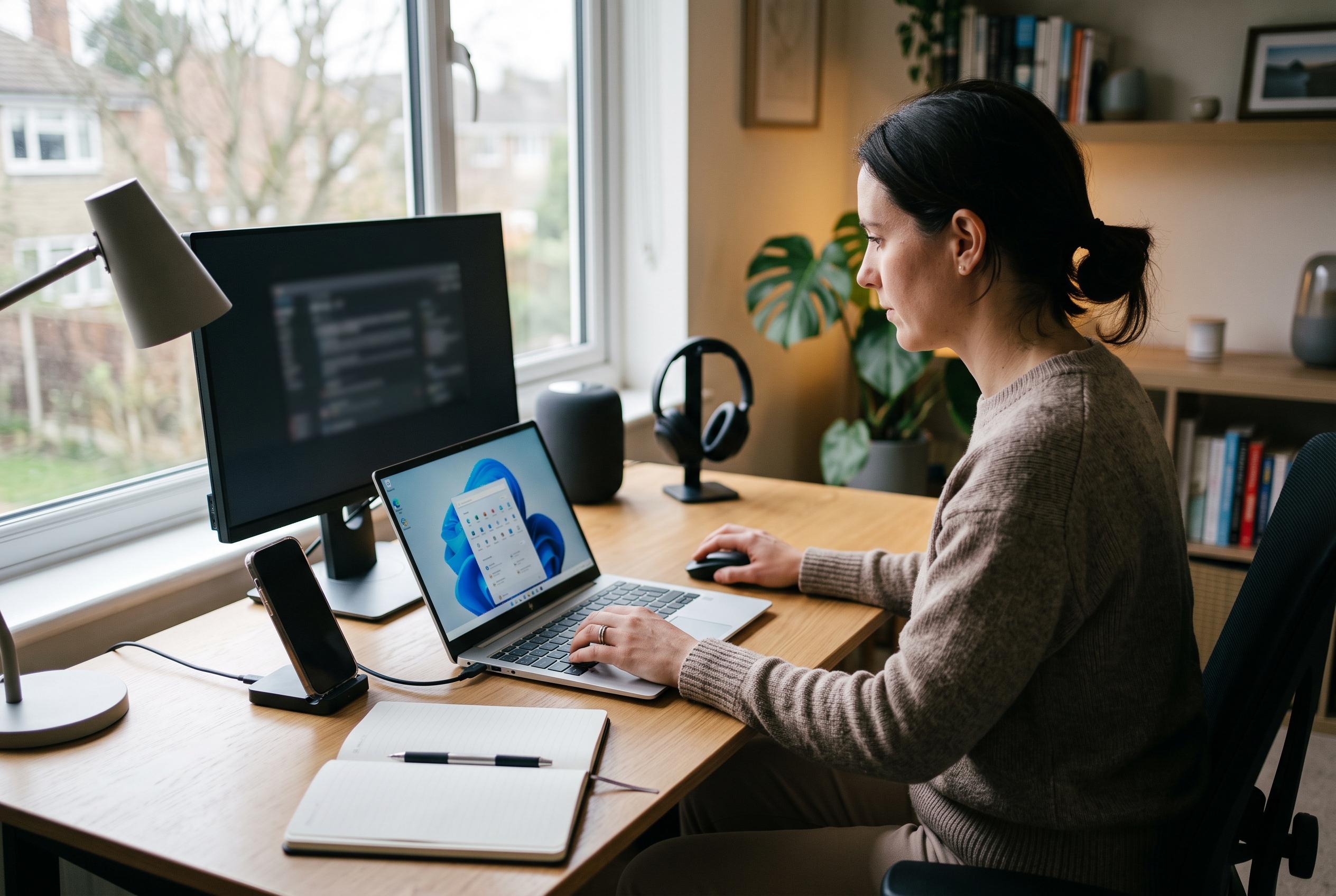

A closer look at seven overlooked Windows 11 settings reveals which options genuinely improve everyday workflow, highlighting those worth enabling and those best left off.
Windows 11 ships with a number of useful capabilities turned off at first launch, and some of the most practical ones are hidden deep in Settings. After testing seven such options in day-to-day use, three stood out as genuinely worth keeping on, while four proved that Microsoft’s defaults are not always wrong. The difference was less about whether the features worked than whether they solved a real problem in a normal workflow.
Clipboard history was the clearest improvement. Microsoft’s support documentation says the feature can store multiple copied items, including text, HTML and images, and make them available through the Windows key plus V shortcut. In practice, that means the clipboard stops behaving like a single-slot buffer and starts acting more like a short-term scratchpad. For anyone moving between browser tabs, documents and terminal windows, that avoids the constant cycle of copying, overwriting and going back to fetch what was lost.
The same was true of the taskbar’s End Task option, which Microsoft hides under the advanced system settings. It is not a tool for routine app management, since forcibly ending a process can discard unsaved work, but it is far quicker than opening Task Manager when an application has completely frozen. For diagnosing what a process is doing, more detailed utilities such as Task Manager or Process Explorer remain the better choice, but the taskbar shortcut is a sensible escape hatch.
Dynamic Refresh Rate was the most hardware-dependent feature to earn a place. Microsoft says it is intended to balance smoothness and power use by changing the screen refresh rate according to activity, and it requires a display with variable refresh rate support and a minimum 120Hz panel. That makes it best suited to laptops or other portable machines where battery life matters, but where the user still wants a high-refresh experience for scrolling, browsing or inking. It does not remove the power cost of a fast display, but it can make that trade-off less wasteful.
By contrast, title bar window shake felt like a novelty best left off. The setting, a modernised take on Aero Shake, minimises all other windows when a window is grabbed and shaken, then restores them with the same gesture. Microsoft still includes the option in multitasking settings, but more structured tools such as Snap layouts, virtual desktops and Win plus Home do the same job with less accidental triggering. In regular use, the feature is more likely to become a nuisance than a shortcut.
Showing seconds in the taskbar clock was another case where extra precision did not translate into extra value. Microsoft notes that displaying seconds can increase power consumption, and that seems appropriate for a setting that adds visual noise without solving much. When a task genuinely depends on seconds, a stopwatch, timer or progress indicator is usually the better source of timing. For everyday work, the minutes-and-hours view is calmer and easier to ignore.
Nearby sharing and Dynamic Lock were both technically sound but less persuasive in practice. Microsoft’s nearby sharing feature can send files, photos and links between Windows devices over Bluetooth or Wi-Fi, which is useful if a person regularly moves content between multiple PCs. Dynamic Lock, meanwhile, uses a paired Bluetooth phone as a rough proximity signal and can lock the machine when the phone moves away. The problem with both is not quality but fit: if a workflow already relies on other transfer methods, or if Win plus L is already second nature, the added convenience is marginal.
The broader lesson is that Microsoft’s defaults are sometimes more considered than they first appear. Clipboard history, End Task and Dynamic Refresh Rate solved frequent annoyances well enough to justify leaving them enabled. The others were either situational, easily replaced by something better, or simply more trouble than they were worth. In Windows 11, the hidden switches are not all equally valuable, and the best ones are the ones that remove friction without asking for attention in return.
Disclaimer: This content is intended for informational purposes only. Readers are advised to exercise their own judgement, conduct due diligence, or consult a qualified expert before acting on any information provided.