

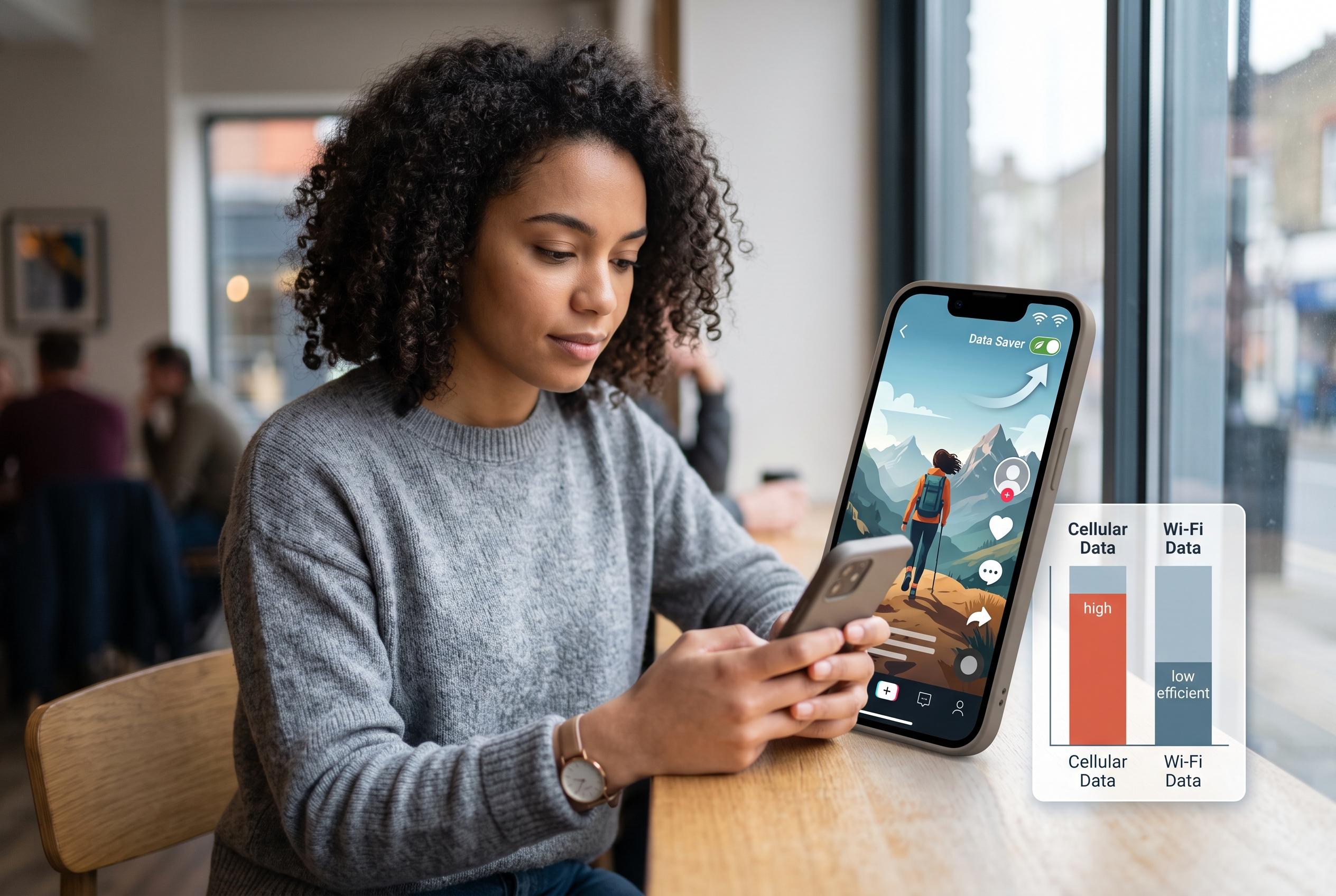

As Instagram becomes more video-centric, users are encouraged to adopt new settings and behaviours to minimise mobile data consumption, with options like data saver modes and Wi-Fi prioritisation becoming essential strategies amid rising video demands.
Instagram can burn through mobile data quickly because the app is now dominated by video, not still images. That means the real cost comes from autoplay, preloading and higher-bitrate playback on stronger connections, rather than from ordinary photo browsing. Guides from Guiding Tech, Tech Advisor and Firsty all point to the same practical conclusion: if you want to cut usage, the biggest gains come from stopping cellular video preloading, lowering media quality and keeping the heaviest video habits on Wi-Fi.
The most effective setting is Instagram’s own data saver. On current versions, the option sits in Settings and activity under Data usage and media quality, where turning on Use less mobile data prevents the app from loading video ahead of time on cellular networks. Tech Advisor and iDownloadBlog both describe this as the clearest single saving, although it comes with the predictable trade-off of slower starts and more buffering when the signal is weak. Firsty adds that switching off Upload at highest quality can also reduce traffic for people who post video frequently.
Device-level controls help as well. iPhone users can switch on Low Data Mode, while Android users can enable Data Saver to limit background traffic across the system, including Instagram’s in-app browser. Firsty notes that background refreshing and notification activity also add up over time, even if each individual exchange is small. That makes the background-data screen worth checking, especially if the app shows significant activity when you barely used it.
The size of the savings depends heavily on how Instagram is used. Guiding Tech says an hour of uninterrupted use can reach about 500 MB, but that figure is only a rough guide because Reels, autoplay and connection speed change the result dramatically. Mint Mobile similarly stresses that the amount consumed depends on how much video you watch and upload, while Firsty notes that faster connections can prompt higher-resolution streams. In other words, the same account can use very different amounts of data from one day to the next.
For people who want the best chance of keeping usage down, the simplest discipline is to push Reels, Lives and long video sessions onto Wi-Fi. The mobile web version can also be useful for quick checks because it avoids some of the app’s heavier background behaviour. DB Labs adds another point that matters for storage, not just bandwidth: Instagram cache can grow to several gigabytes on iPhones, so deleting and reinstalling the app is sometimes the only way to recover space if the app has become bloated.
The most reliable way to judge your own usage is still to check the counters on your device rather than trust any published average. iPhone and Android both show per-app data use, and both let you compare foreground and background traffic. That matters because the number most people care about is not what Instagram uses in theory, but what it uses during an ordinary month on their own phone, with their own habits and their own network conditions.
Disclaimer: This content is intended for informational purposes only. Readers are advised to exercise their own judgement, conduct due diligence, or consult a qualified expert before acting on any information provided.



