

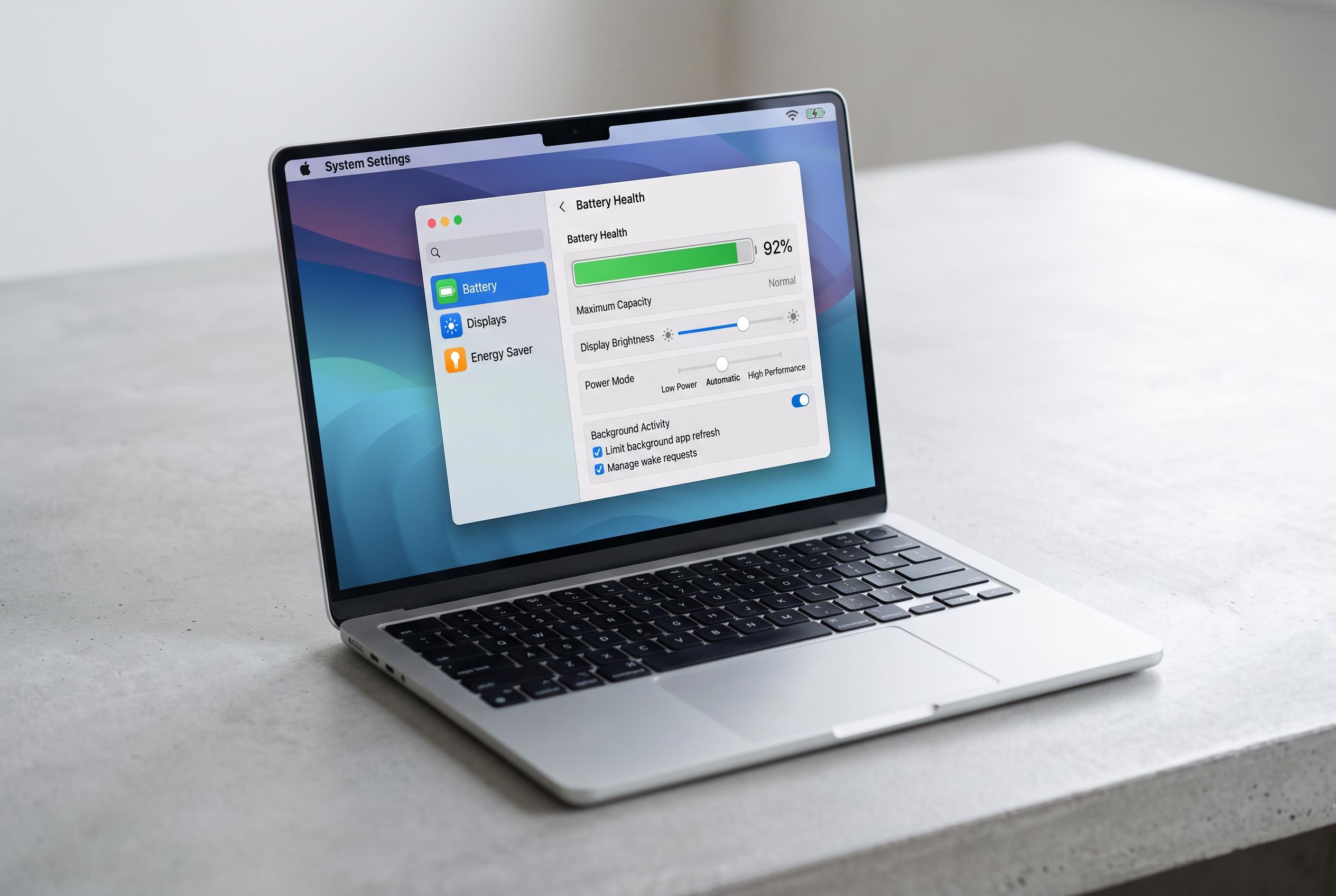

By adjusting power modes, display settings, and background activity, MacBook users can significantly extend both daily runtime and long-term battery health, according to Apple guidance and expert reviews.
MacBook laptops are designed to manage power well, but users can still improve both day-to-day runtime and long-term battery health by adjusting a handful of settings. Apple’s own support guidance, along with a report reviewed by Engadget and cited by Al Arabiya Business, suggests that the most useful changes are often simple ones: check battery condition first, then tune charging, display, power and background activity.
The first step is to look at battery health in System Settings under Battery. Apple says the Battery Health page can show whether the battery is operating normally or whether service is recommended. A battery that is still close to its original capacity is usually not a concern, but once Apple flags the battery as needing service, the machine’s ability to hold charge has usually fallen enough to justify attention.
Apple also recommends battery health management on supported Mac laptops, especially Intel models, as a way of reducing wear over time. This does not necessarily increase runtime immediately, but it can help slow long-term degradation by avoiding unnecessary stress on the battery.
For users who want to extend battery lifespan, Optimised Battery Charging is worth enabling. The feature limits charging to around 80% in suitable conditions and delays full charging until it is likely to be needed. Apple’s support material makes clear that this is a longevity feature rather than an instant battery-saver, although it can be bypassed when a full charge is required, such as before a long trip.
Power mode is another important lever. Apple says Mac laptops now offer Low Power, Automatic and High Power modes, with Automatic as the default for most users. Low Power reduces energy use and is the most practical setting when maximum endurance matters, while High Power is aimed at performance-heavy work and can drain the battery more quickly.
The display is one of the largest power consumers, so reducing brightness can make a noticeable difference. Apple’s battery settings include an option to dim the screen slightly while running on battery, and users can also shorten the time before the display turns off when the machine is idle. Keyboard backlighting has a smaller impact, but lowering it or letting it switch off sooner can still help at the margins.
When battery life drops unexpectedly, the cause is often an app rather than the operating system. Activity Monitor’s Energy tab shows which programmes are consuming the most power, while macOS also lists background activity that may keep the machine from sleeping properly. Apple warns that some background processes are necessary, so users should avoid disabling everything indiscriminately.
Web browsing can also be a major source of drain, especially with many open tabs or autoplaying media. Safari is generally the more efficient choice, and its website settings let users block autoplay. Chrome users can reduce consumption by turning on Energy Saver and disabling page preloading. Apple also offers controls for animated images and other motion effects that can be trimmed for a modest saving.
Another useful change is to stop the Mac from waking unnecessarily for network access while running on battery. Apple’s settings allow this to be limited to when the charger is connected, which can reduce background wake-ups from services such as messaging and iCloud. Location permissions are also worth reviewing, although Apple advises leaving important services such as Find My enabled if they are relied upon.
In practice, no single setting will transform battery performance. But, as the Engadget report highlighted and Apple’s support pages reinforce, combining Low Power mode, lower screen brightness, shorter display time-outs and tighter control over background activity can deliver longer sessions away from the charger. More importantly, those changes can also help preserve battery health over time.
Disclaimer: This content is intended for informational purposes only. Readers are advised to exercise their own judgement, conduct due diligence, or consult a qualified expert before acting on any information provided.



