


Identifying the specific failure point in a Windows PC’s start-up process can save time and prevent unnecessary reinstallations, with guidance on isolating hardware and software issues from power to user profile problems.
A Windows PC that refuses to start is usually not suffering from one mystery fault, but from one of several distinct failure points. The fastest way to avoid unnecessary reinstalls is to identify where the boot process stops and work from there. Microsoft’s support material on blank screens, along with its more technical boot-issue guidance, makes the same point: startup faults need to be separated into power, firmware, boot manager, operating system and driver problems before any repair is attempted.
The first check is the simplest. If the machine shows no lights, no fans and no sign of power, the problem is usually electrical rather than Windows-related. Intel’s boot troubleshooting advice also stresses checking cables, power delivery and basic hardware before looking at software. On desktops, the power supply is often the likeliest component; on laptops, a removable battery and mains-only test can quickly narrow the fault.
If the system powers on but never reaches the manufacturer logo, the failure is normally occurring before Windows loads. That points to POST, or Power-On Self-Test, rather than an operating system fault. At this stage, Dell and Intel both recommend checking the display path, removing unnecessary peripherals and reseating memory modules. Beep codes or diagnostic LEDs can also identify whether the motherboard, RAM or another component has failed.
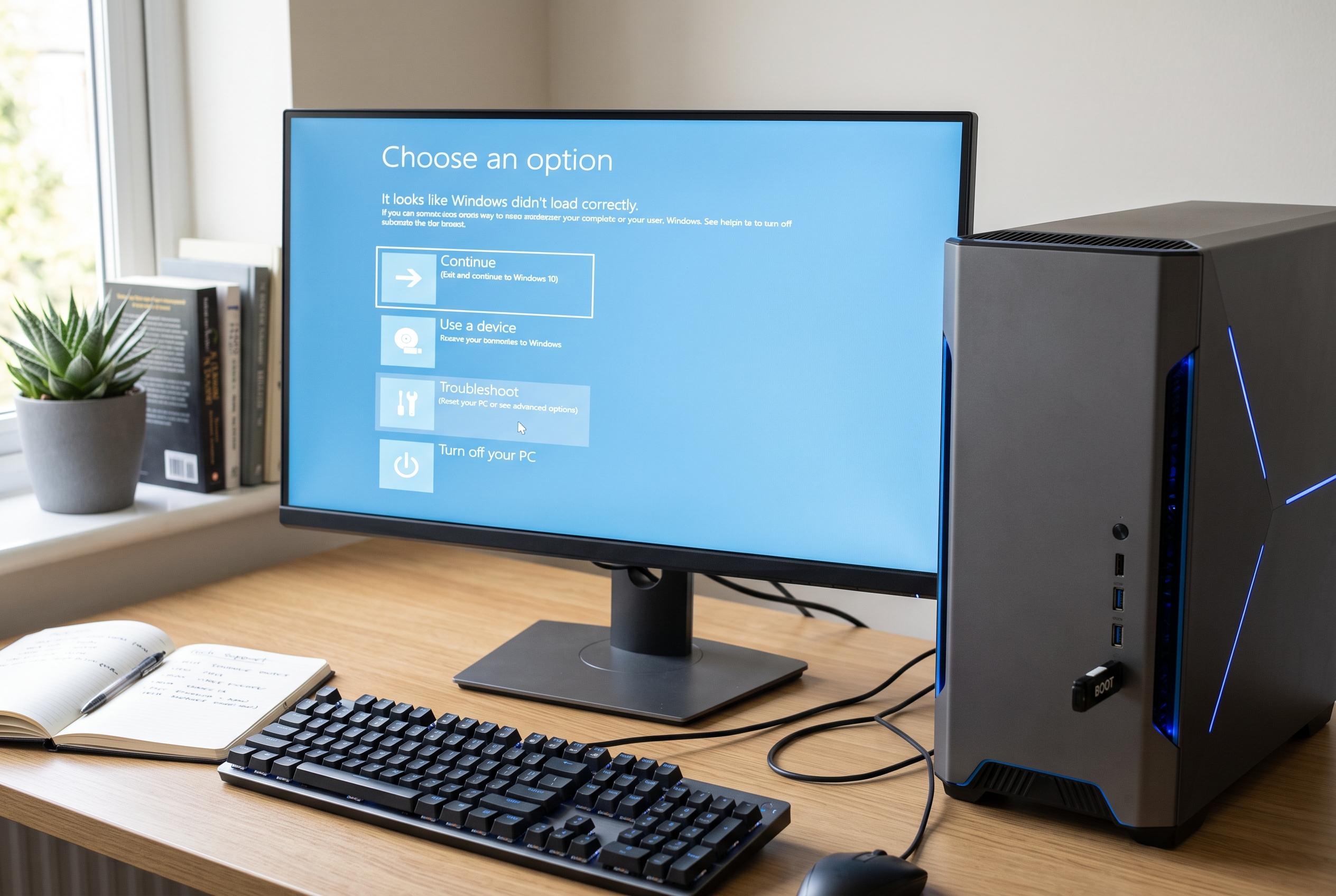
When the logo appears and the machine then freezes or restarts in a loop, the issue has probably moved into the boot chain itself. Microsoft’s advanced guidance describes this phase as one involving the boot manager and operating system loader, which means problems with the boot configuration, the drive, or a recent update are all plausible. Windows Recovery Environment can usually be forced by interrupting startup several times, and from there Startup Repair, System Restore or an uninstall of the latest update are the most practical first steps. Microsoft notes that Safe Mode is often the most useful route when the failure began after a driver or update change.
If Windows reaches the logo and then displays a blue screen, the system is getting far enough to load drivers and kernel components. In that case, the stop code matters. Microsoft’s support guidance for blank screens and startup failures, together with its client troubleshooting documentation, both point to Safe Mode as the key test: if the machine starts there, a third-party driver or startup item is usually responsible. Rolling back recent graphics, storage or antivirus changes, followed by system file checks and a component-store repair, is the standard sequence.
If the PC gets as far as the sign-in screen before failing, the boot path itself is probably intact and the fault is more likely to be tied to a user profile, startup software or another Windows-level problem. Dell’s support materials and Microsoft’s troubleshooting pages both recommend removing external devices, trying another account, and checking for recent software changes. At this stage, the system is usually close to usable again, which makes diagnosis easier and data loss less likely.
The one rule that matters before any major repair is to protect the data first if the drive looks suspect. Clicking noises, missing drives in firmware, repeated read errors or a storage device that disappears altogether are signs that repair attempts could make matters worse. PCWorld and Microsoft both emphasise using a separate machine or recovery environment to copy files off before writing to a failing disk. If the drive is still readable, that is the safest point to back up before attempting deeper repair.
Disclaimer: This content is intended for informational purposes only. Readers are advised to exercise their own judgement, conduct due diligence, or consult a qualified expert before acting on any information provided.


